
Subscriptions
Recurring billing, trials & fixed terms
Step-by-step guide
This article explains how to create a new subscription for a client, configure products and billing options, manage free trials and payment behavior, set a fixed term or cancellation timing, and later view, filter, or export subscription data.
Step 1: Start Creating a New Subscription
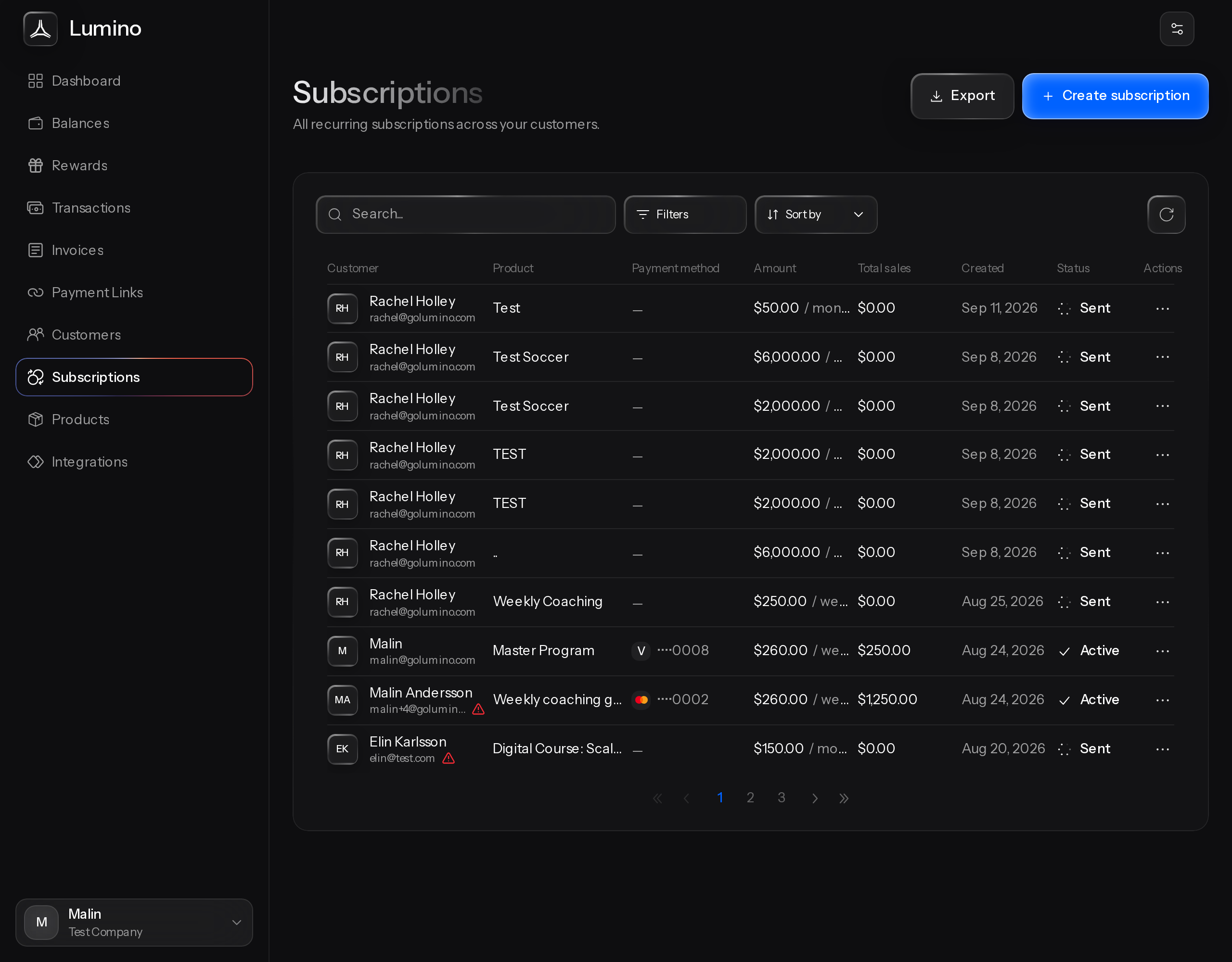
In Subscriptions, click Create Subscription to begin setting up a new subscription for your client.
Step 2: Select the Customer for the Subscription
Choose the appropriate customer from the customer list or search for the client you want to subscribe.
Step 3: Add Products to the Subscription
Add the products you want to include in the subscription from the product selection area.
Step 4: Create a New Product (If Needed)
If you want to add a product that does not yet exist, create a new product directly from the pop-up window. In this window, you can define the product details and select the billing interval.
Please note that you can only add products with the same billing interval to a single subscription.
Step 5: Configure Free Trial and Payment Options
Choose whether to include a free trial for the subscription, and specify the trial duration (for example, 30 days).
Select how payments will be collected: either enable auto-charge to charge the customer's saved payment method automatically, or choose to send an email with a payment link so the customer can complete the payment setup themselves. In this example, configure a 30‑day free trial and select the option to send an email to the customer with the payment link, then create the subscription.
The customer will receive their subscription and the corresponding email.
Step 6: Set a Fixed Term (Optional)
If the subscription is a payment plan or an offer with a defined end, set a maximum number of payments instead of leaving it open-ended. Once the subscription has taken that many successful charges, it stops on its own — you don't need to cancel it manually.
Step 7: Choose When Cancellation Takes Effect
When cancelling a subscription, you can choose to cancel it immediately or mark it to cancel at period end. Cancelling at period end lets the customer keep access to what they've already paid for until the current billing period runs out, rather than stopping the subscription right away.
Step 8: View Subscription Details and Monitor Activity
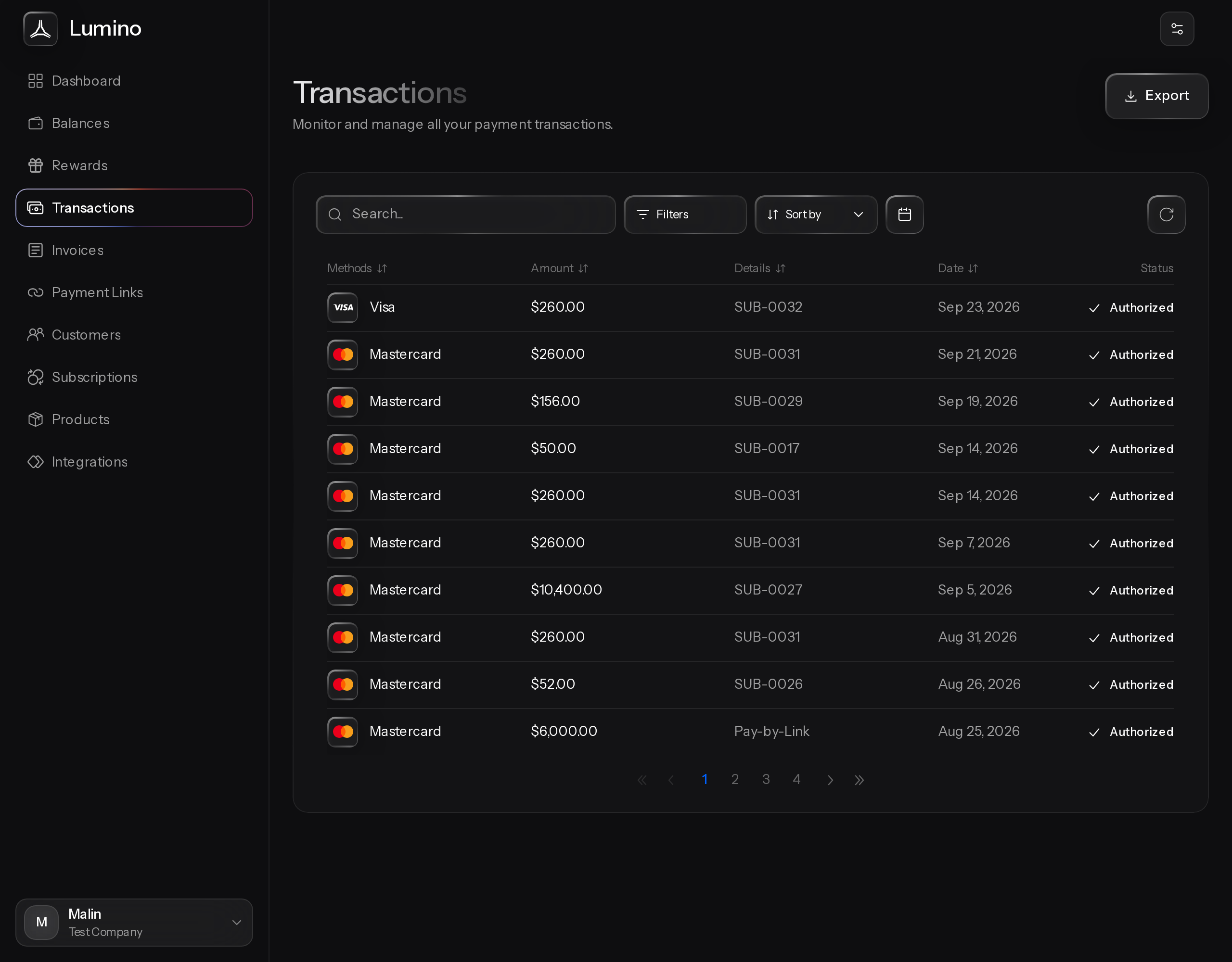
Open the newly created subscription by clicking into it to view its details. From this details view, you can cancel the subscription if needed, choosing either immediate cancellation or cancellation at period end. As transactions are processed, they will appear under the Payments section and in Transactions. You can also see the free trial end date, created date, current billing period, and the products included in the subscription.
If the subscription has a fixed term, its status will move to completed once it reaches its maximum number of payments. Completed is a separate status from cancelled — it reflects that the subscription ran its full course rather than being stopped early.
Step 9: Manage Subscriptions from the Main List
In the main subscription list view, you can click the three dots next to a subscription to quickly view details or cancel the subscription without opening the full detail page.
Step 10: Filter and Export Subscriptions
Use the filter options to view subscriptions by status, such as active, past due, canceled, completed, sent, or those with active invoices in a trial period.
If desired, you can download all of your subscriptions as a CSV file for reporting or analysis.