Products
Add what you sell, one-time and recurring products.
Step-by-step guide
Managing Products in Lumino
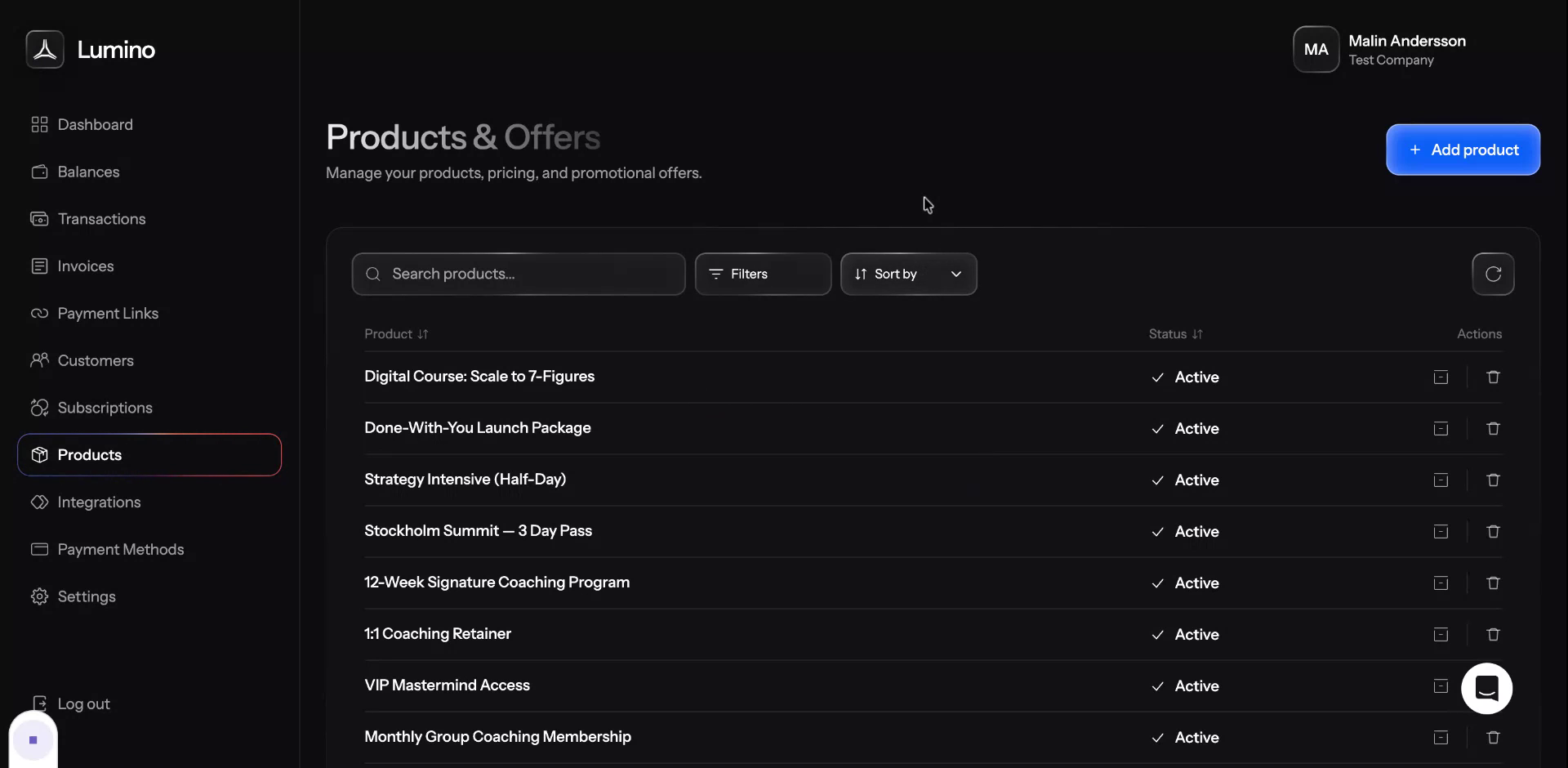
Use products in Lumino as the foundation for subscriptions, payment links, and invoices. This process walks you through creating a product, configuring one-time and recurring pricing, and managing existing products, including editing, deleting, and archiving them.
Step 1: Open the Product Creation Page
To get started with Lumino, first add your products, as they are the basis for subscriptions, payment links, and invoices.
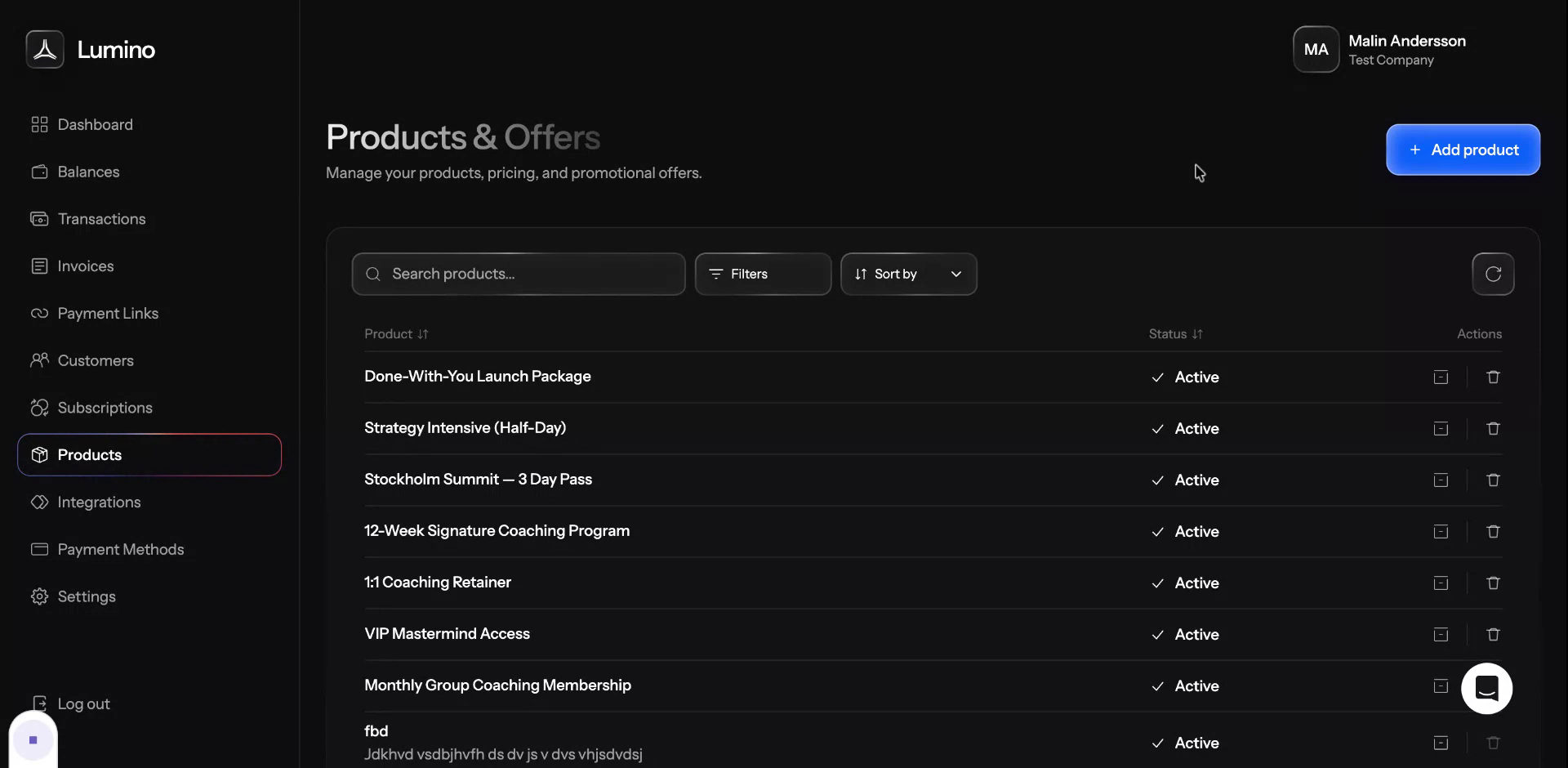
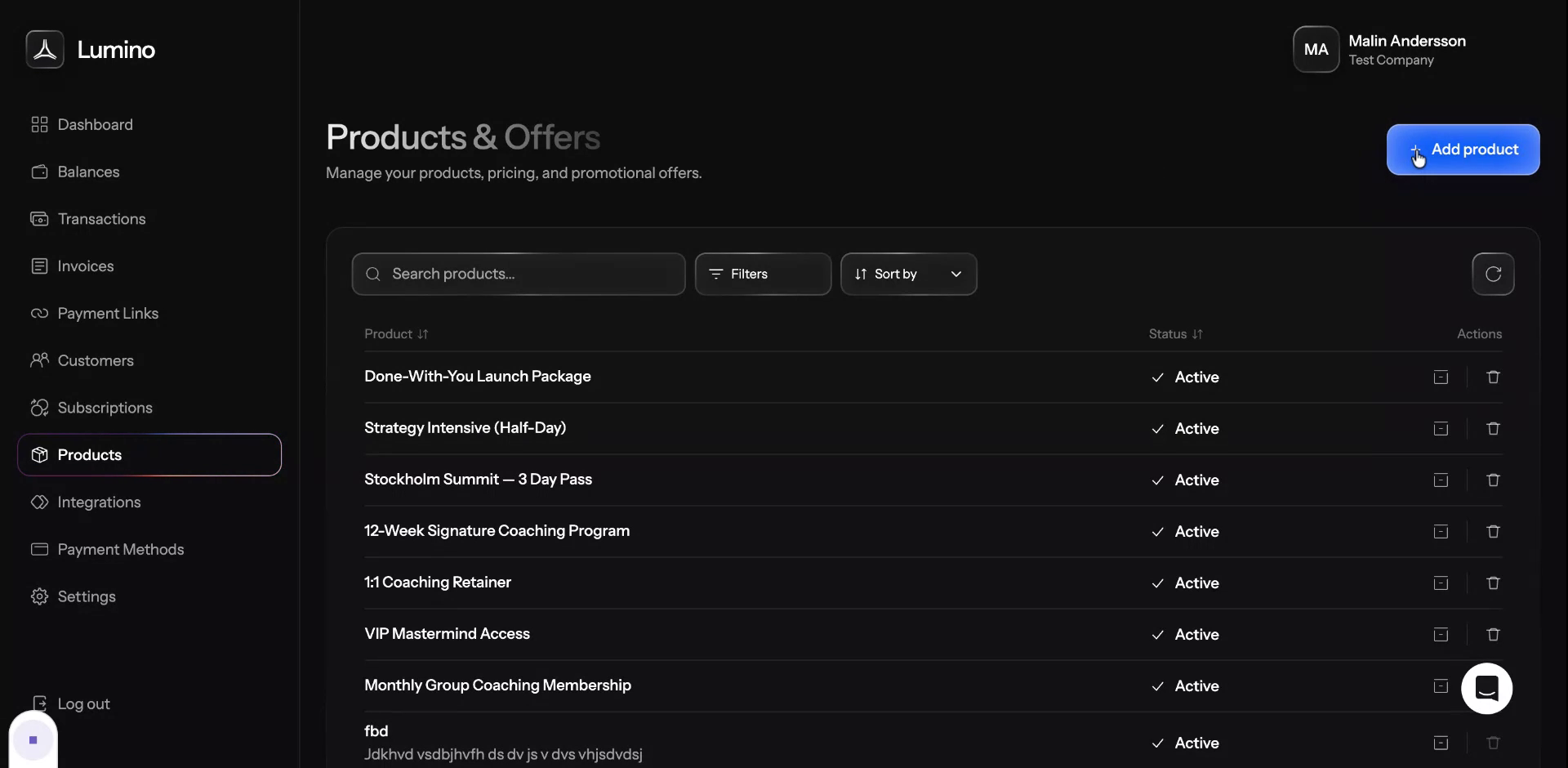
Click Add product to create a new product.
Step 2: Configure Basic Product Details
Set the name of your product. You can also add a description if desired.
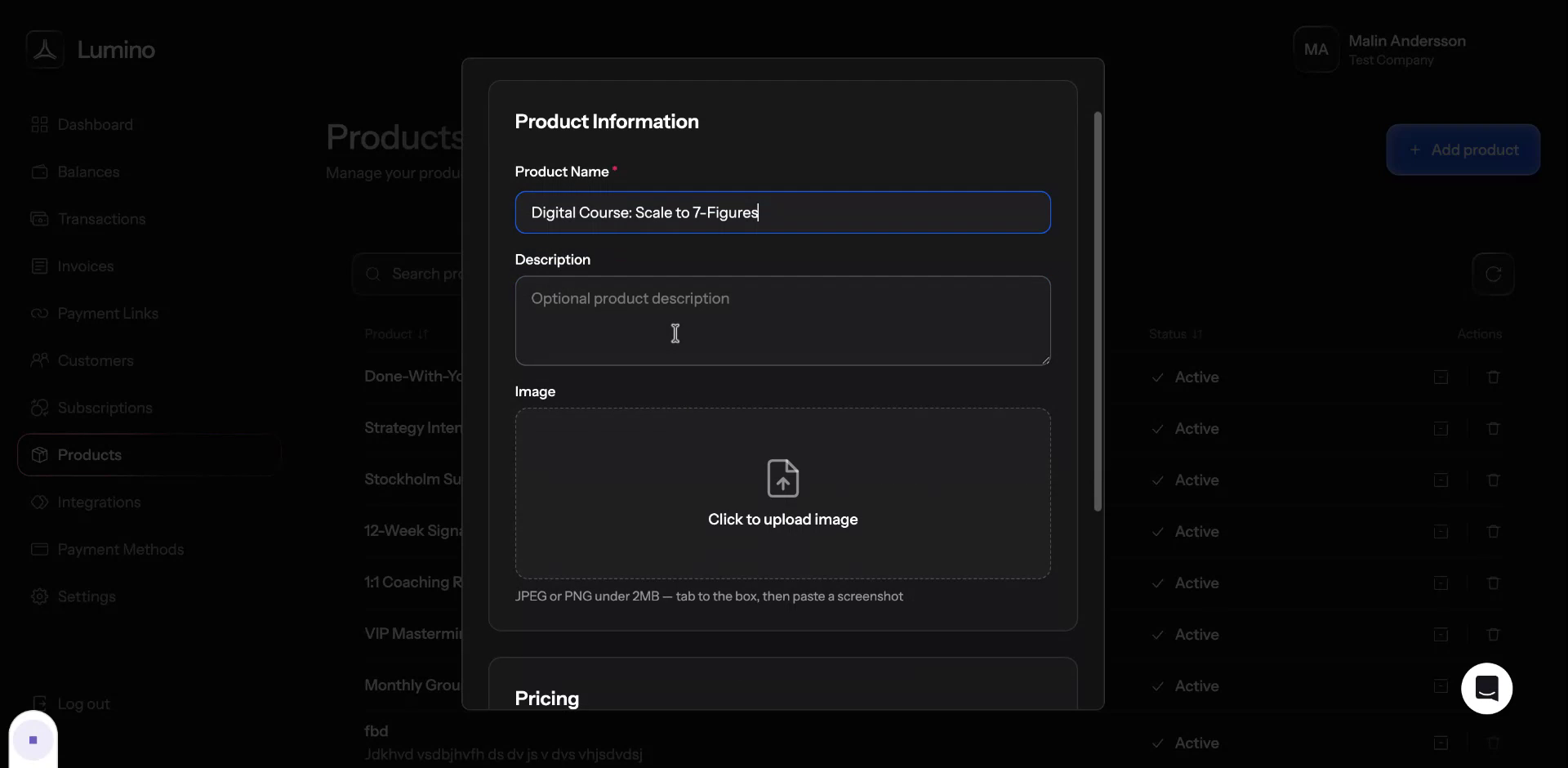
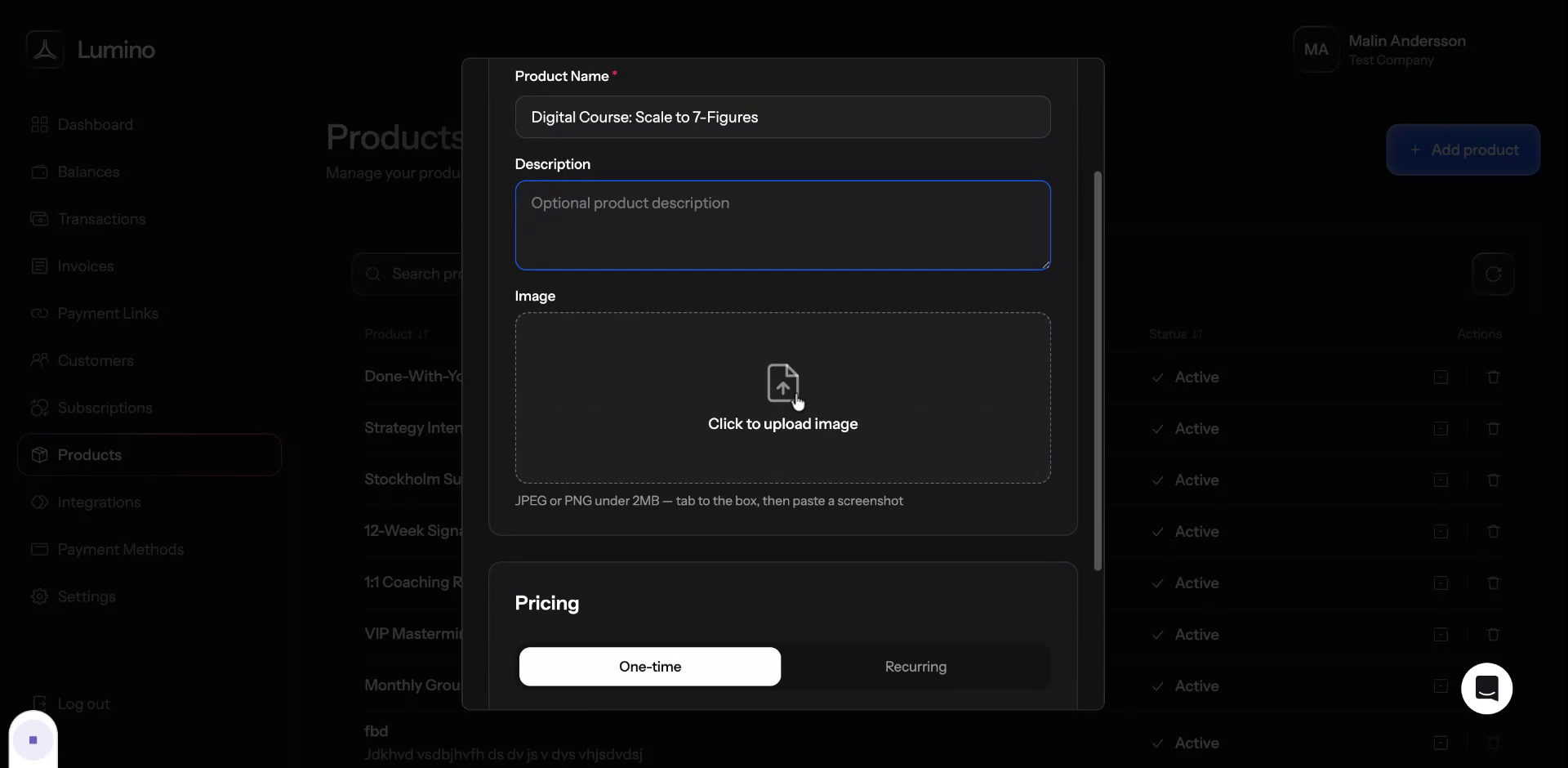
Upload a product image to visually represent the item or service.
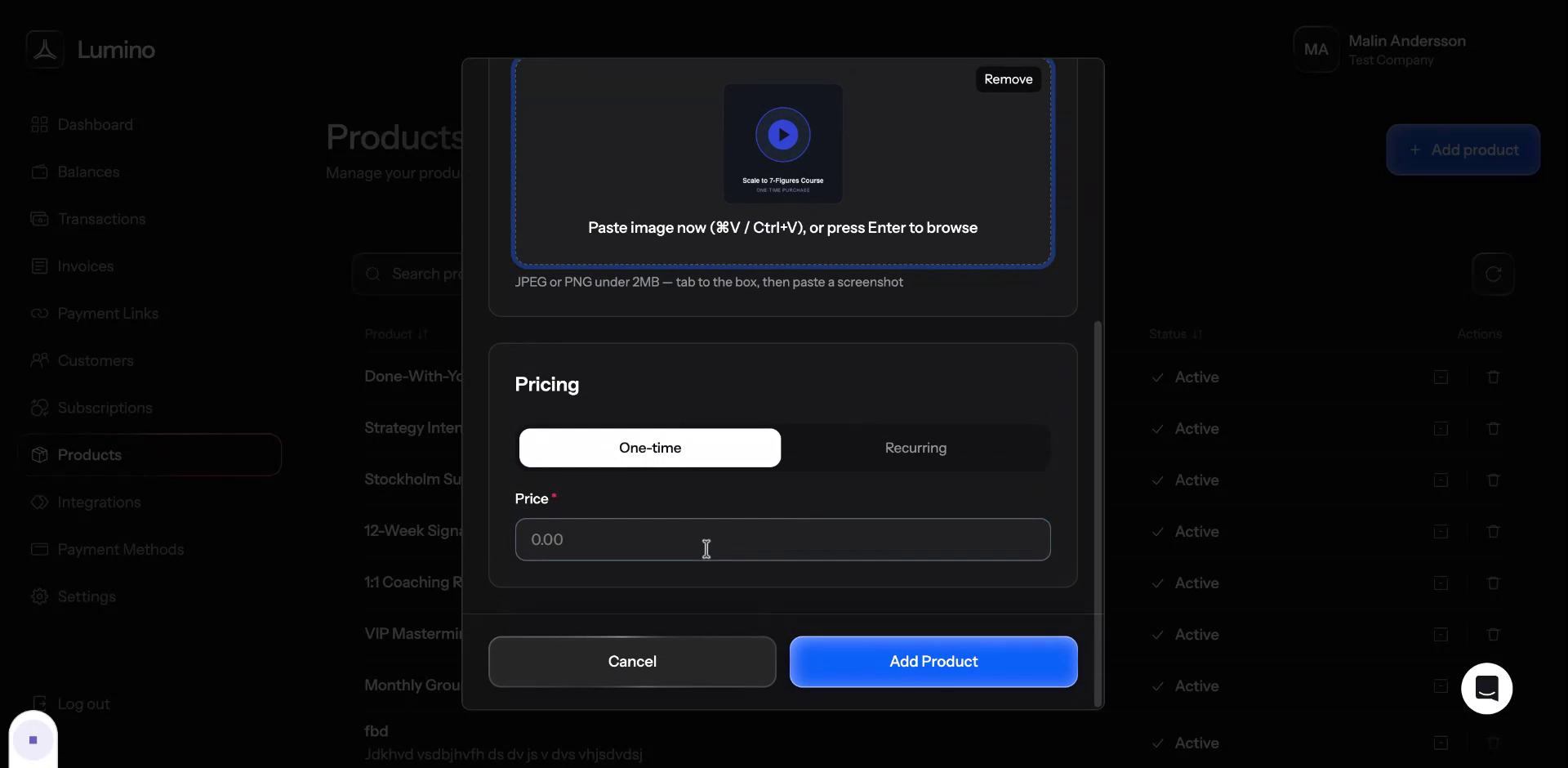
Set a price for how much you want the product to cost. You can configure either a one-time price or a recurring price, or choose to set up both pricing options.
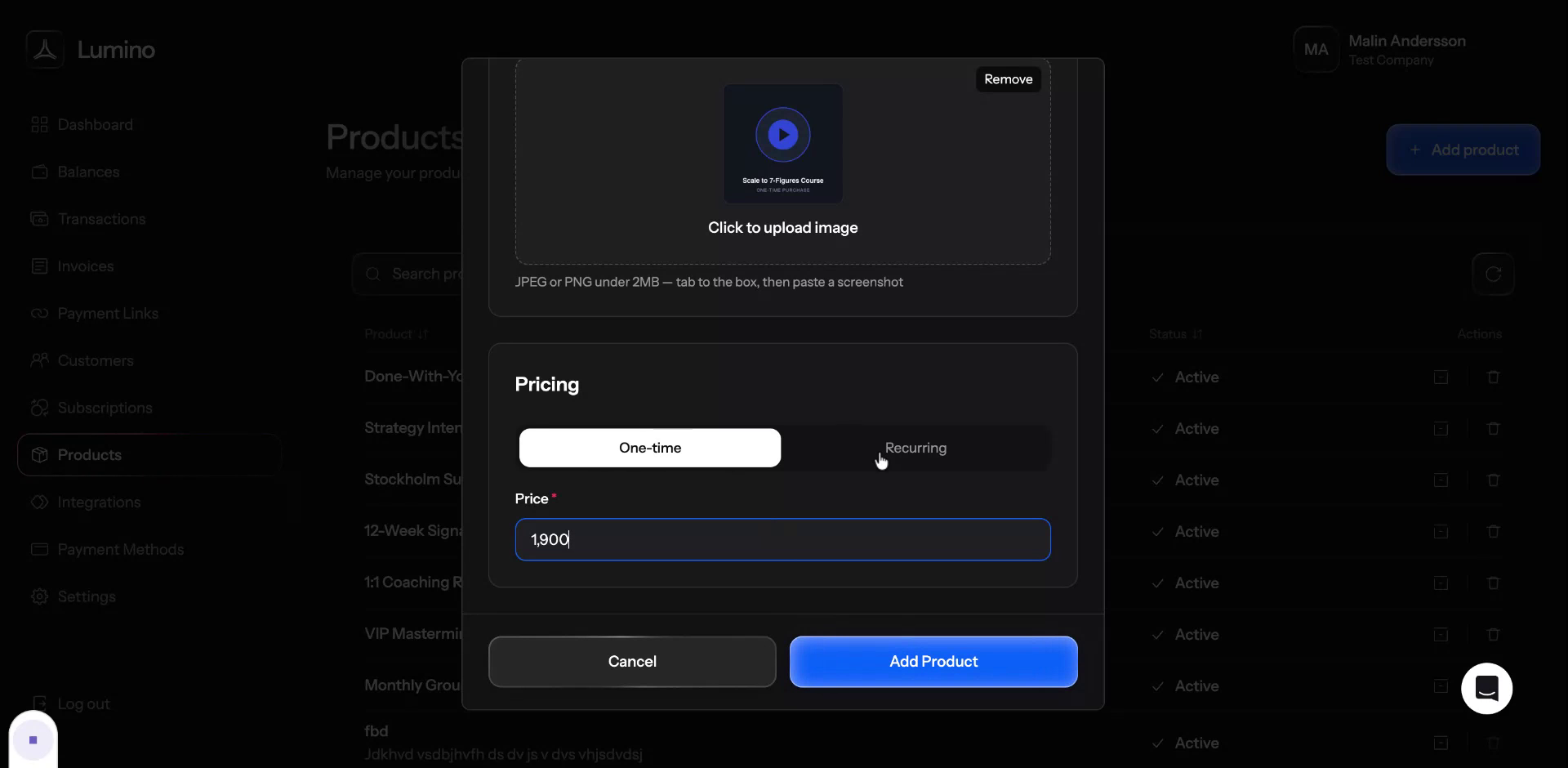
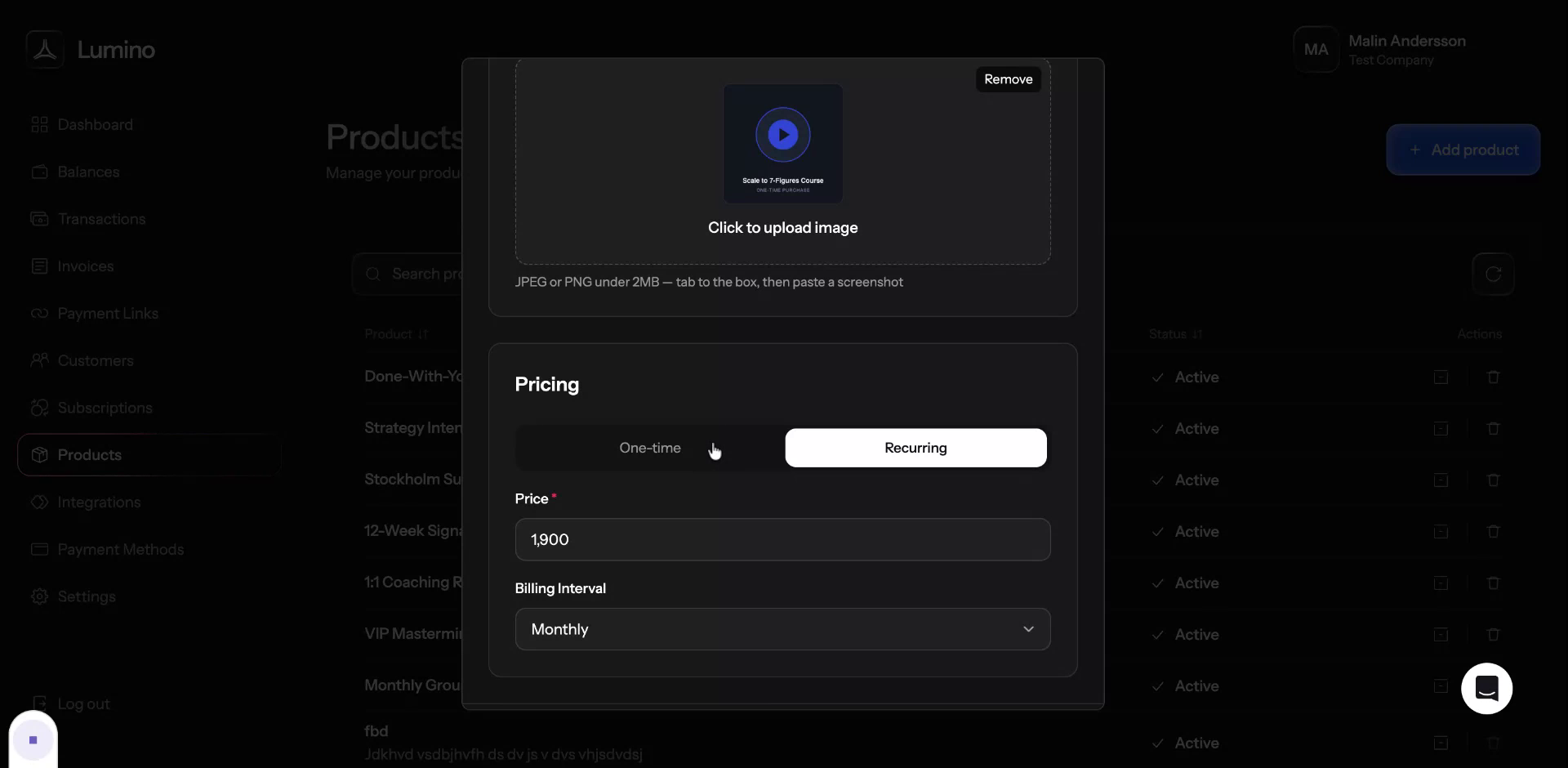
Step 3: Add a One-Time Price
Start by adding a one-time price to your product.
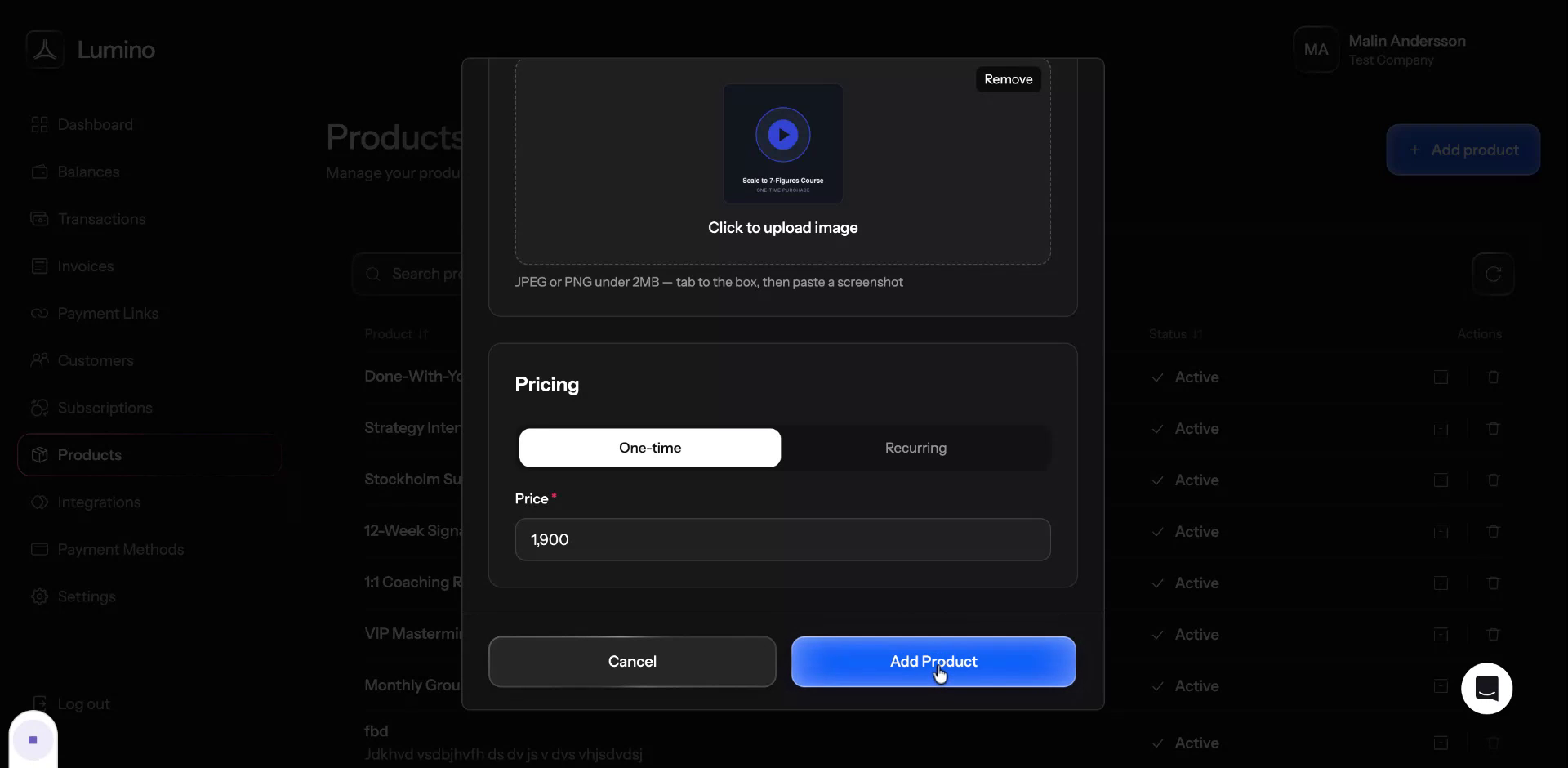
Step 4: Edit an Existing Product
After your product is set up, you can make changes to it at any time. To do this, click on the product in the list.
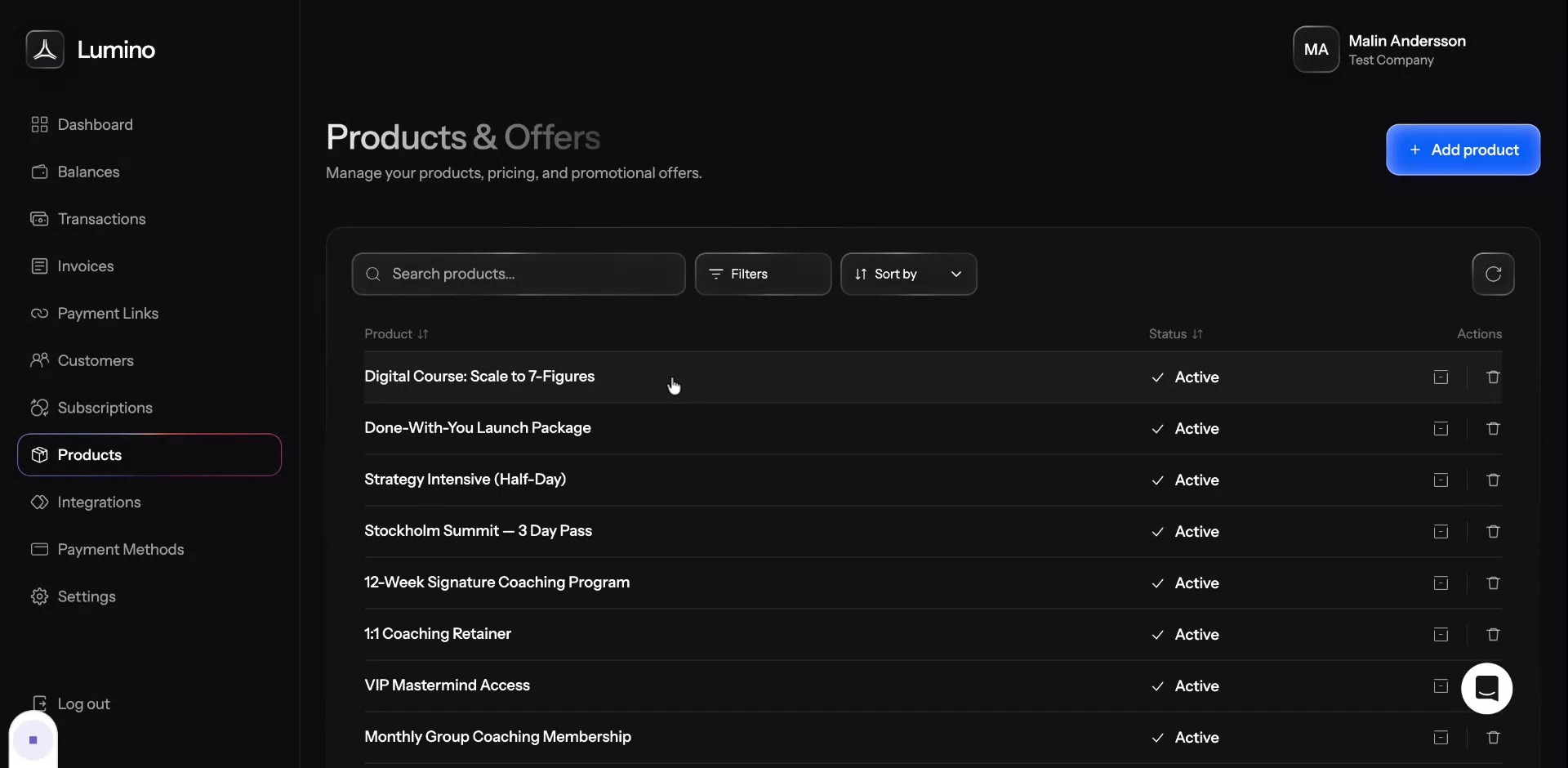
Then click Edit to modify its details.
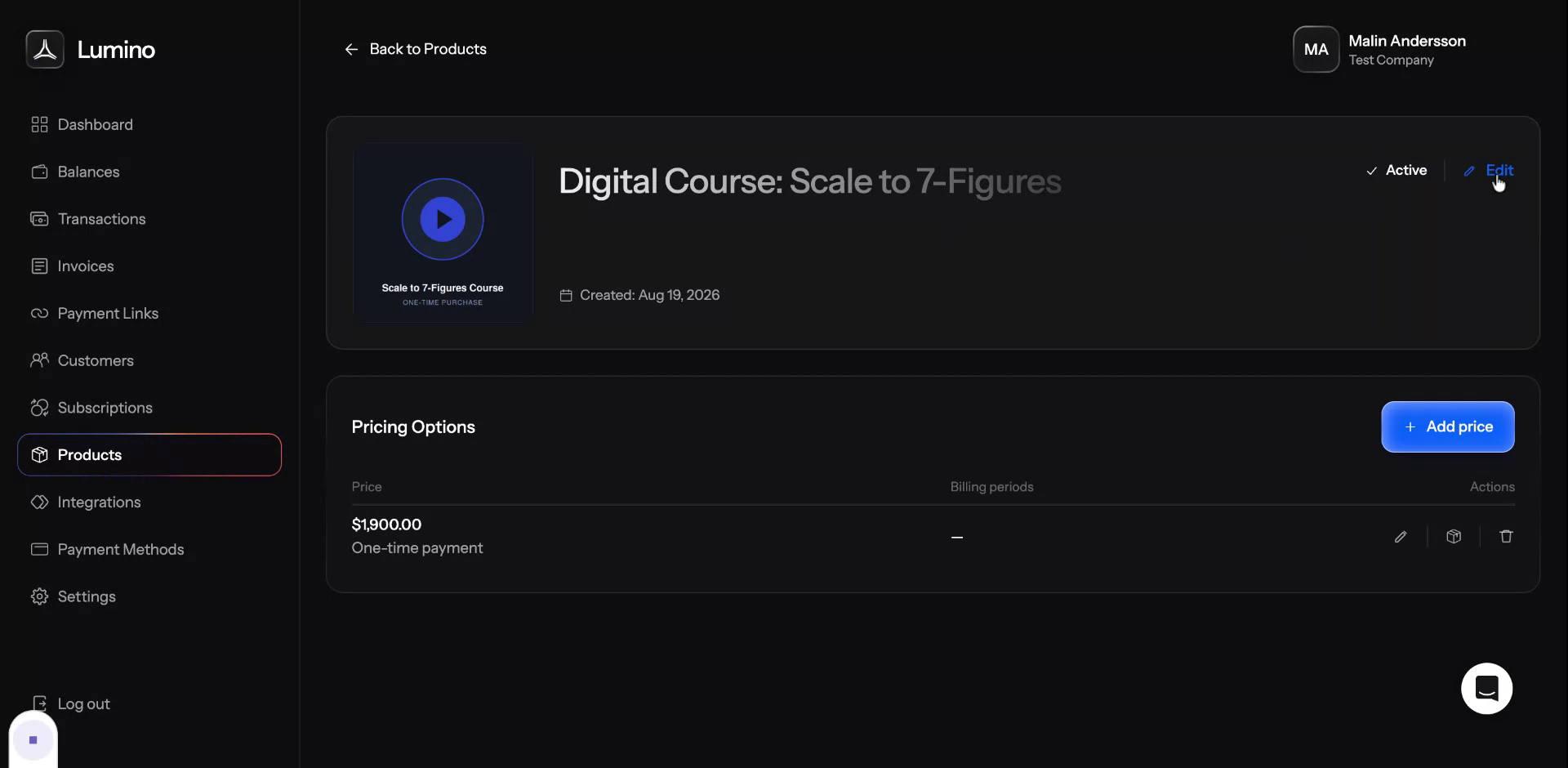
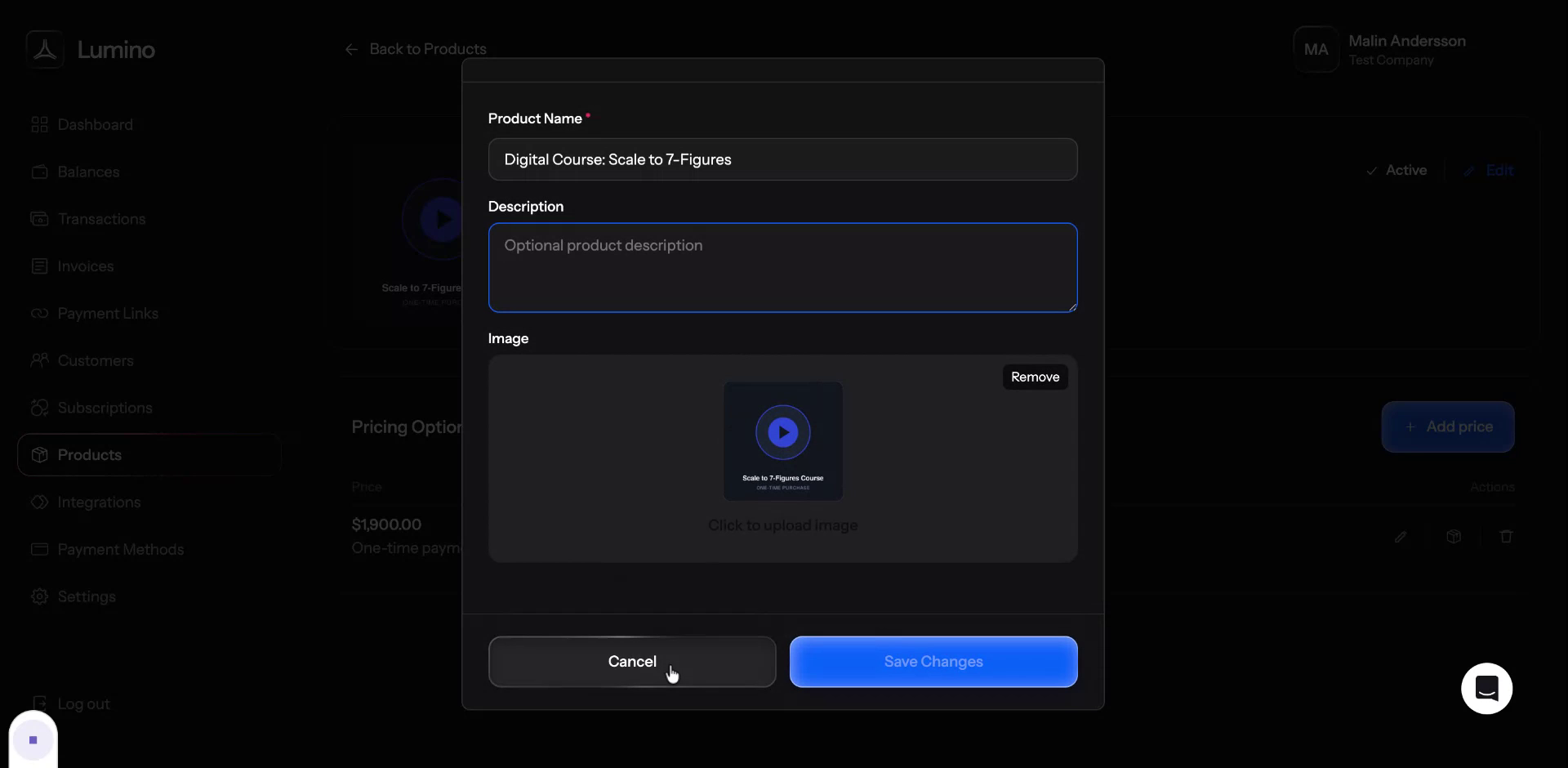
From here, you can change the product name,
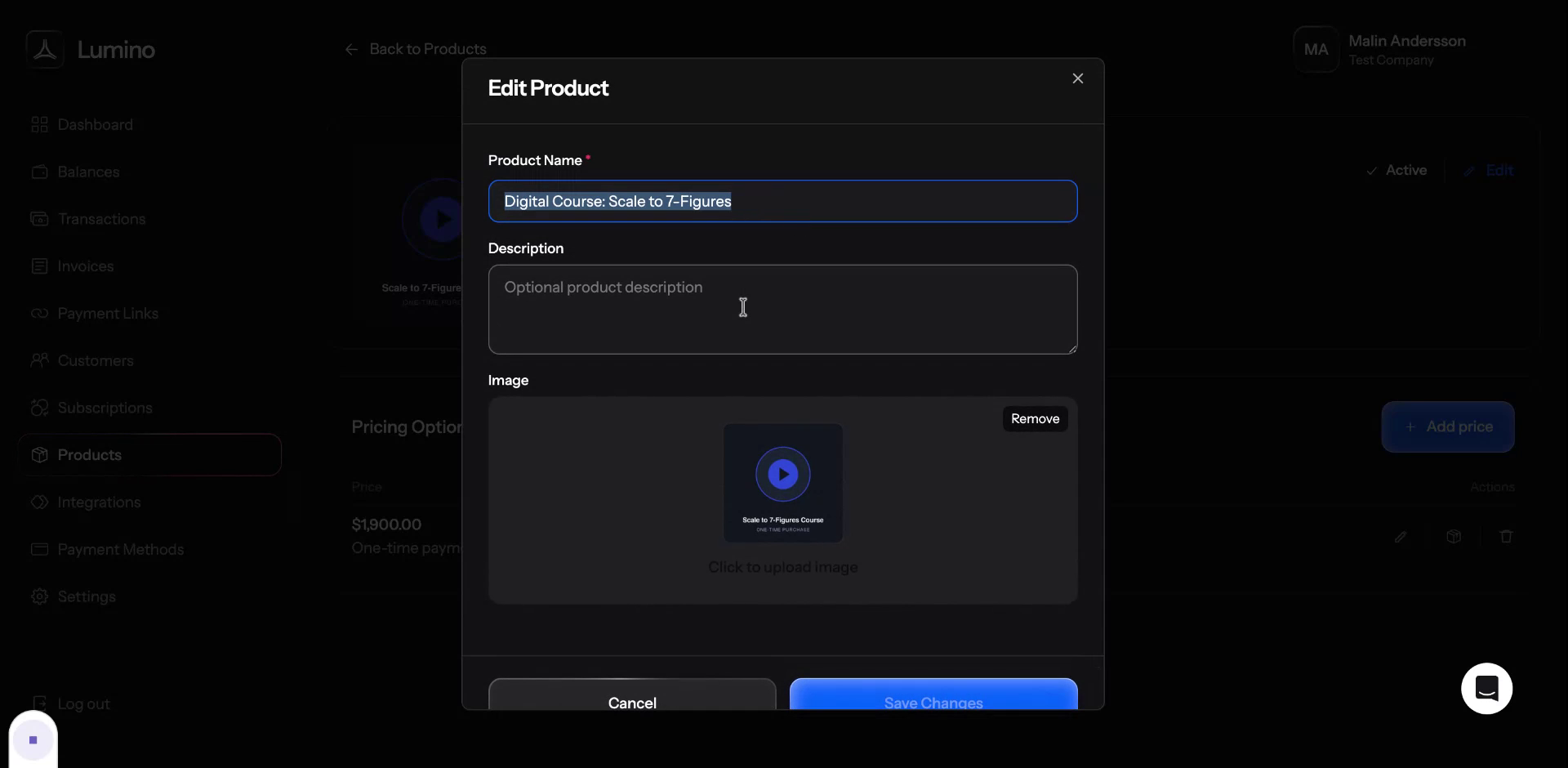
update the description, or change the image.
Step 5: Add Additional Pricing Options
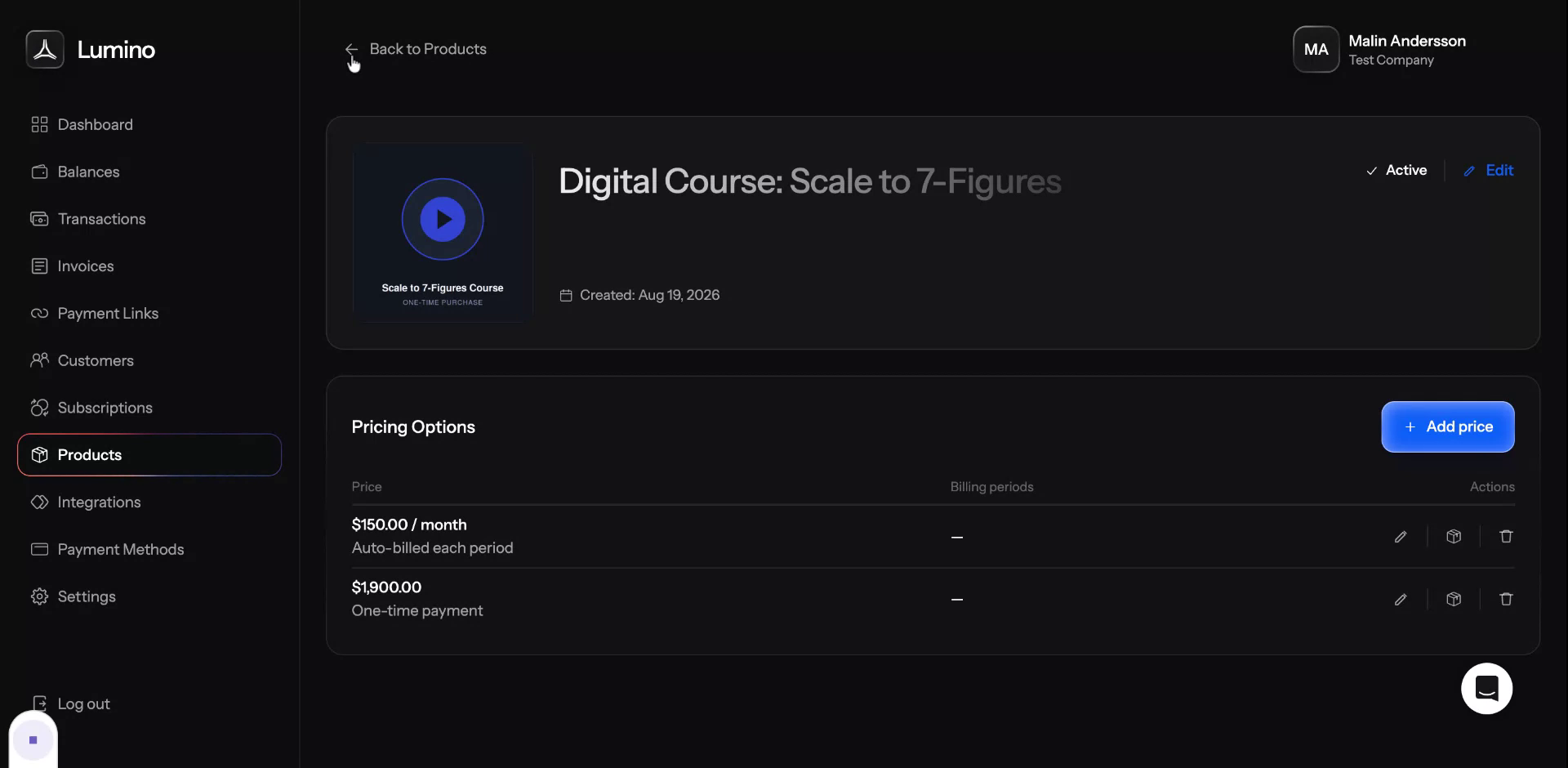
Within the Edit view, you can add a secondary price to the product.
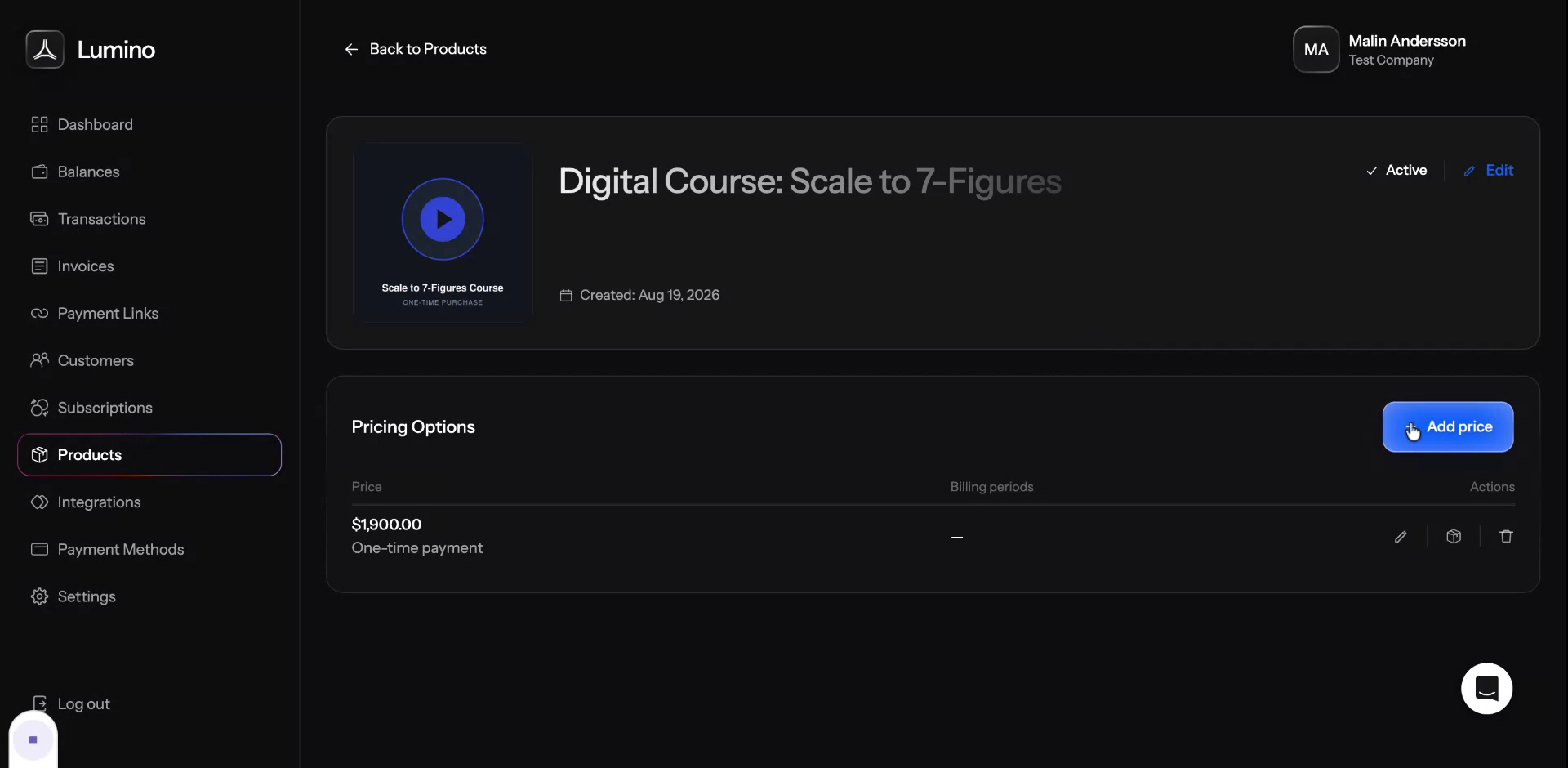
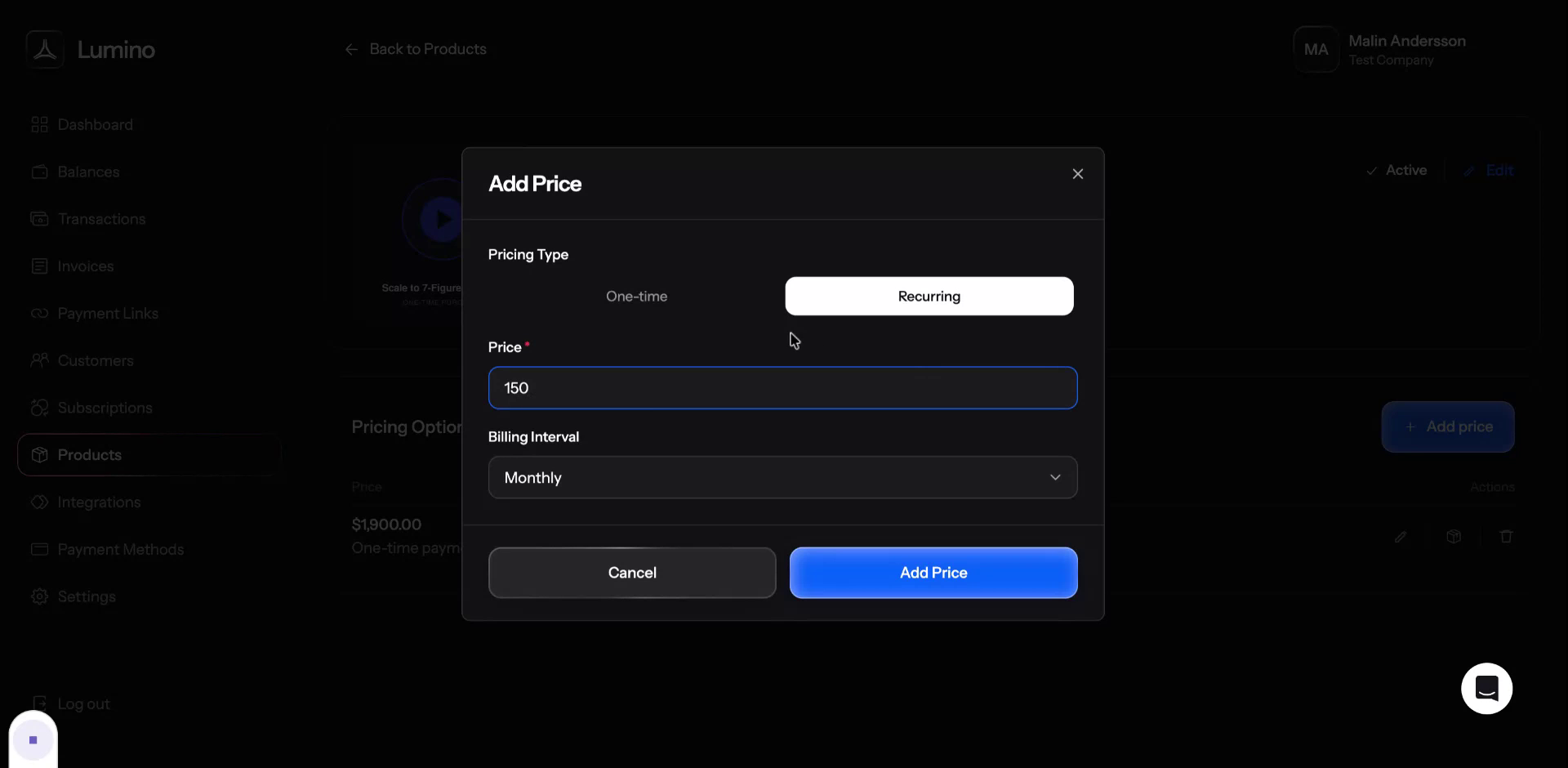
As mentioned earlier, you can now also add a recurring price
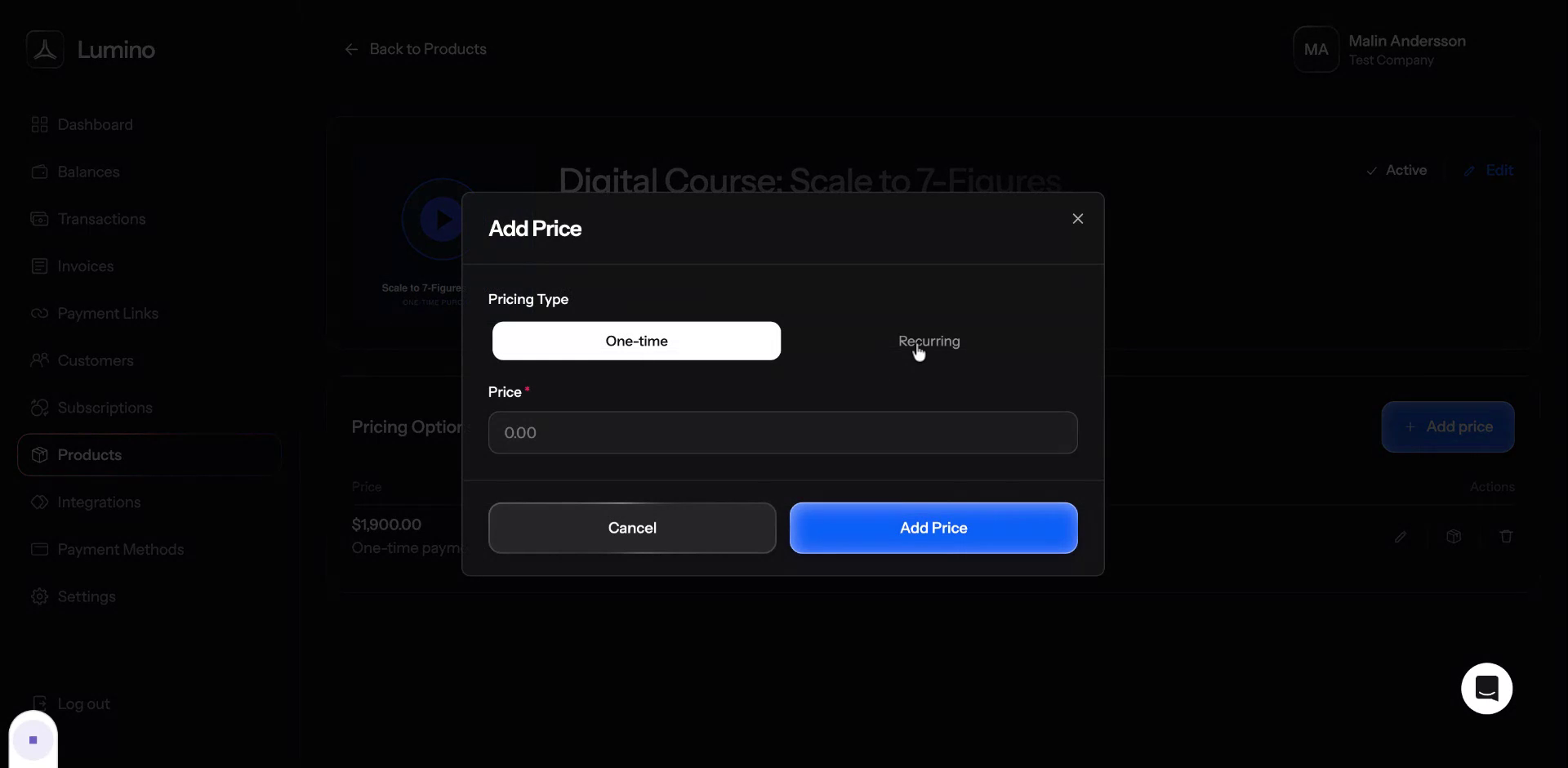
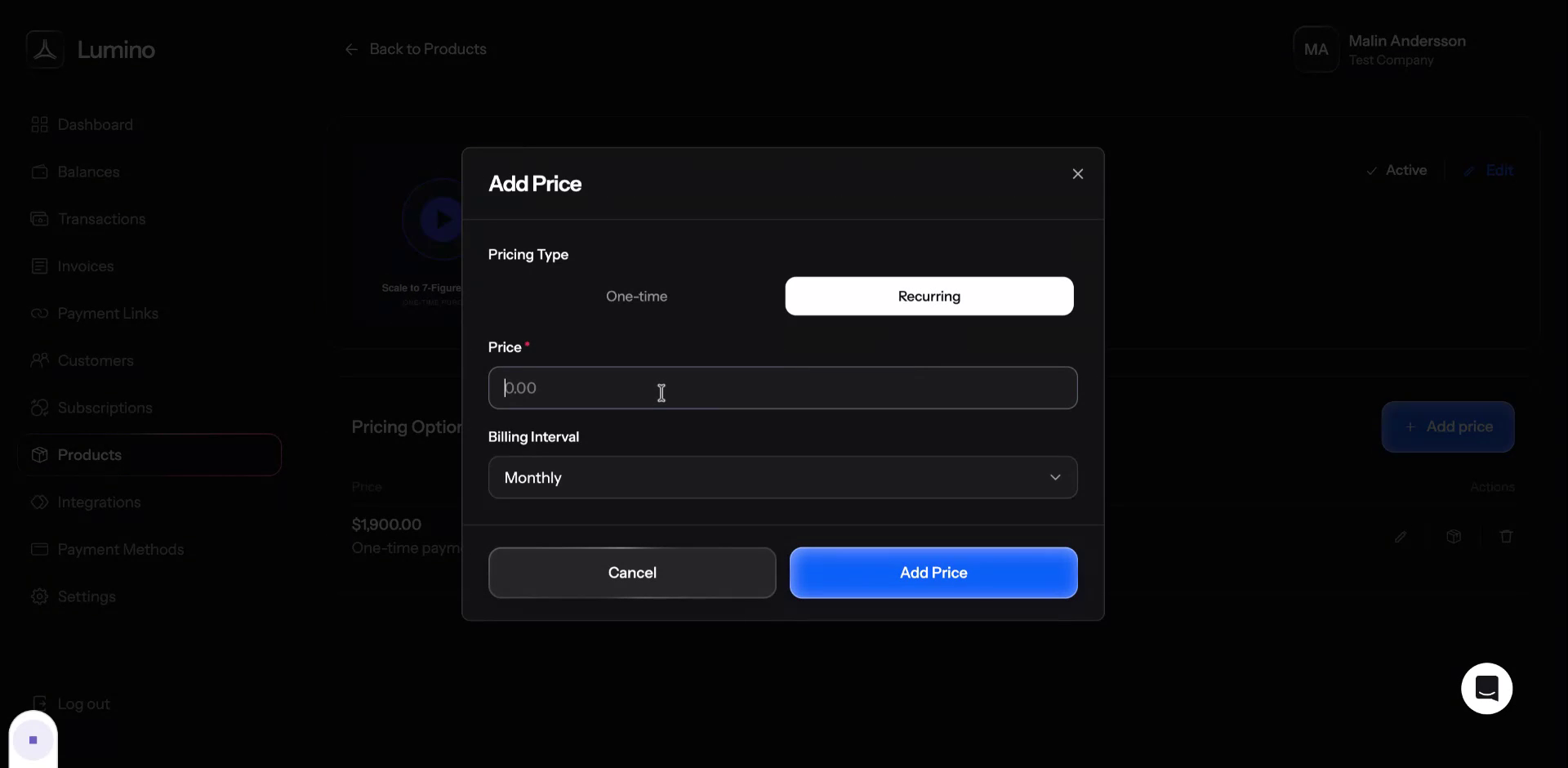
with your chosen billing interval (for example, monthly or yearly).
Step 6: Delete, Archive, and Filter Products
You can always delete a product that has not yet been used. If a product has been used, you will still be able to archive it instead of deleting it.
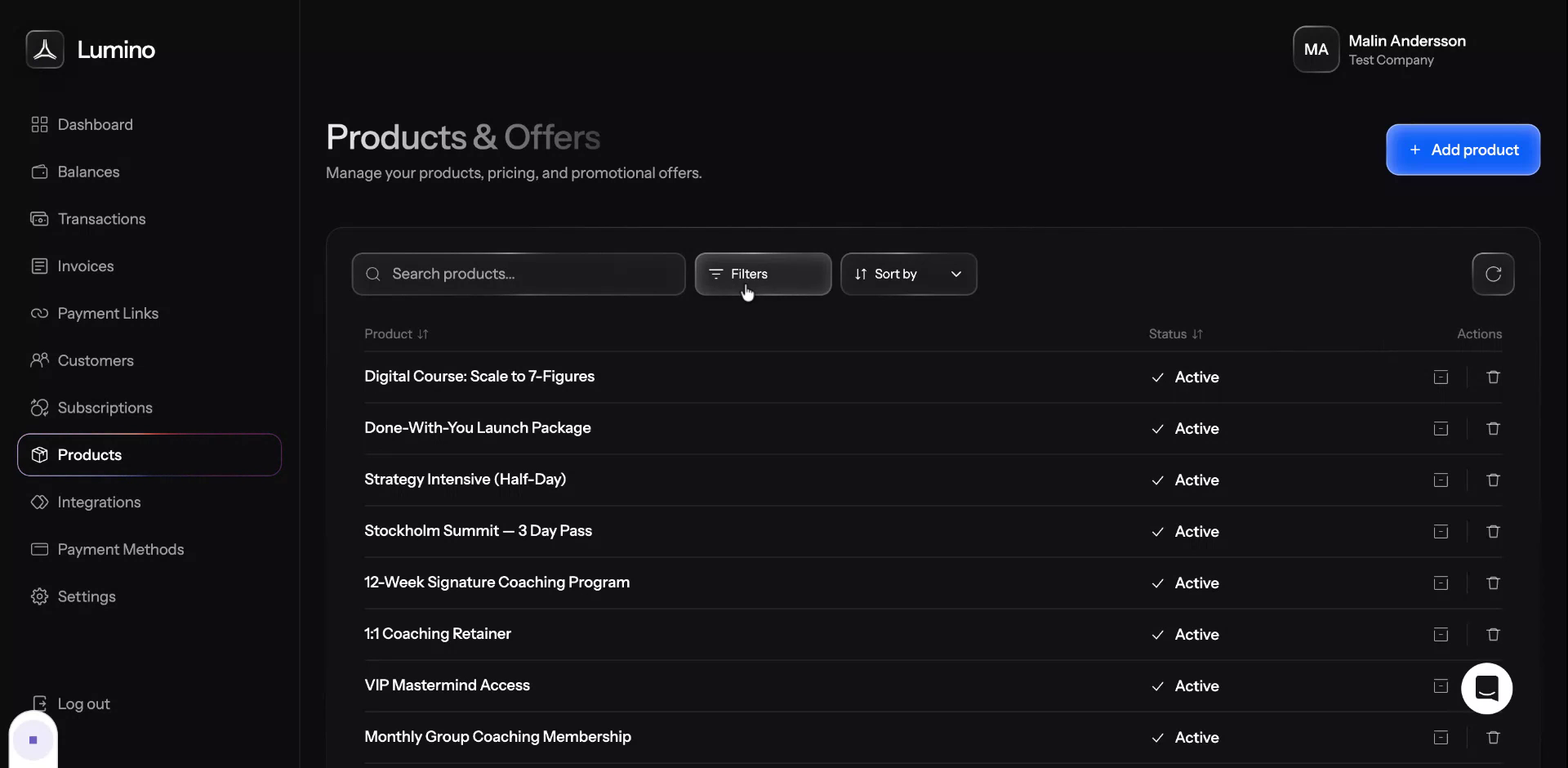
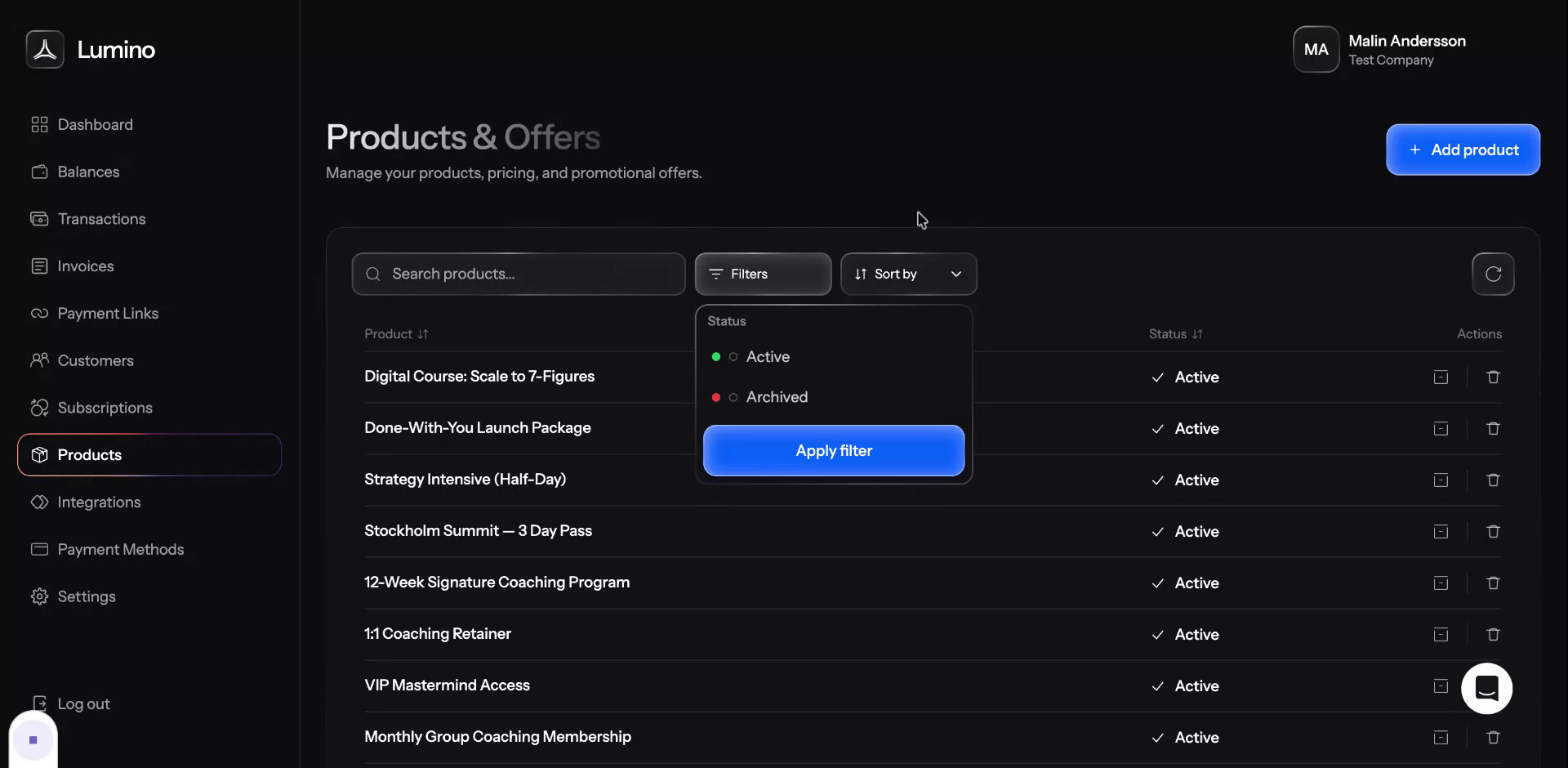
If you want to filter and view only your deleted or archived products, you can apply filters in this area.