
Branding & Contact Details
Logo, SEO image, support email & phone
Step-by-step guide
Managing Branding and Contact Information in Organization Settings
Use the Organization Details section to configure your brand logo, SEO image, and customer support contact information, ensuring consistent branding across checkouts, receipts, invoices, and shared links.
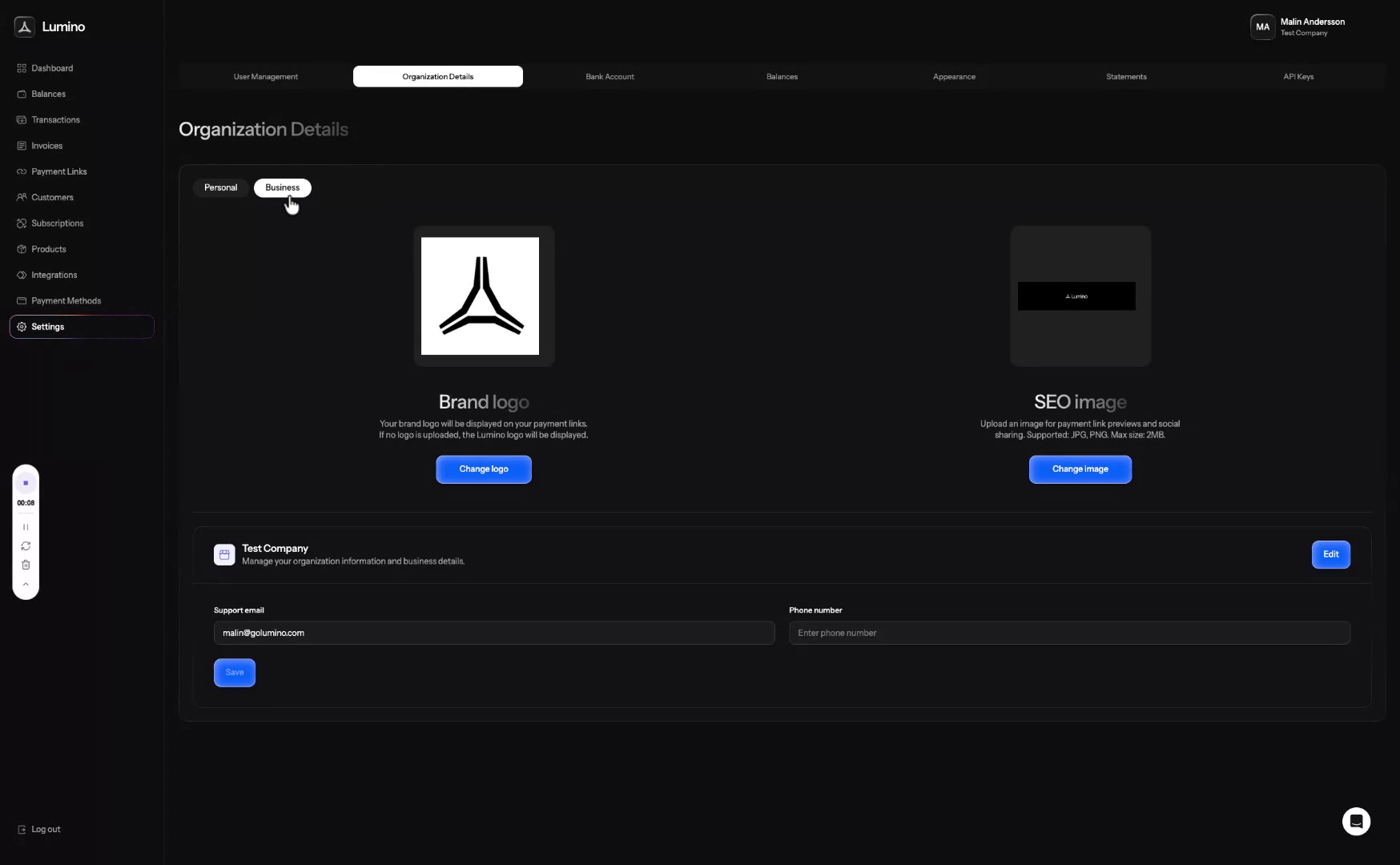
Step 1: Navigate to Business Settings
Go to Settings, then select Organization Details and click on the Business tab.
Step 2: Upload Brand Logo and SEO Image
In the Business section, upload your brand logo and SEO image.
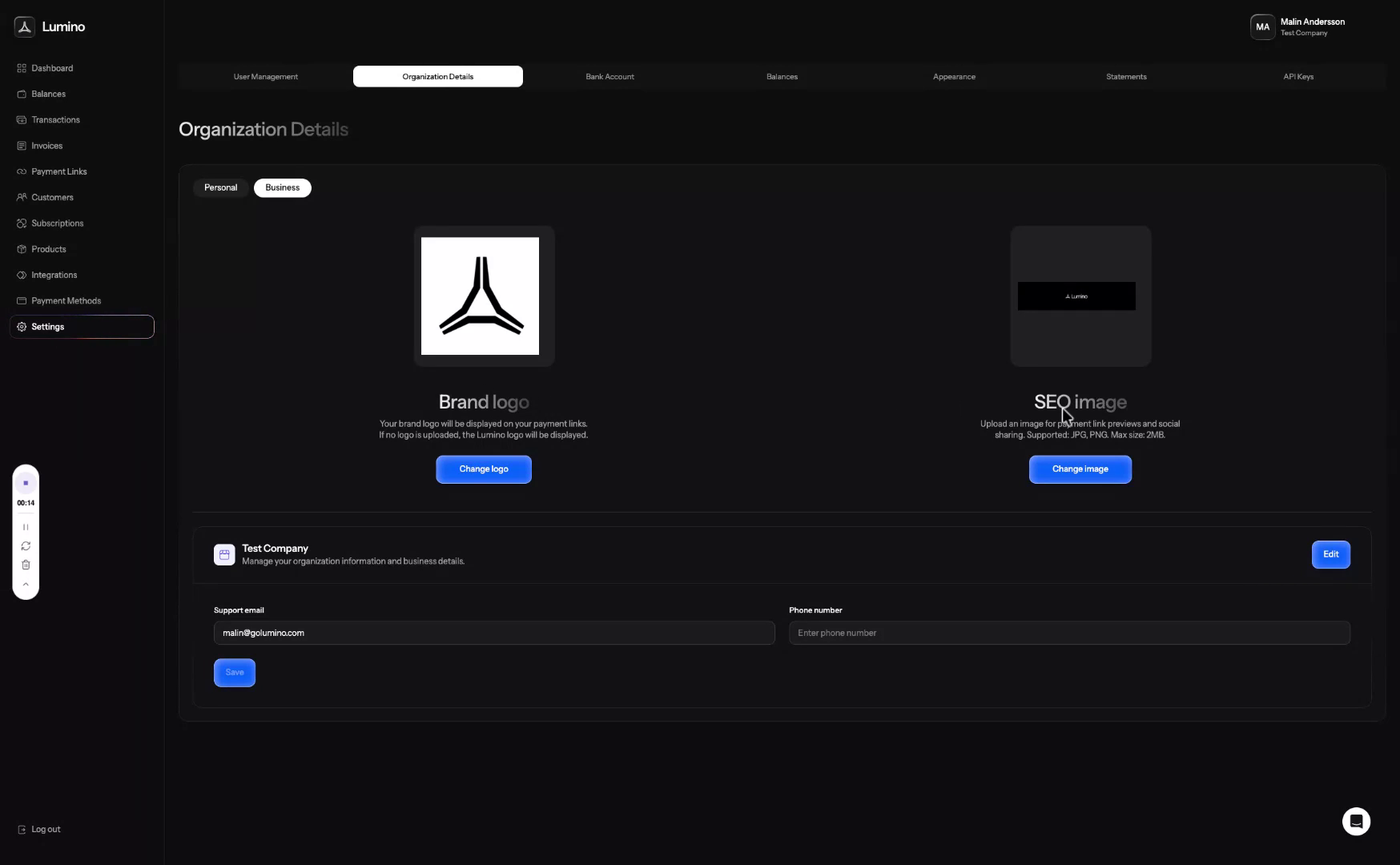
The SEO image is the thumbnail that appears when you share links (for example, a payment link) on social media. The brand logo appears in your checkout, on receipts, invoices, and other customer-facing documents.
Step 3: Update Support Contact Details
Scroll down and update your support email and support phone number. These contact details will appear on receipts, invoices, and similar documents so customers can reach you directly.