Customers
Adding a New Customer
Step-by-step guide
Adding a New Customer in Lumino
This document explains how to add a new customer in Lumino, including entering contact details, billing and shipping information, and where to review the customer’s saved information afterward.
Step 1: Open the Add Customer Form
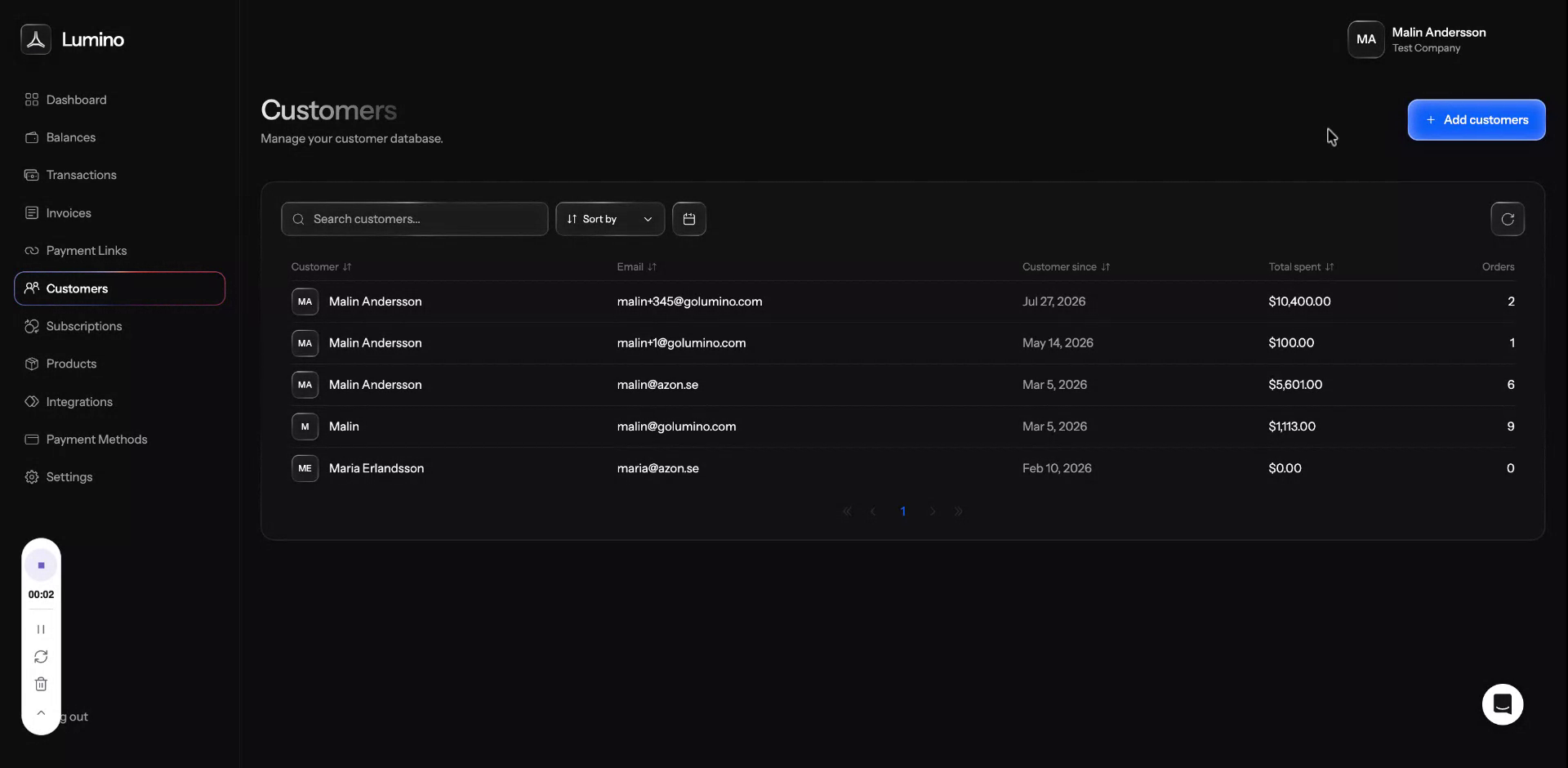
Click Add customers to start creating a new customer profile.
Step 2: Enter Basic Customer Details
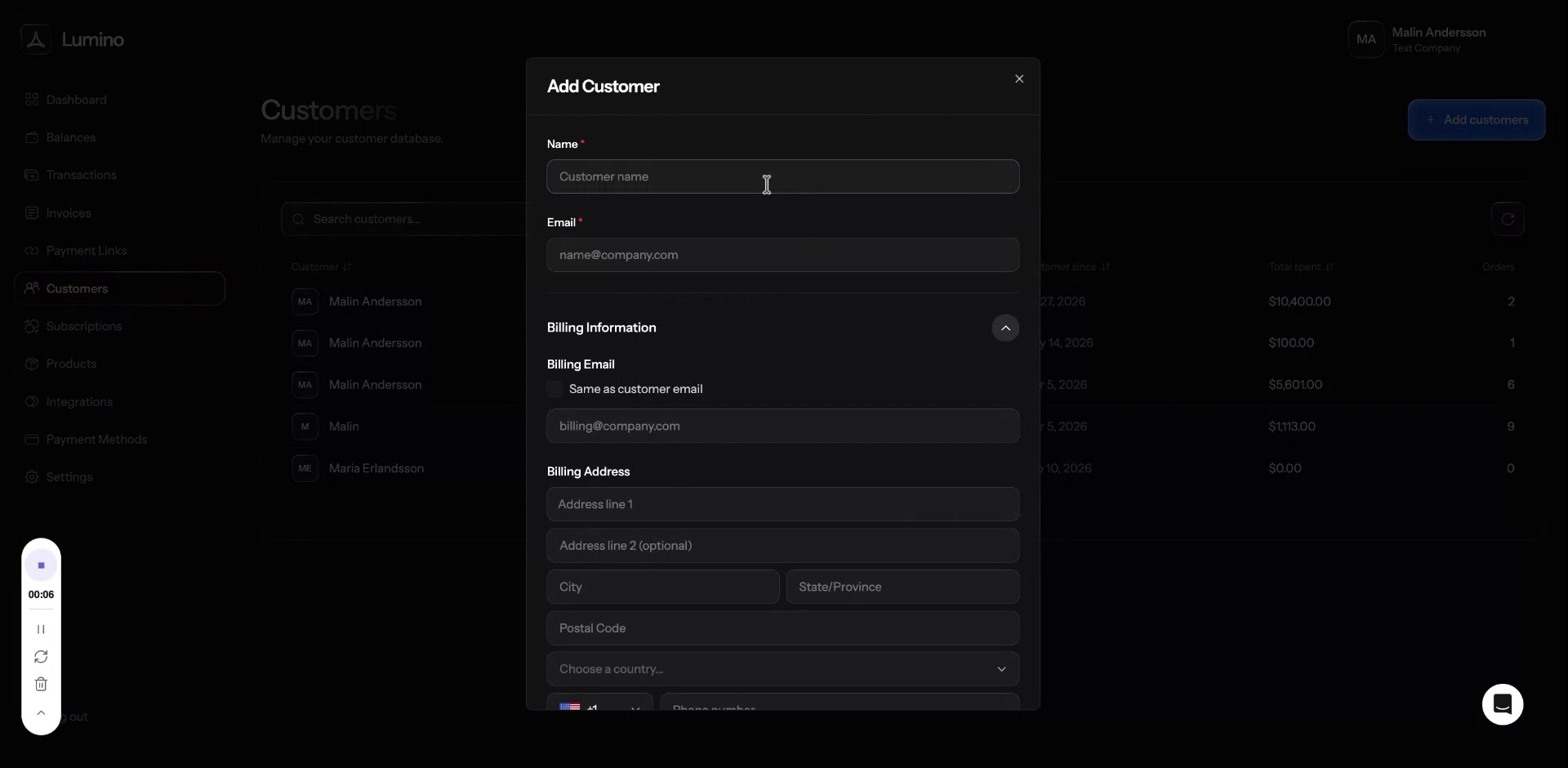
Enter the customer’s name and email address in the corresponding fields.
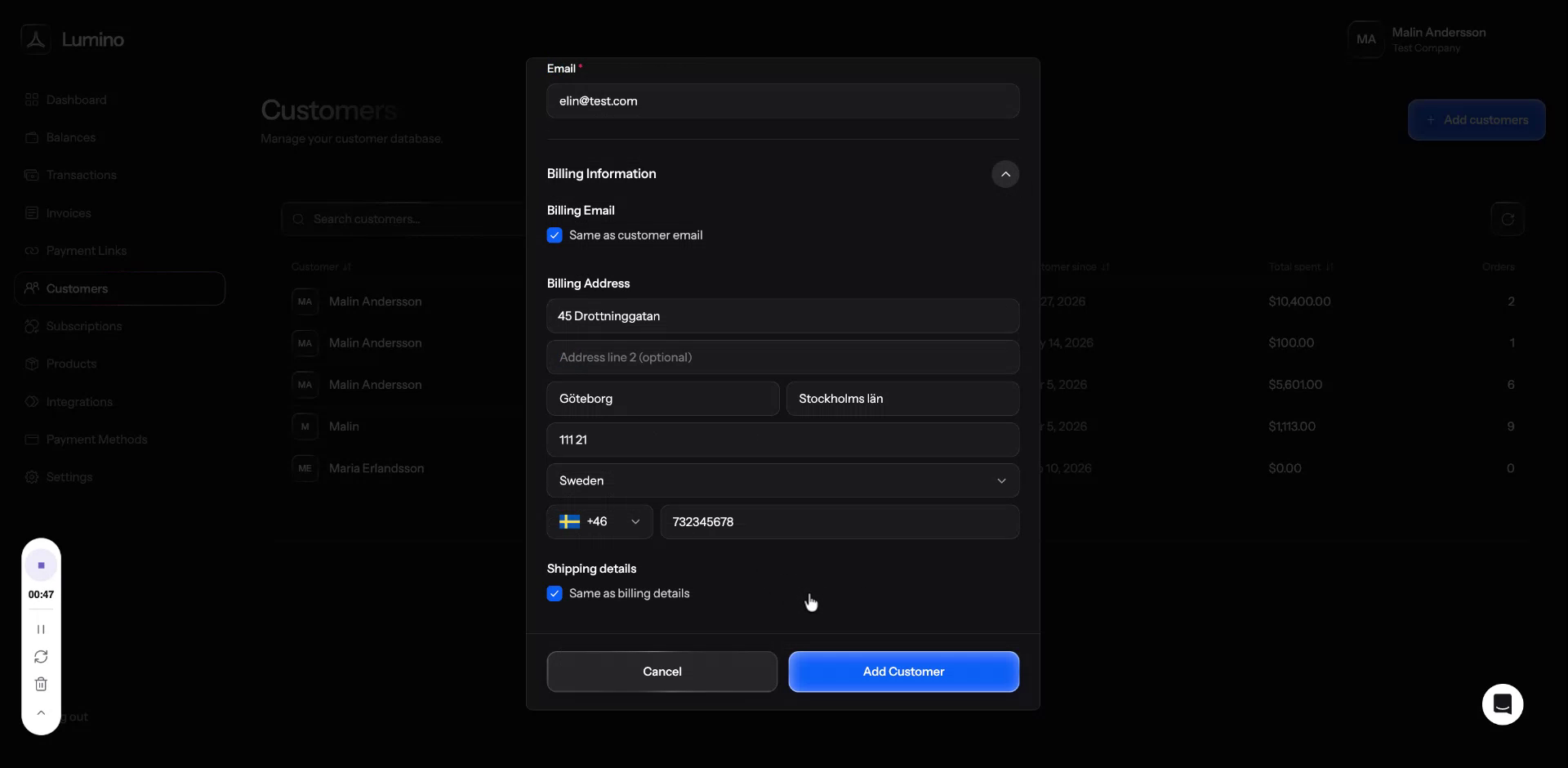
Step 3: Configure Billing Information
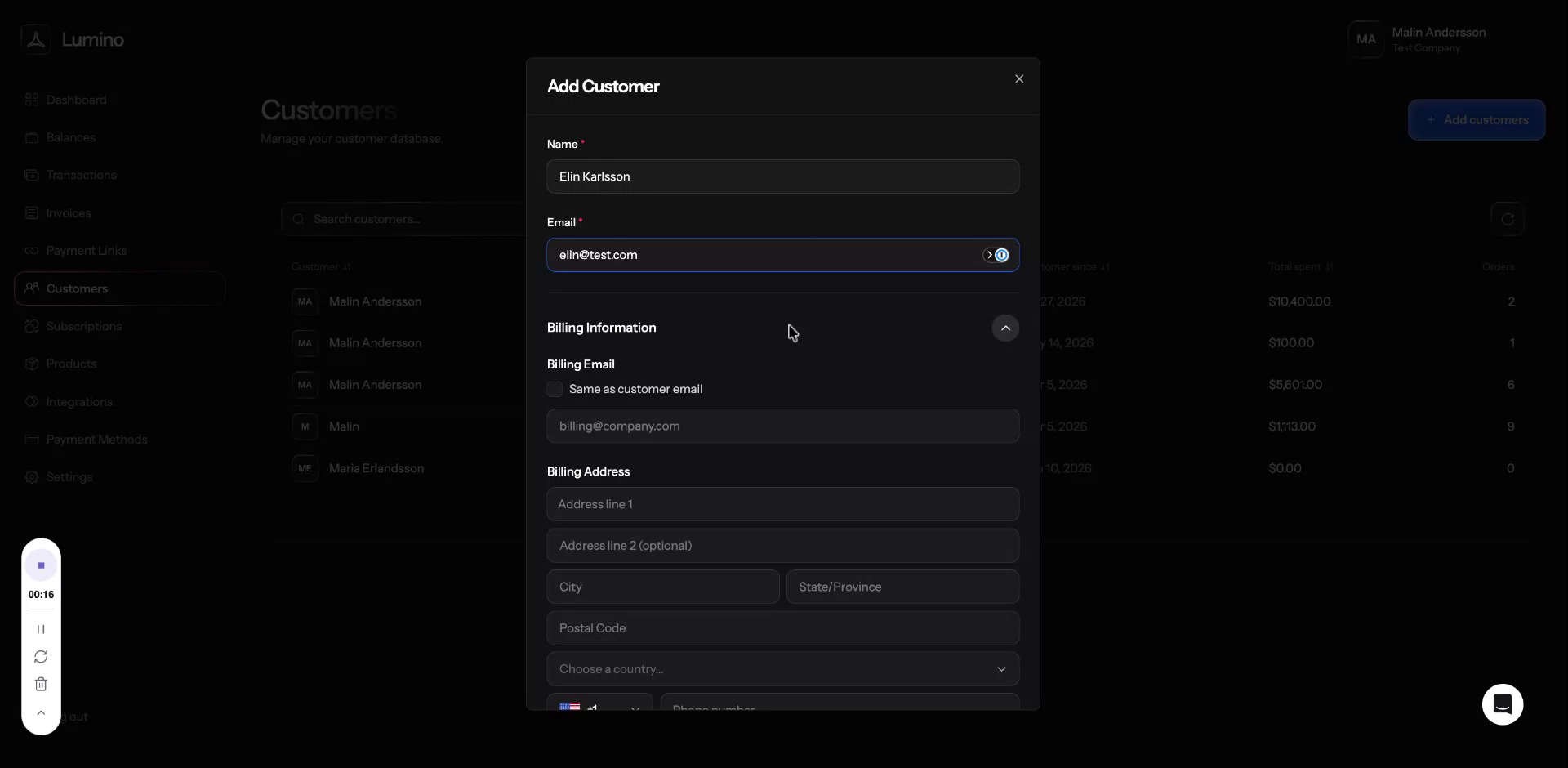
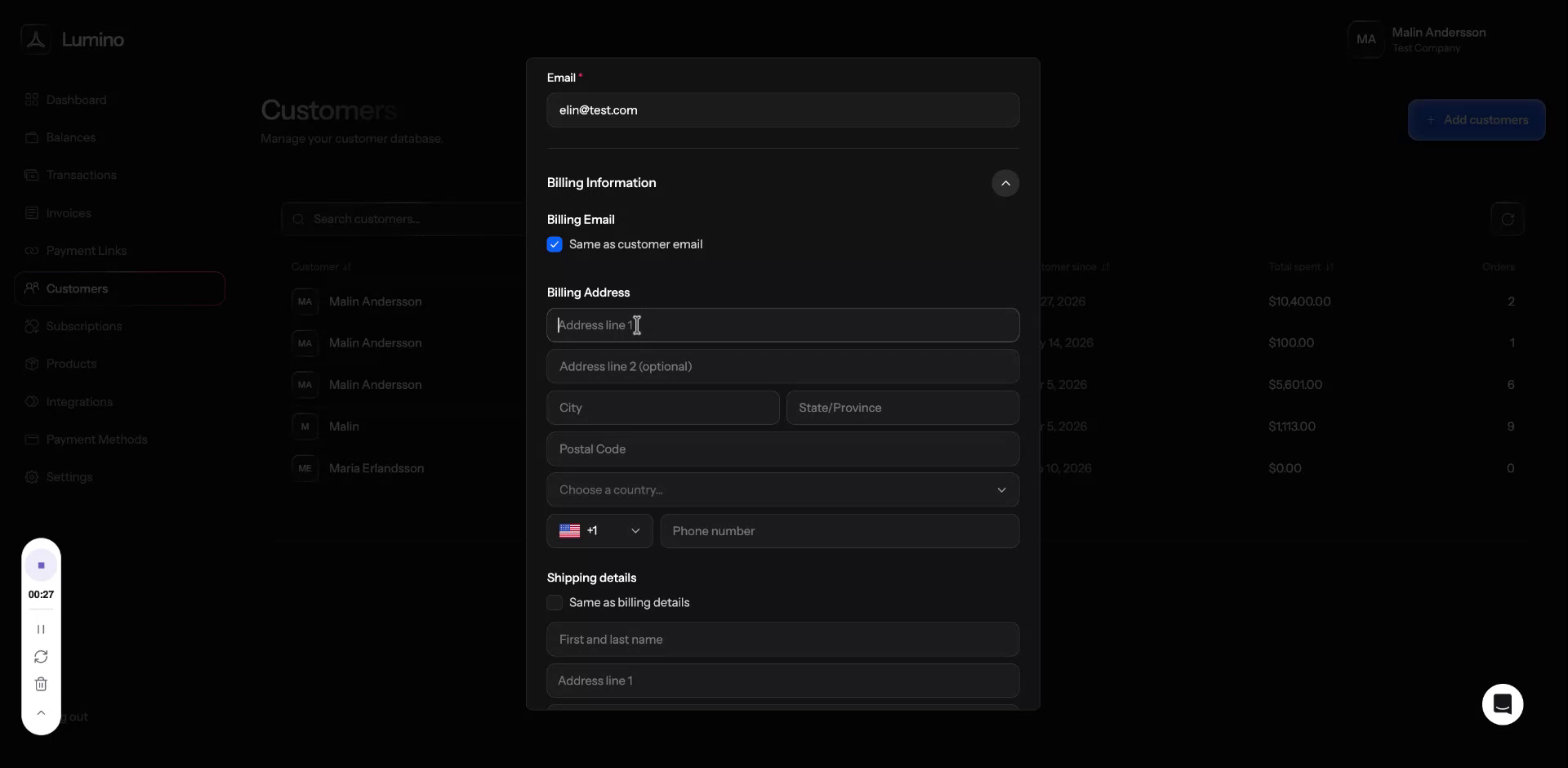
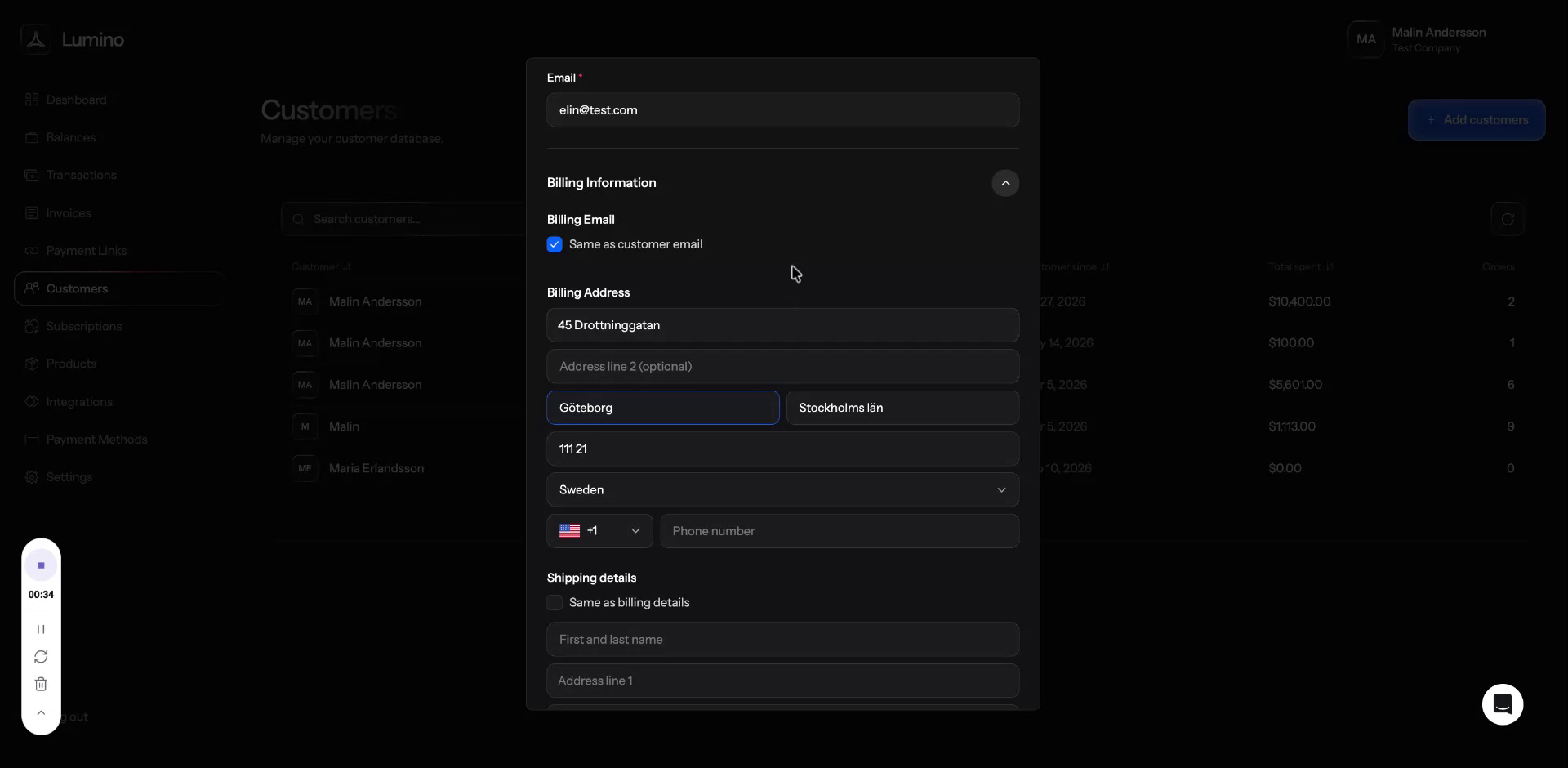
Choose whether to use the same email as the customer’s email for billing purposes, then fill in the billing address fields.
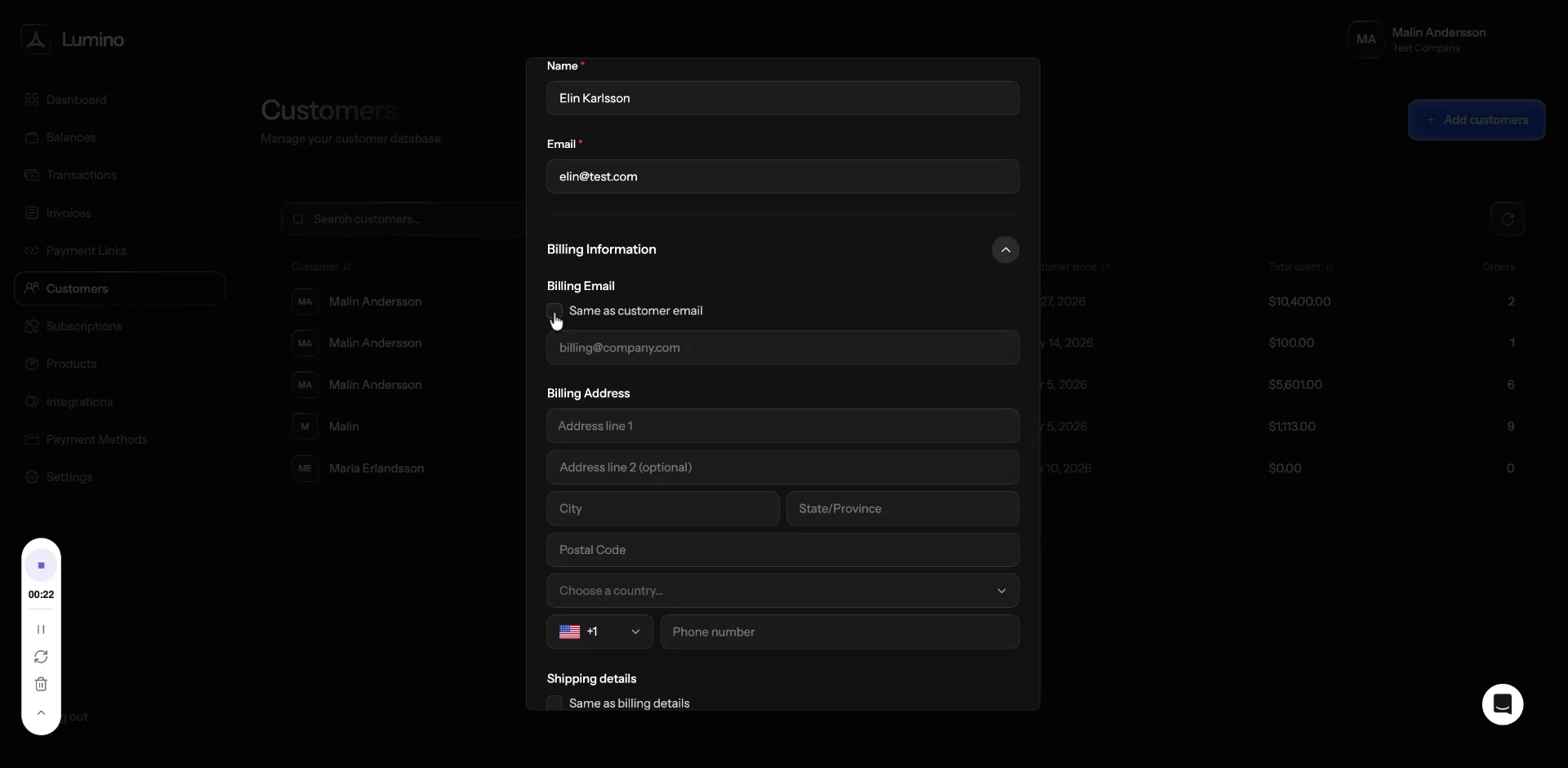
After you have filled in the billing address and phone number, proceed to configure shipping details.
Step 4: Configure Shipping Information
Choose whether to use the same shipping details as the billing details. Select this option if appropriate.
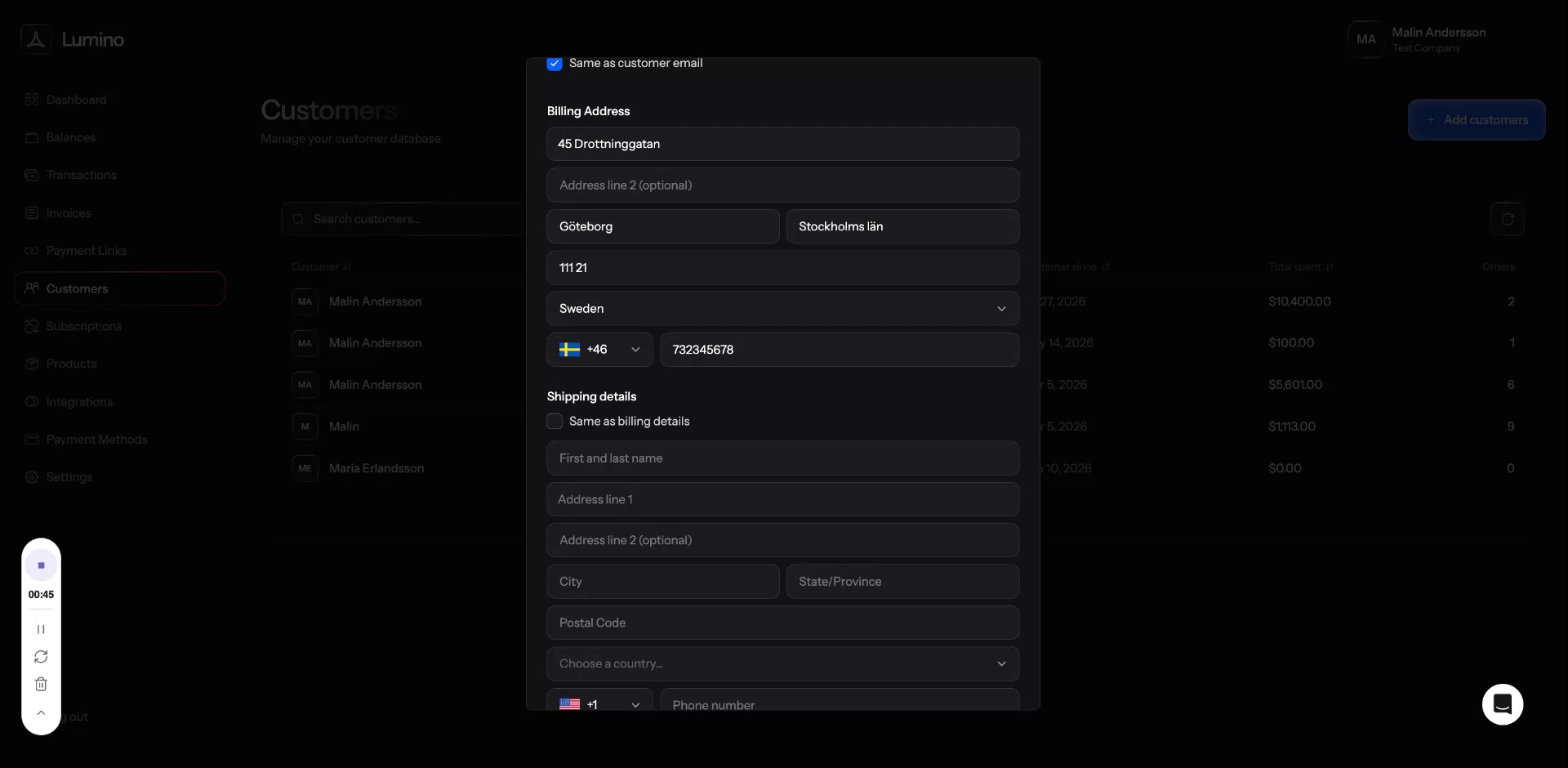
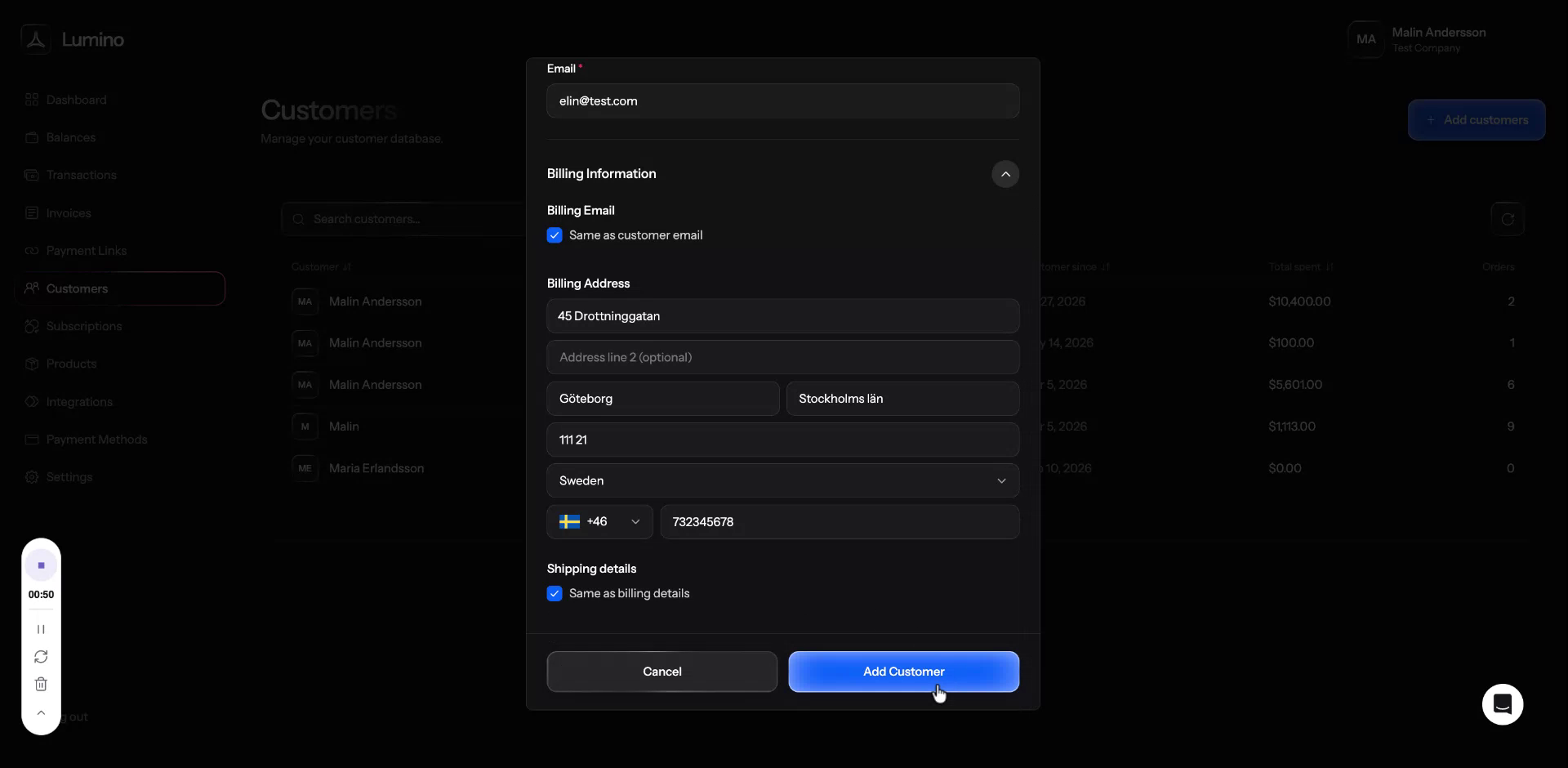
We will select this option here and then add the customer.
Step 5: Review the Customer Record
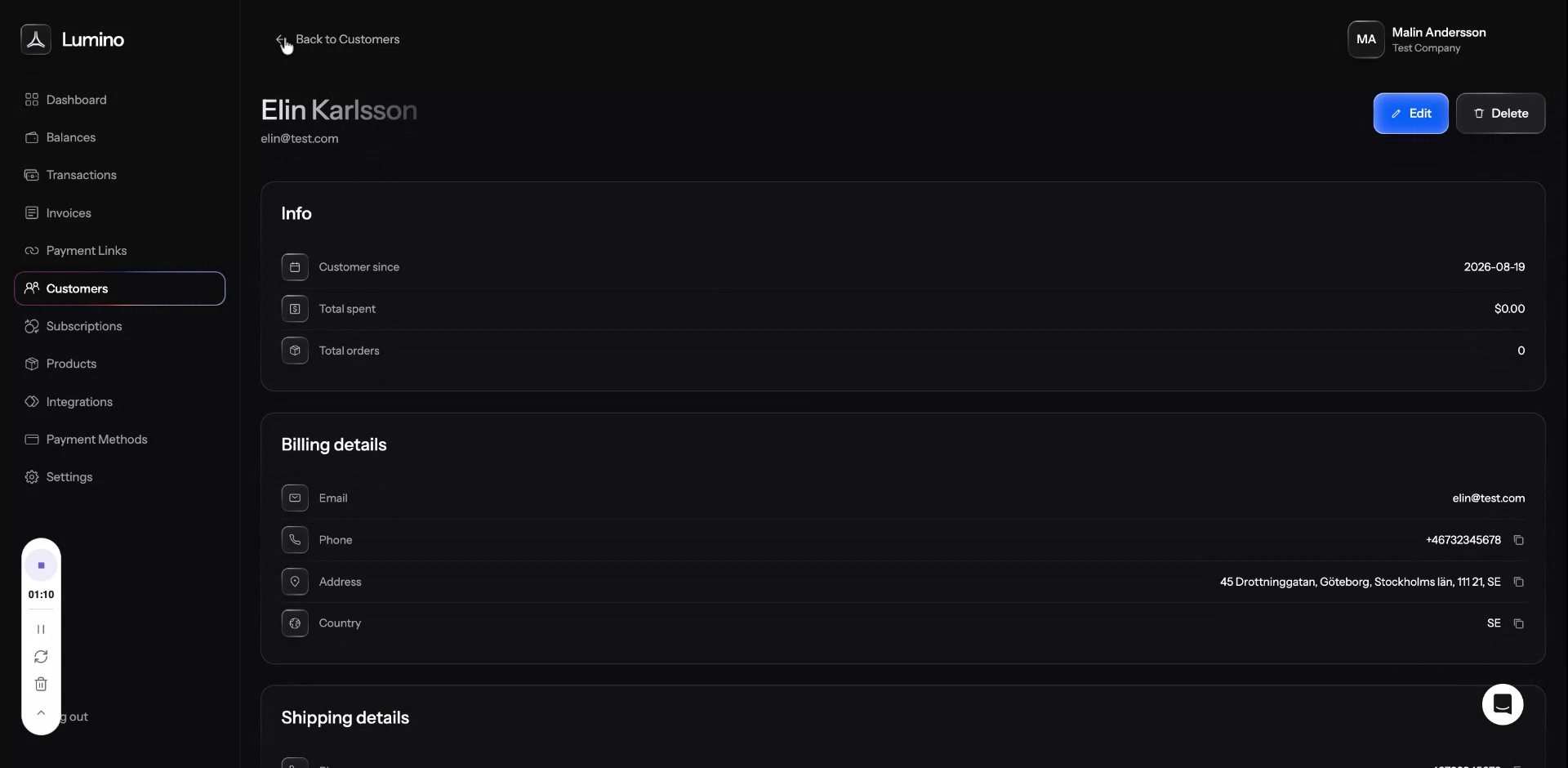
After you’ve added the customer, open the newly created customer record to review all stored information.
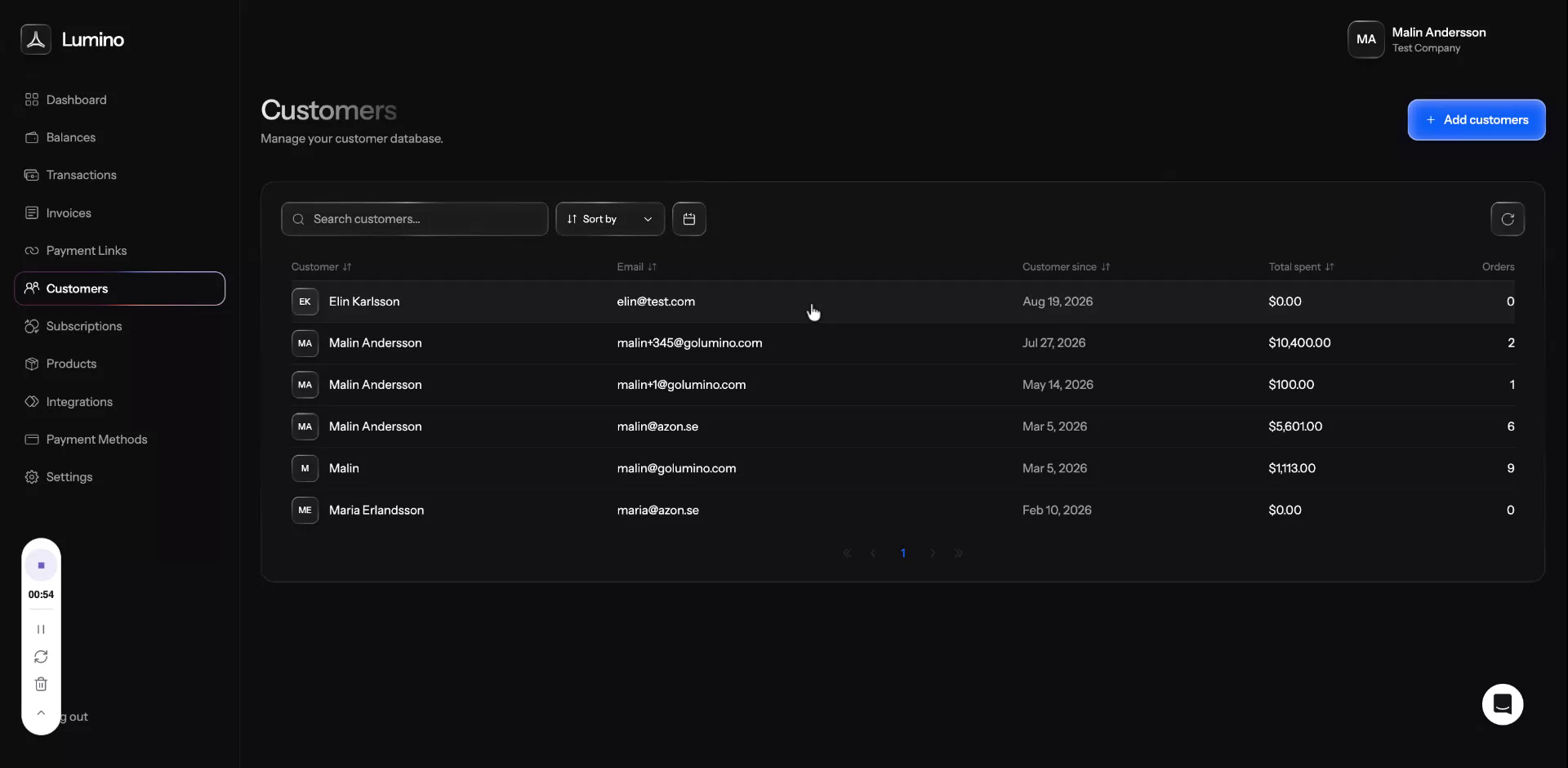
Here you can always see: customer info, billing details, shipping details, payment on file, subscriptions, invoices, and payment history. These sections will be covered in more detail in another video.