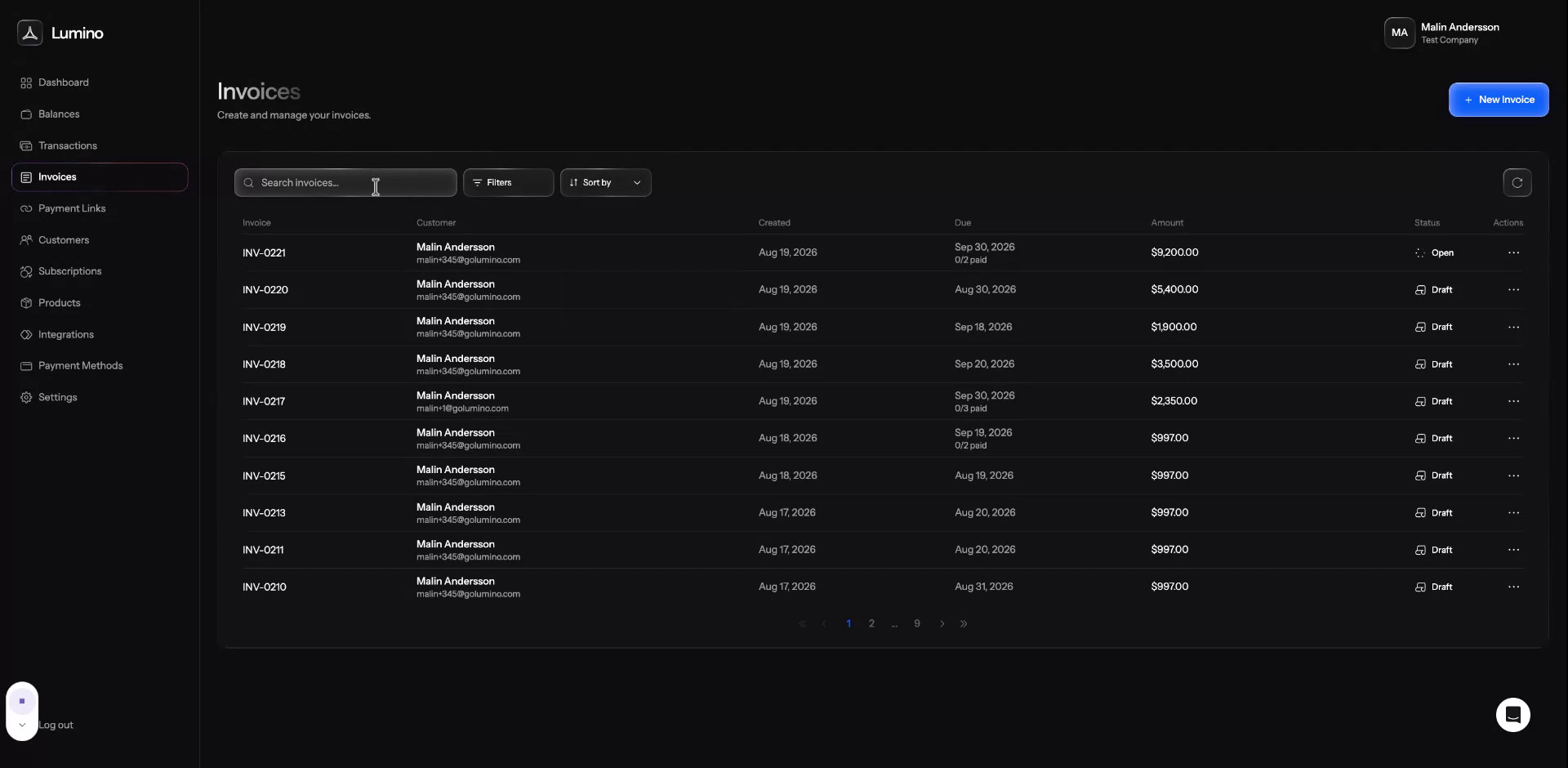
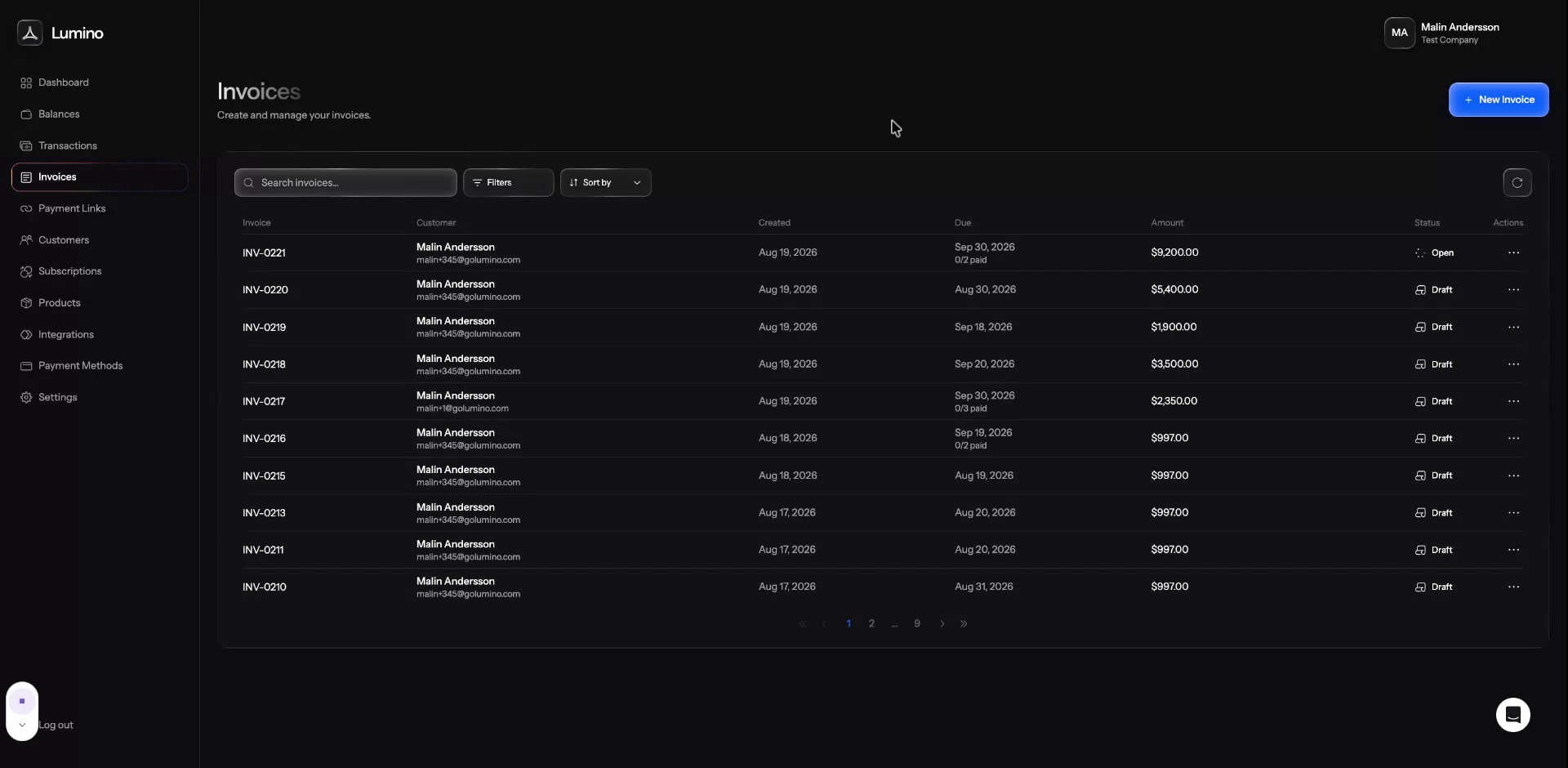
Invoices
One-off or split into installments.
Step-by-step guide
Creating and Managing Invoices
This document describes how to create a new invoice in Lumno, configure products, deposits, and split payments, preview the customer-facing experience, and manage existing invoices, including resending, voiding, editing, and filtering.
Step 1: Start a New Invoice
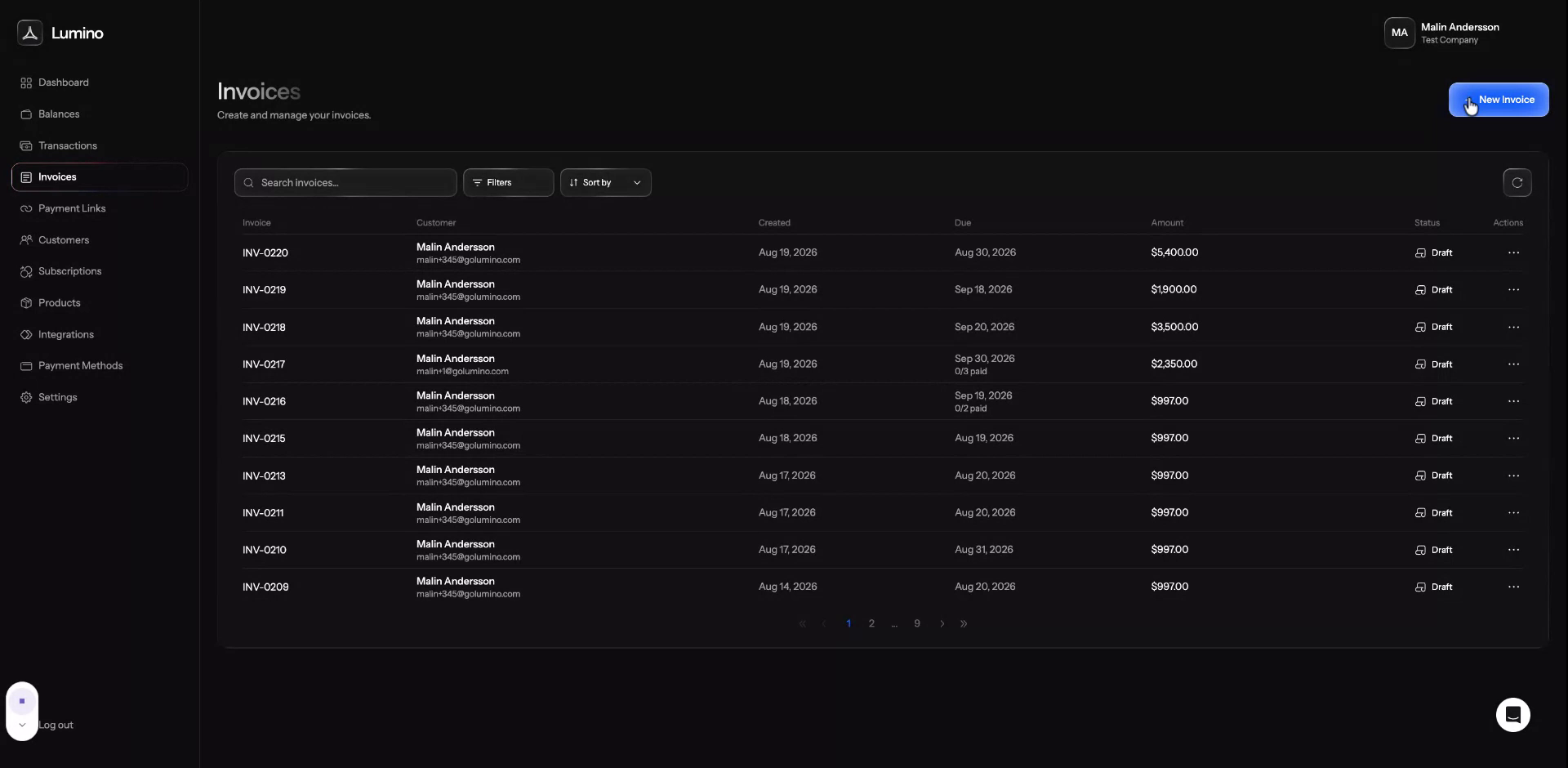
Click to start setting up a new invoice in Lumno.
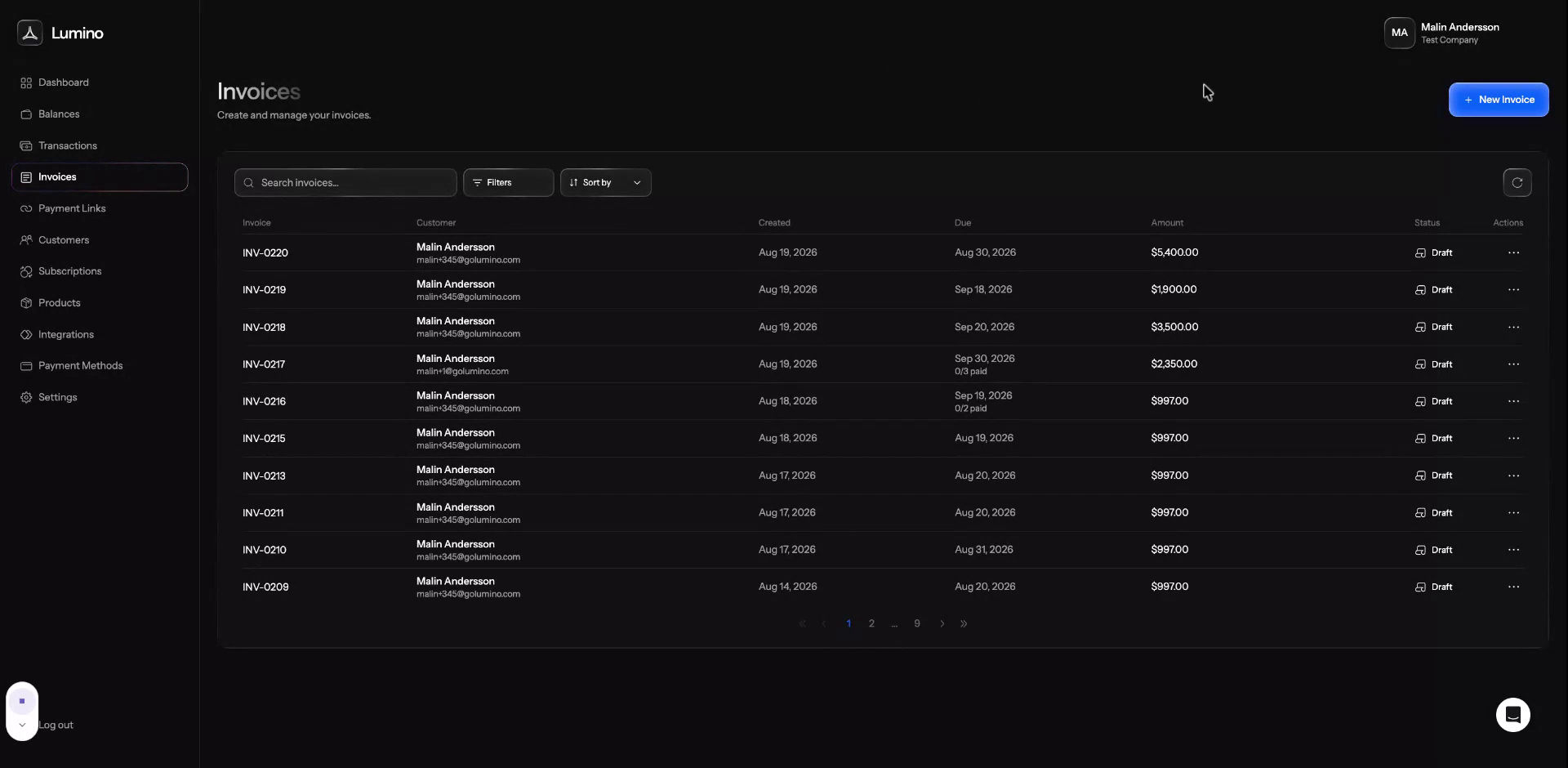
Click New Invoice to begin creating a fresh invoice.
Step 2: Select the Customer
Choose the customer you want to send the invoice to from the customer list.
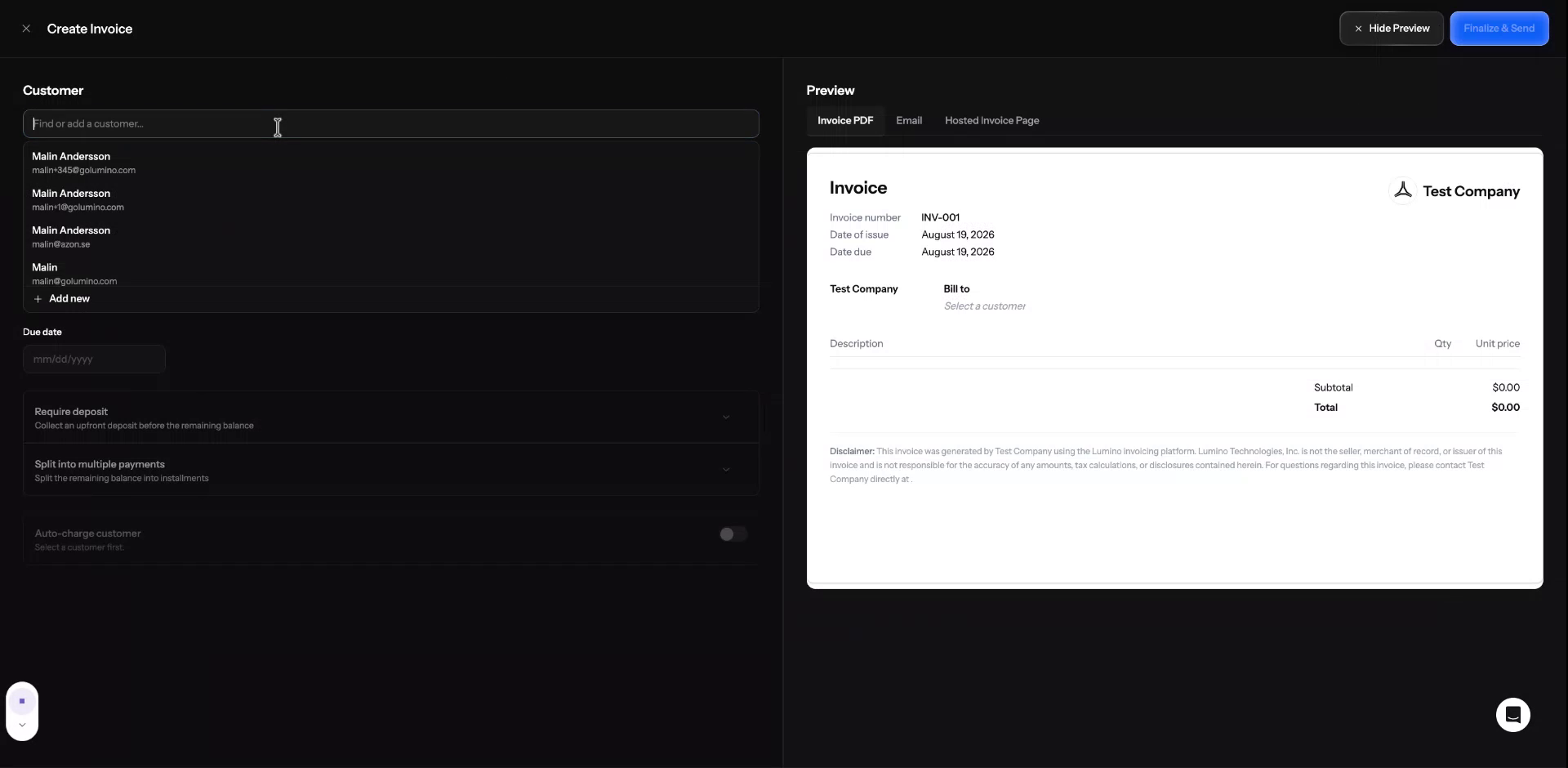
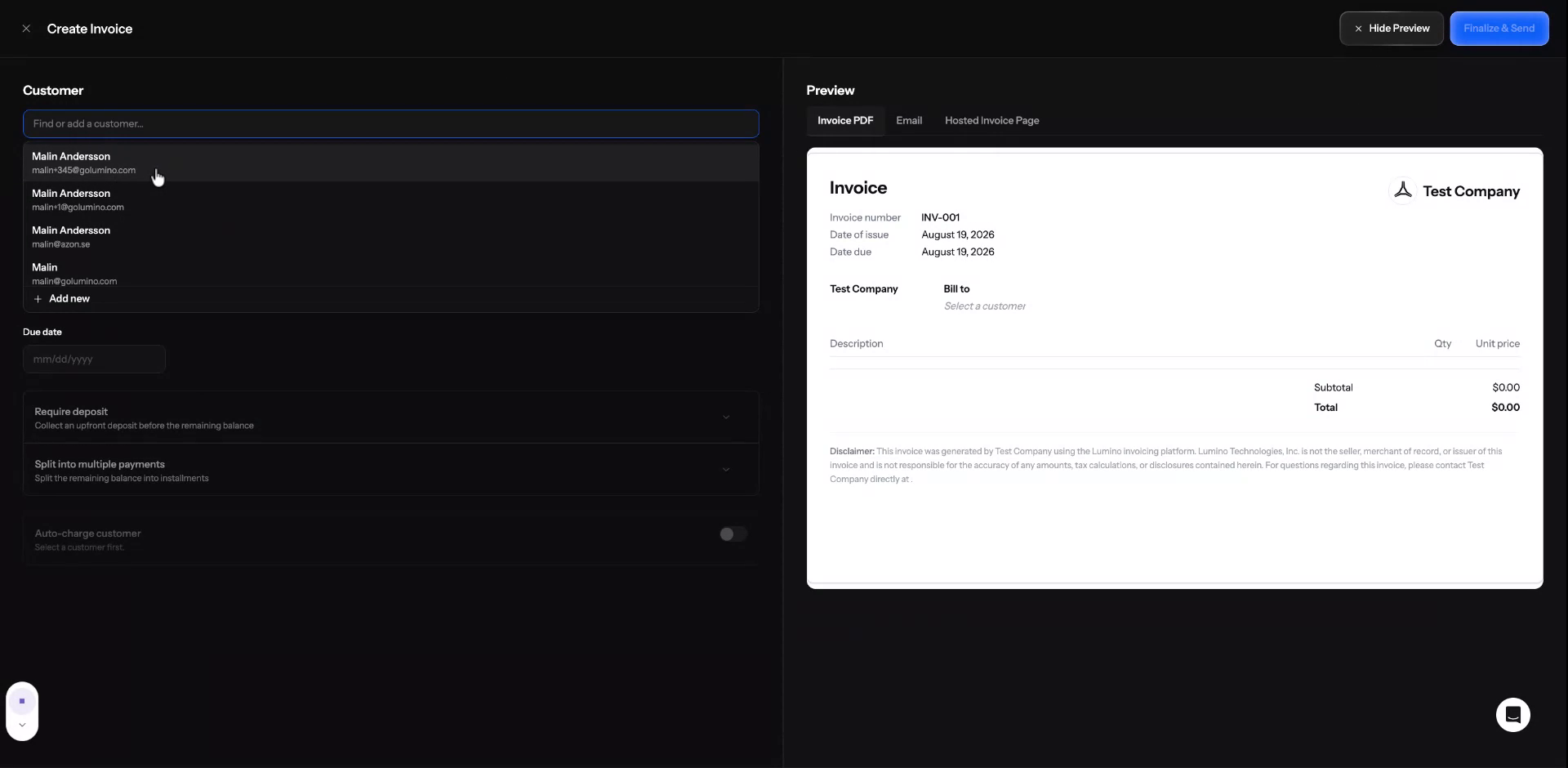
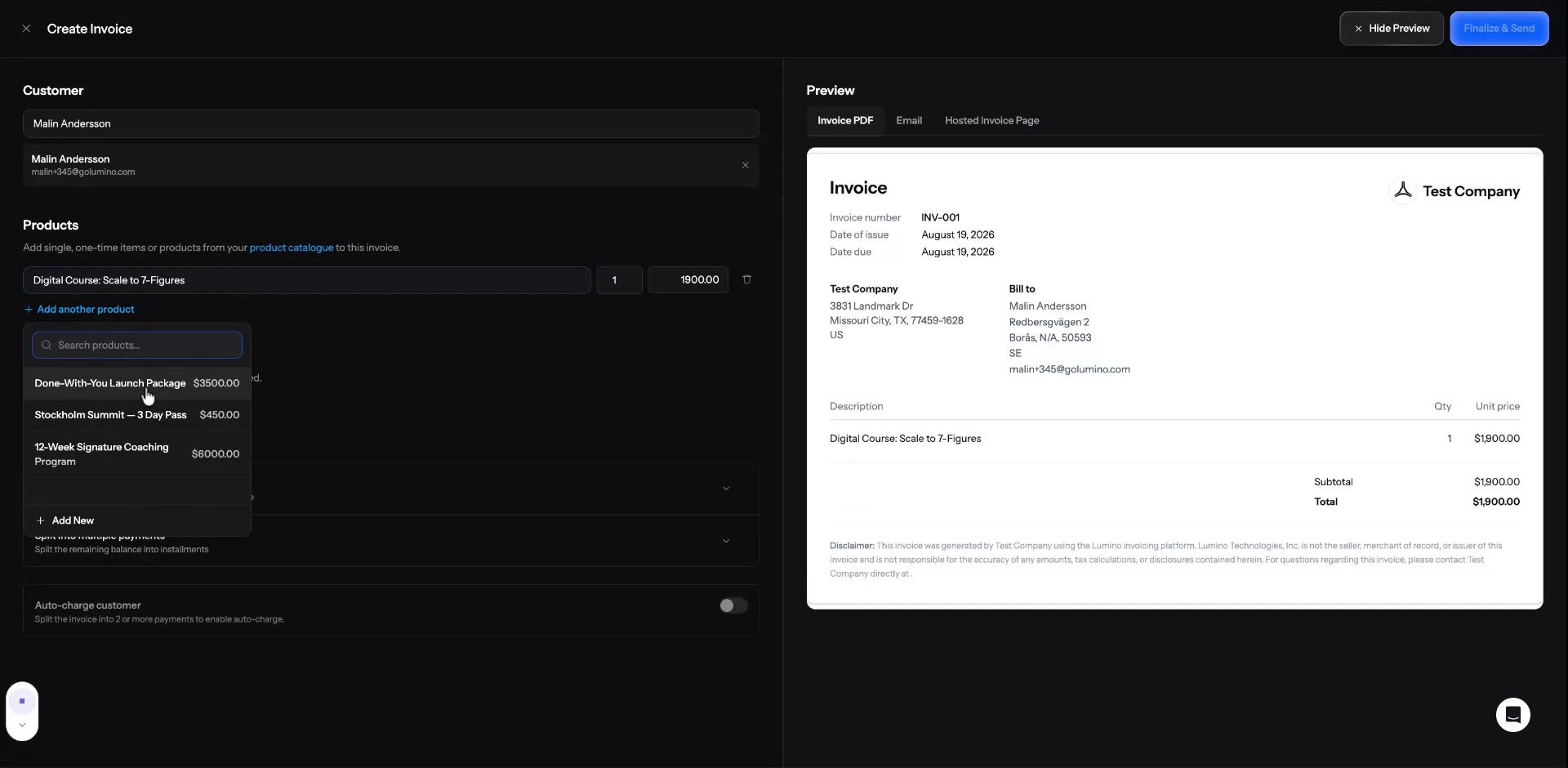
Step 3: Add One-Time Products and Quantities
Select the product you want to include on the invoice.
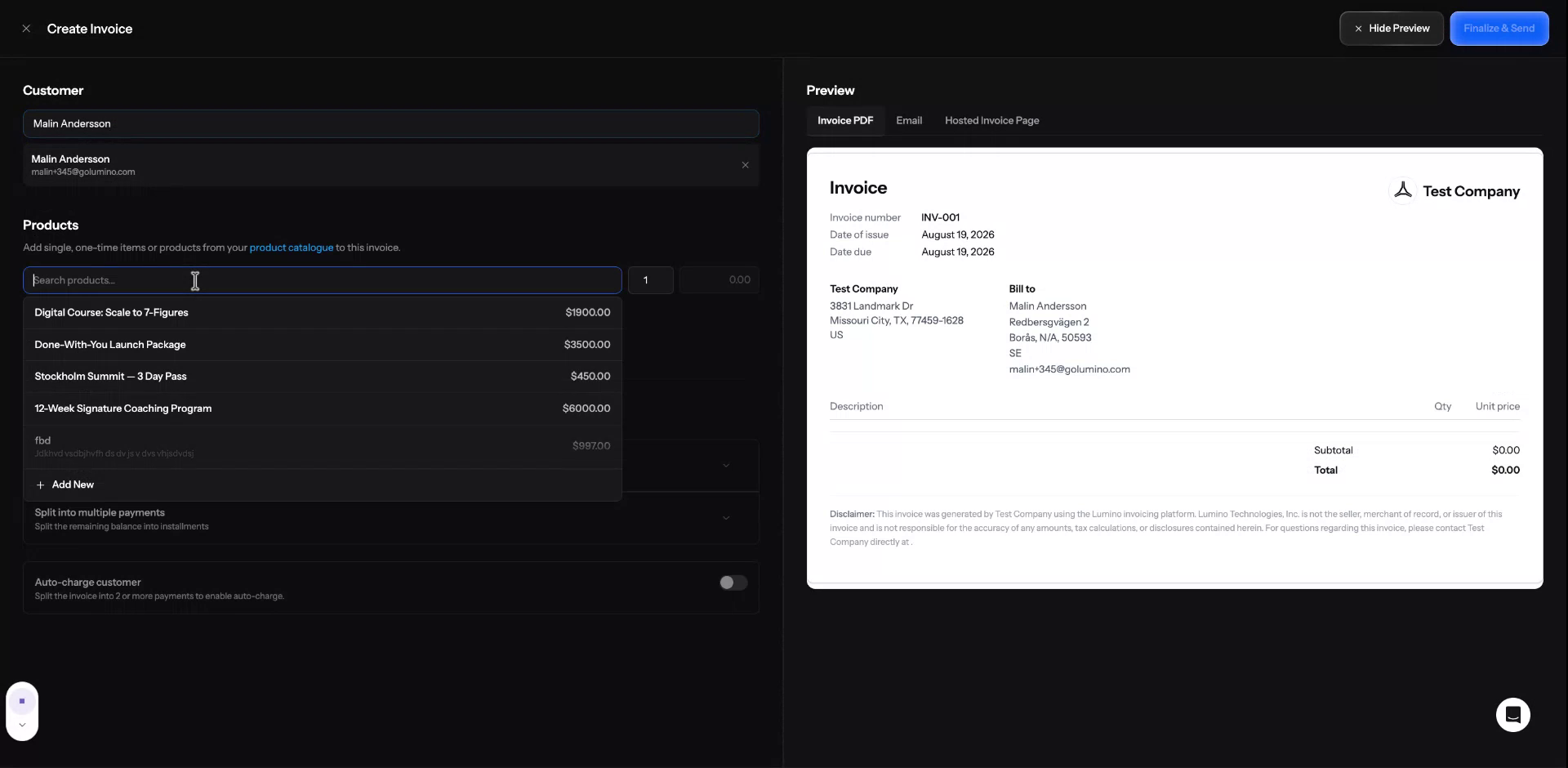
Only one-time products can be added to invoices.
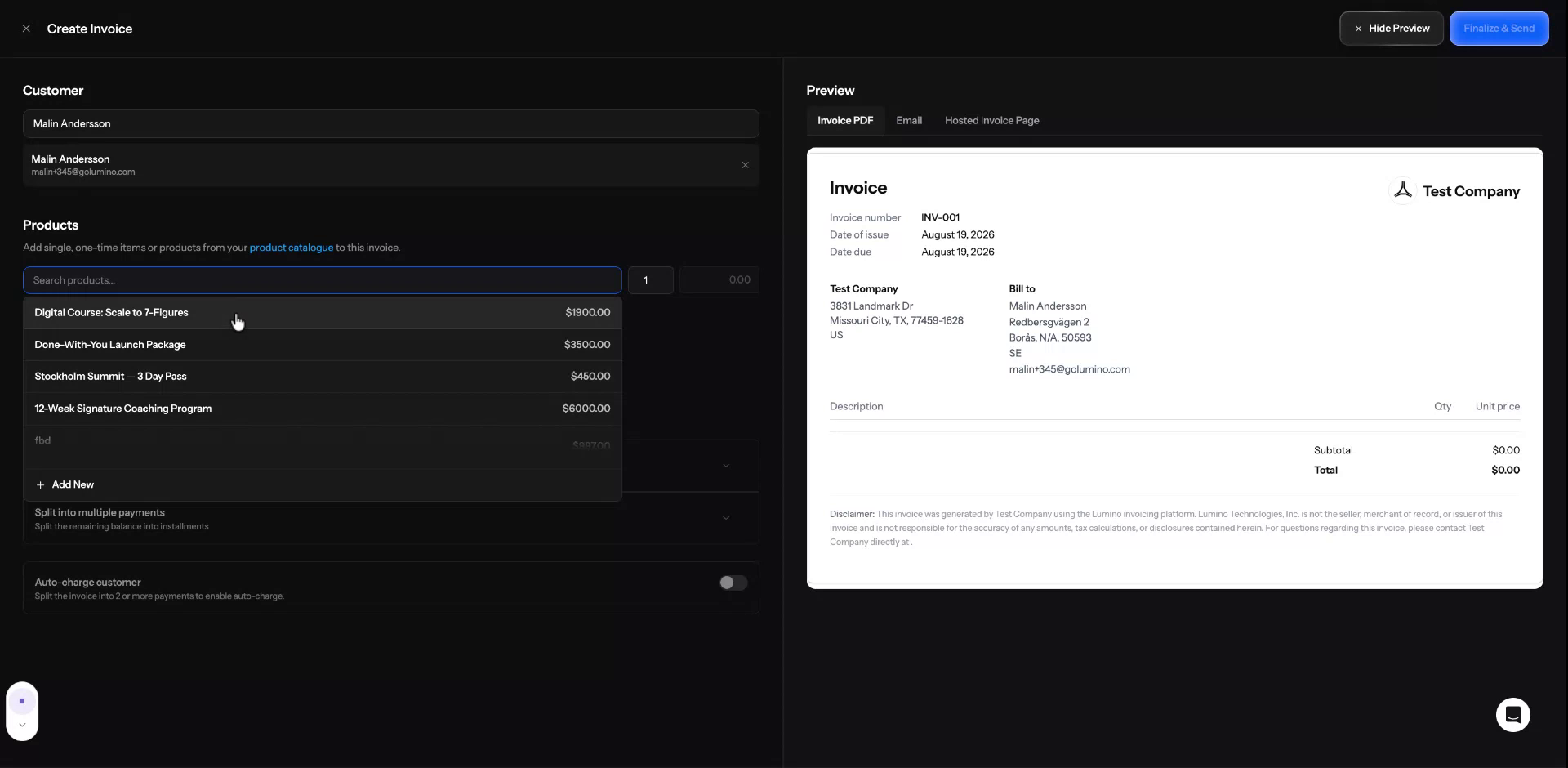
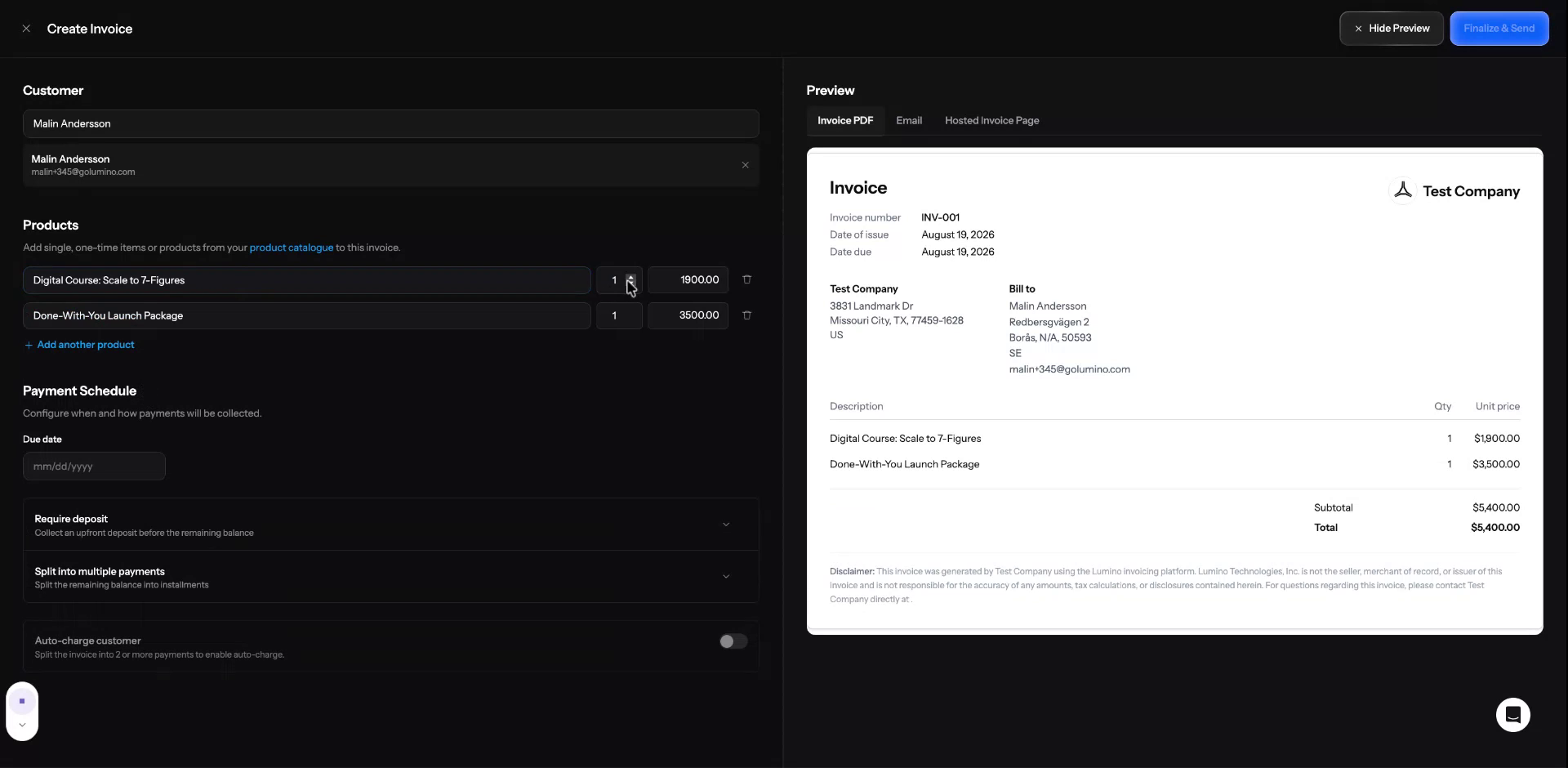
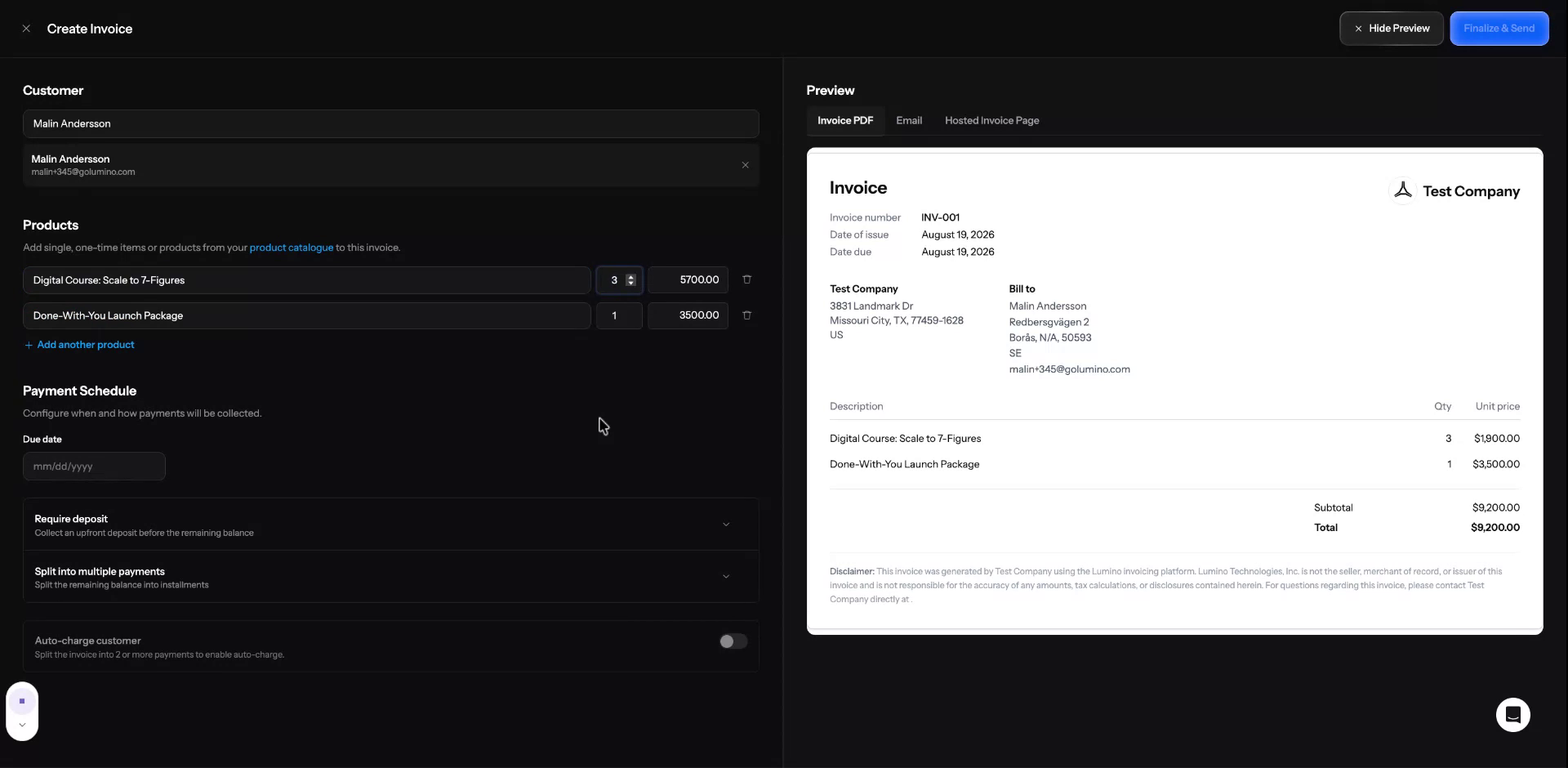
Adjust the quantity for each product you are adding to the invoice.
Step 4: Configure Due Date and Optional Deposit
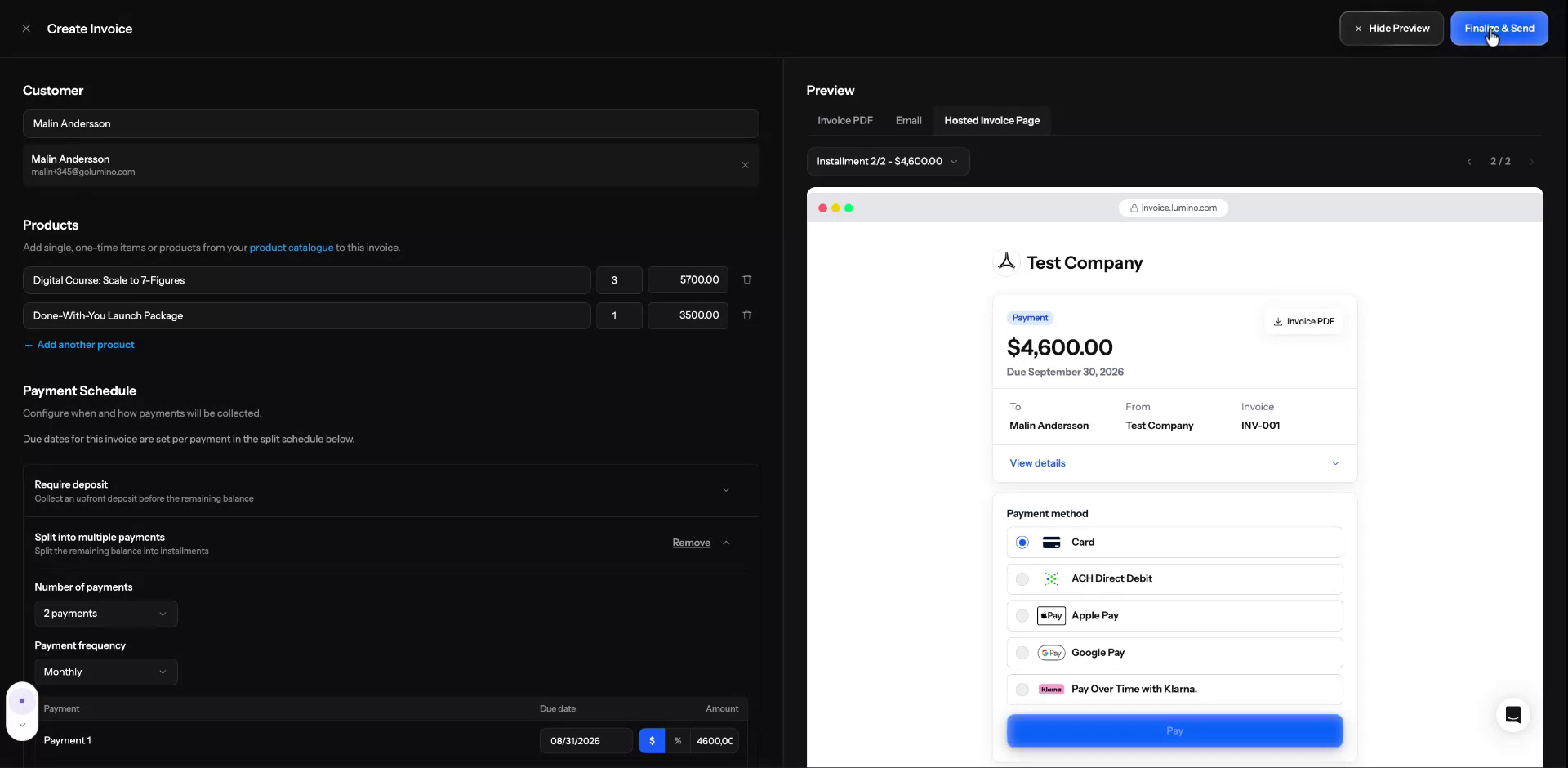
Set the main invoice due date.
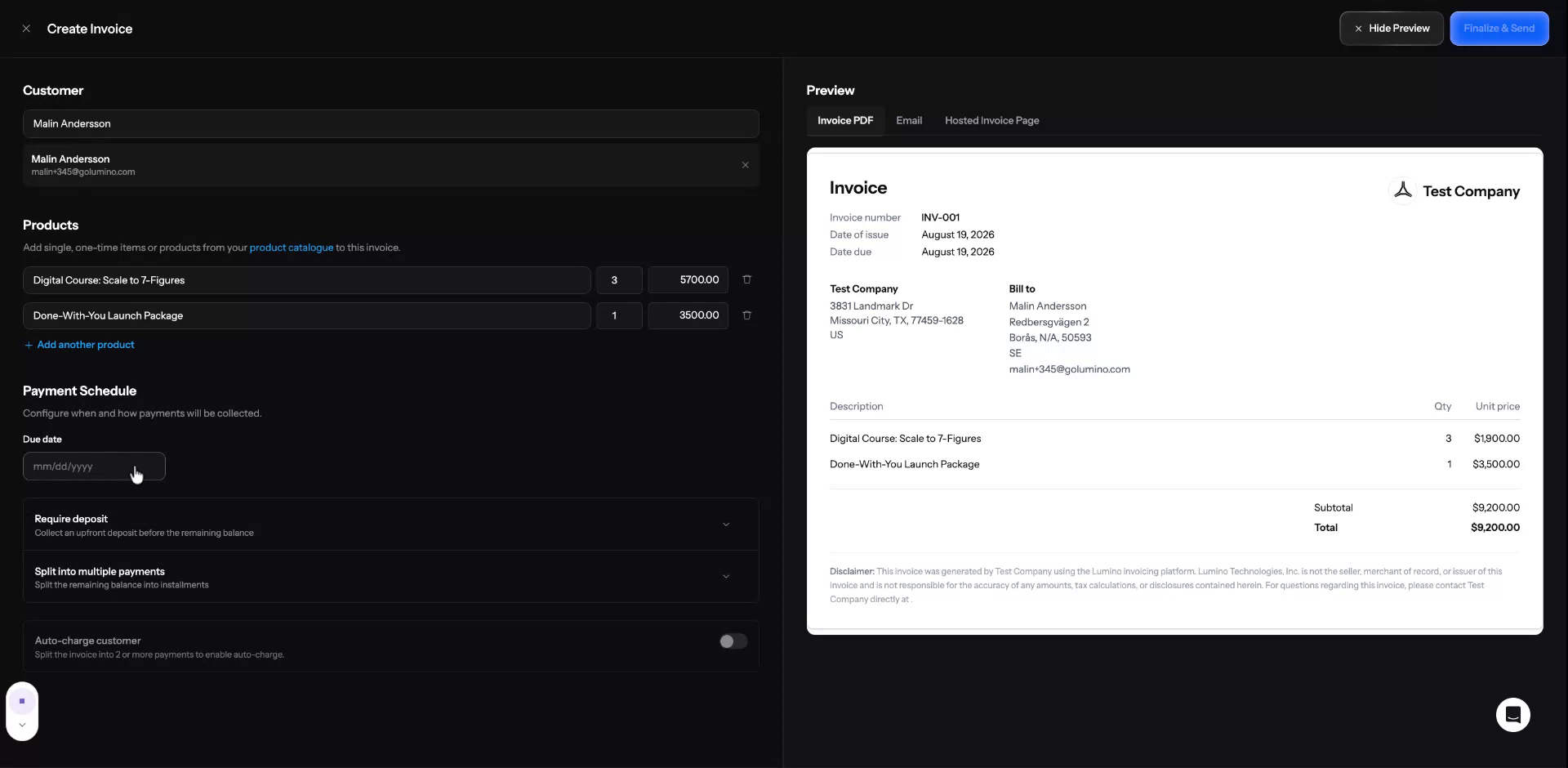
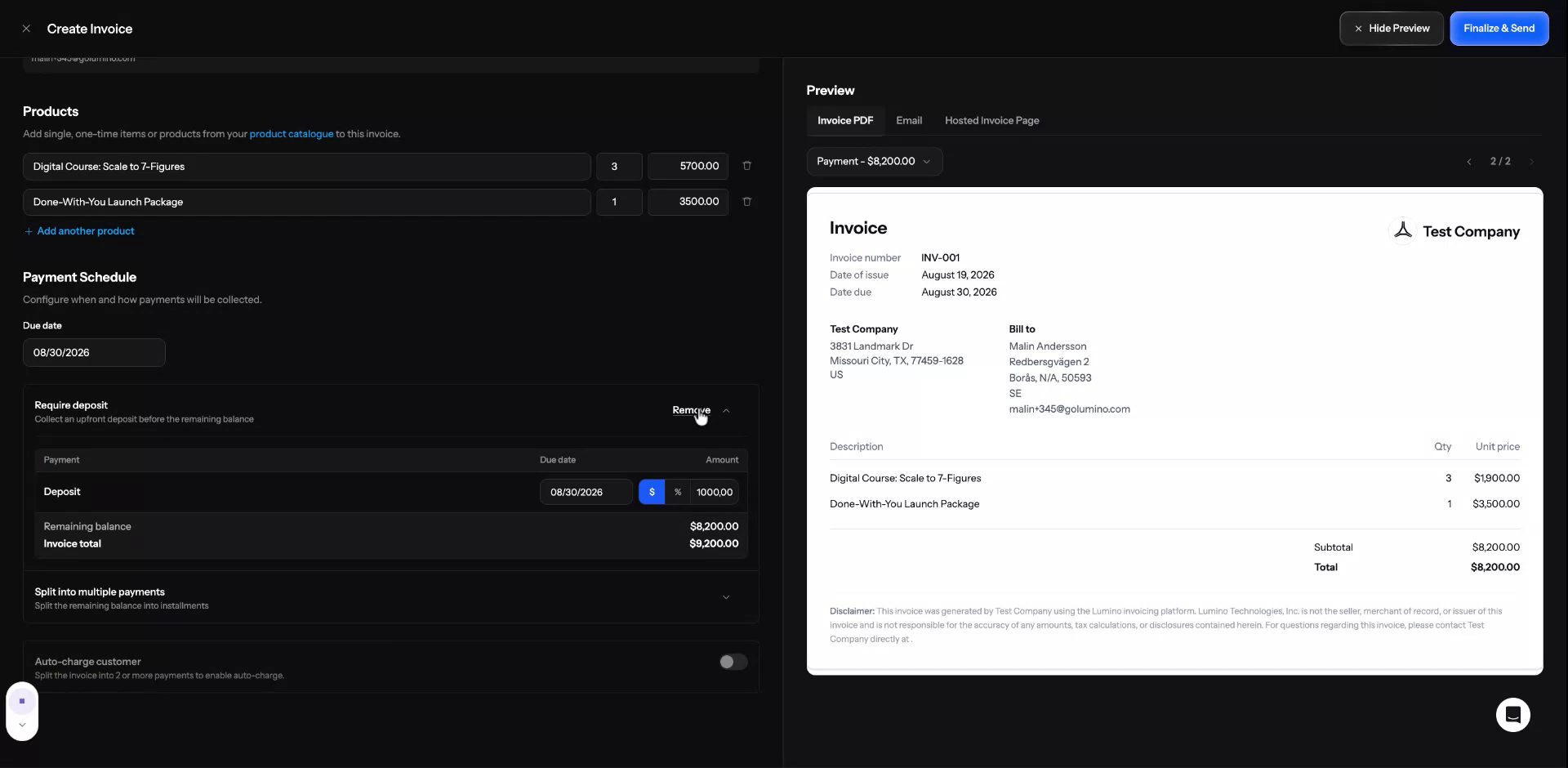
If you want to require a deposit, enable the deposit option and enter the deposit amount and its due date.
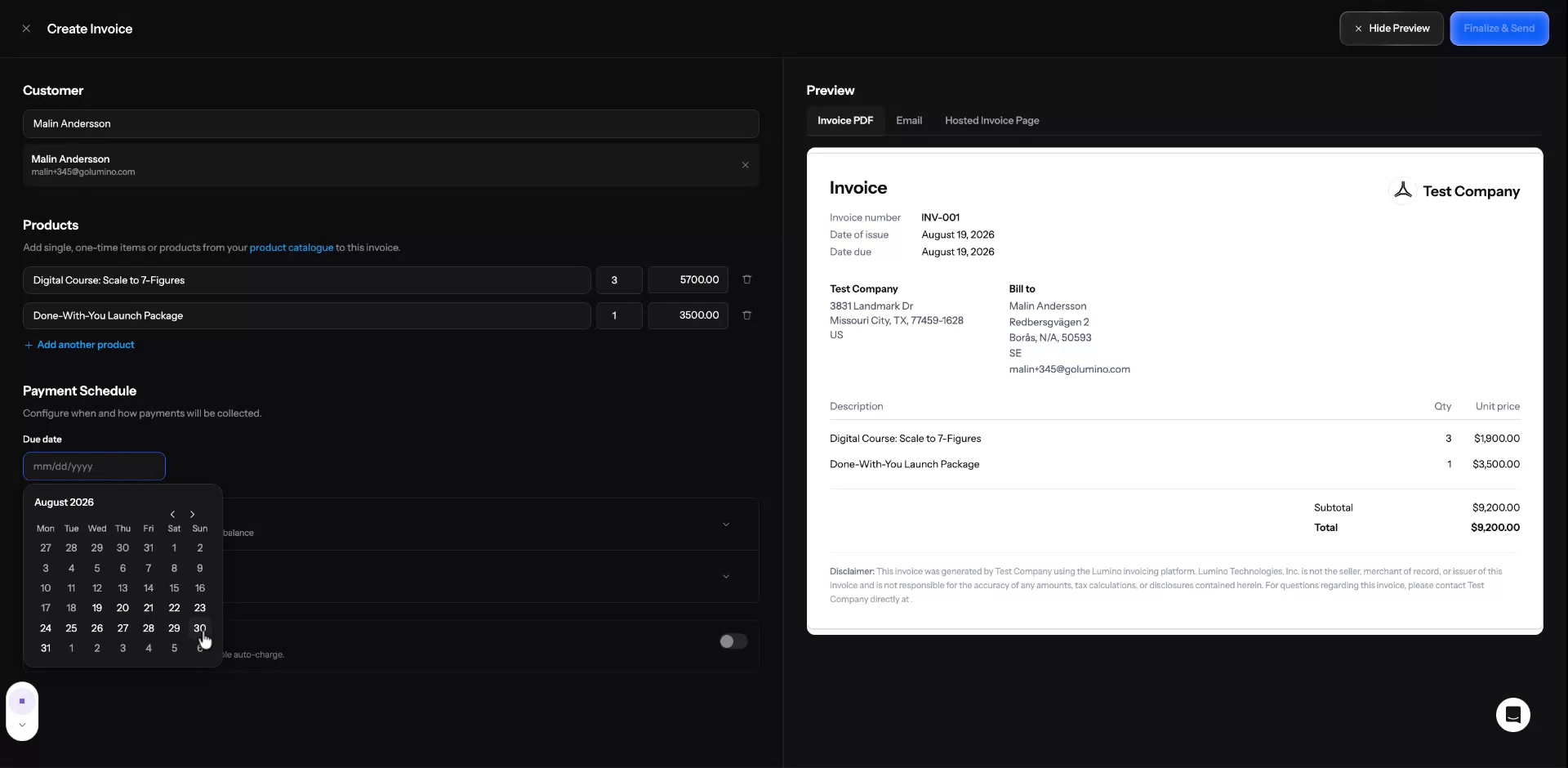
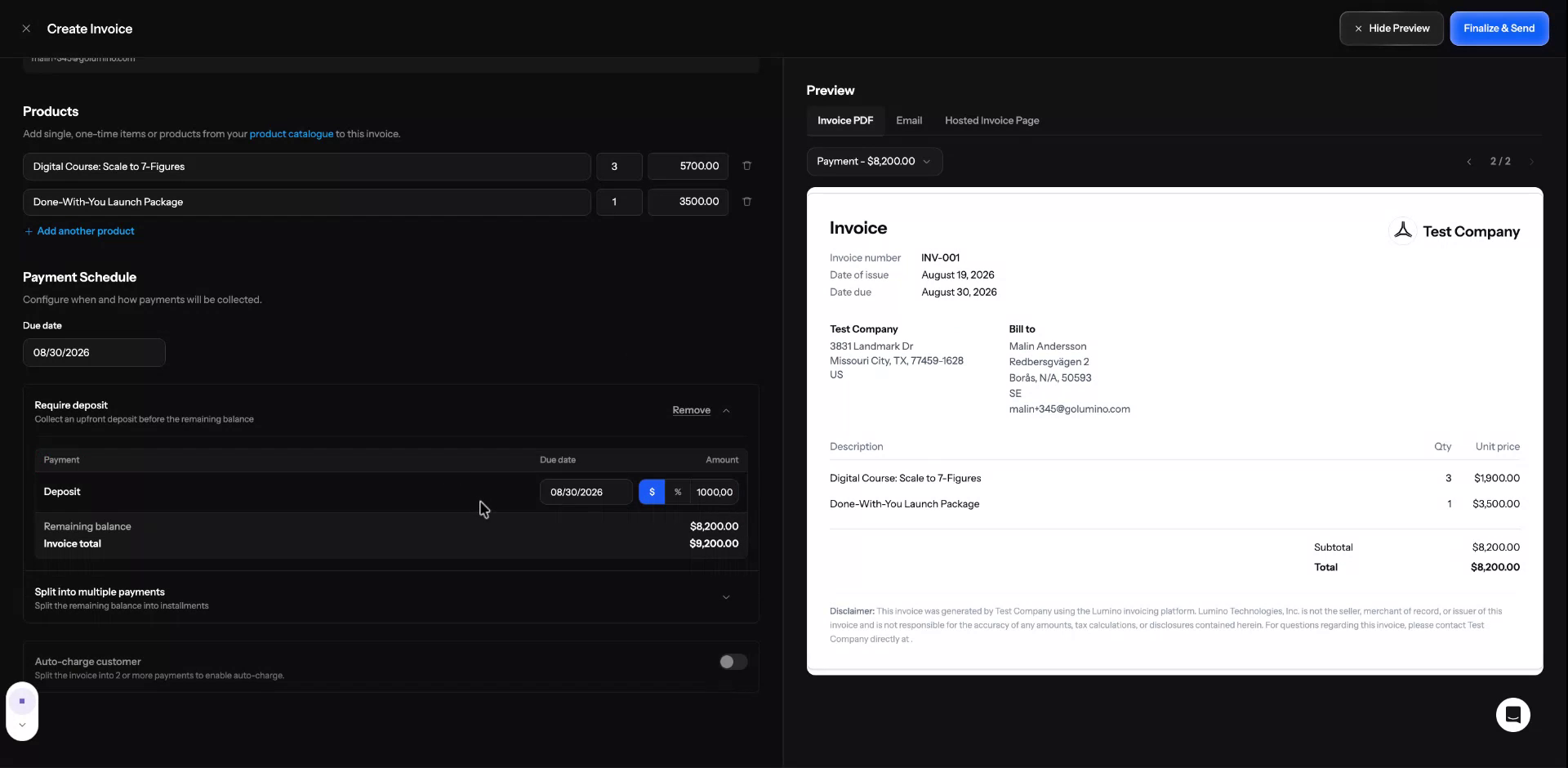
In this example, no deposit is added, and instead the invoice will be split into multiple payments.
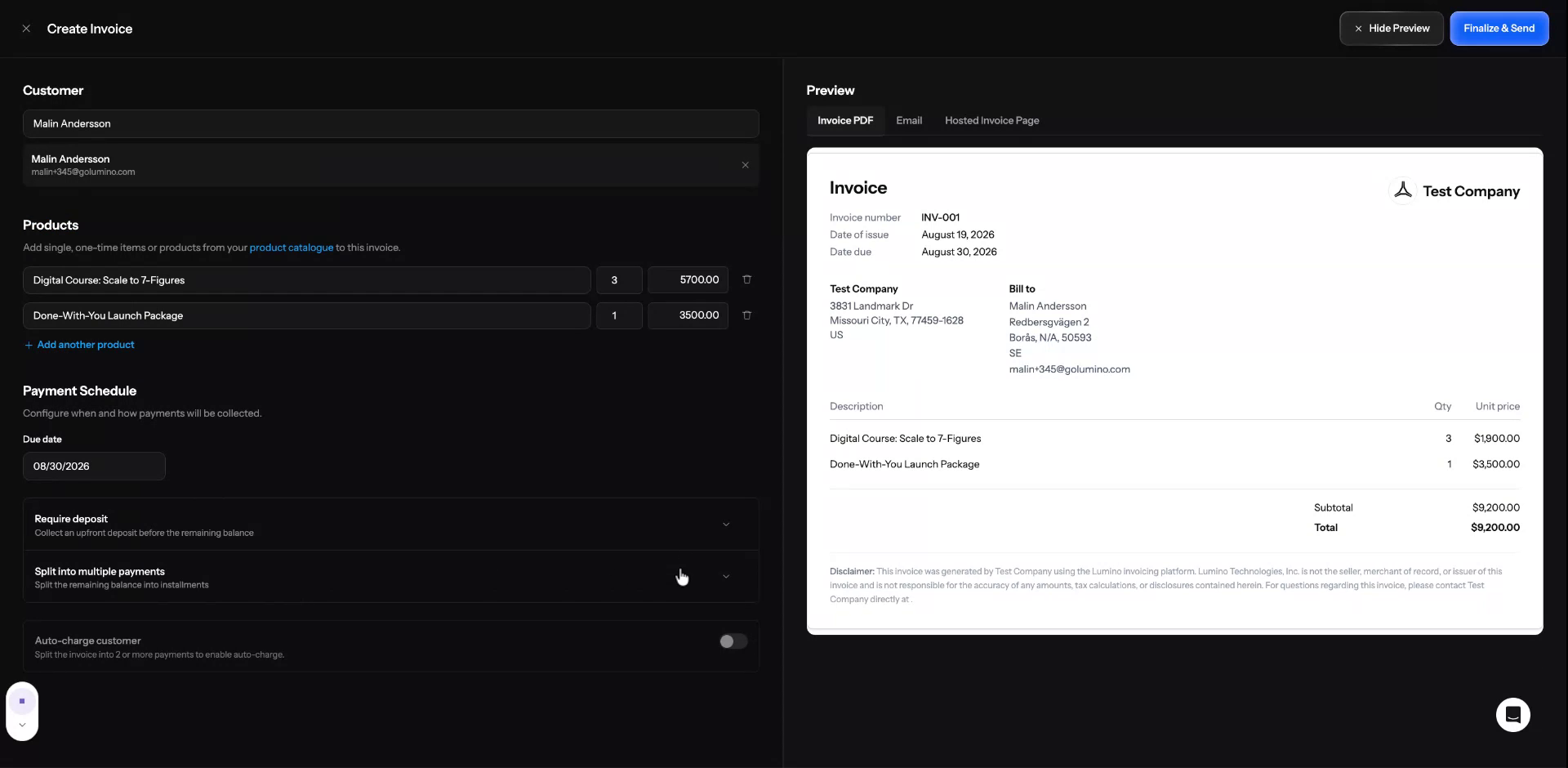
Step 5: Split the Invoice into Multiple Payments
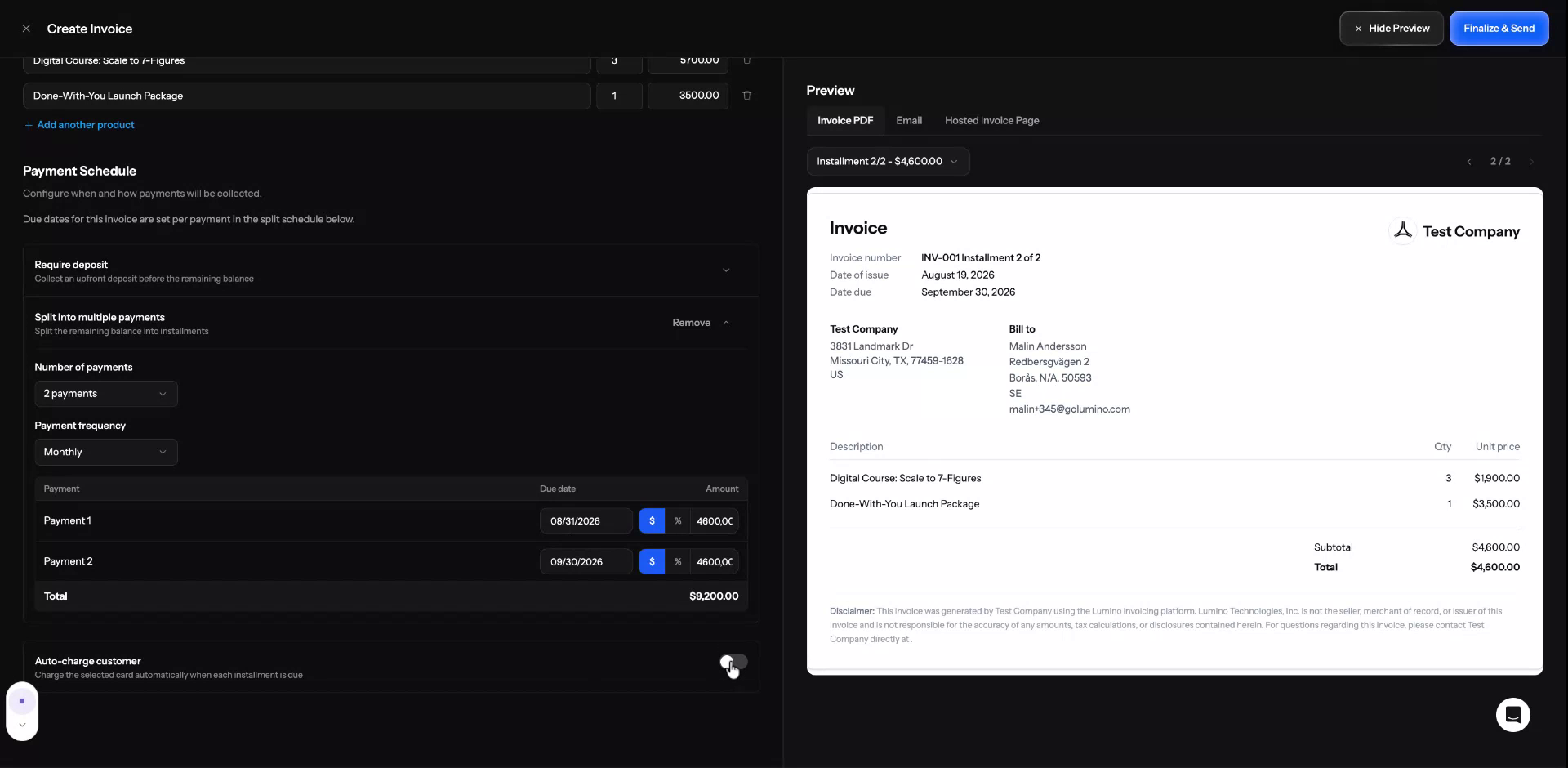
Open the split-payment drop-down to choose how many payments the invoice should be divided into.
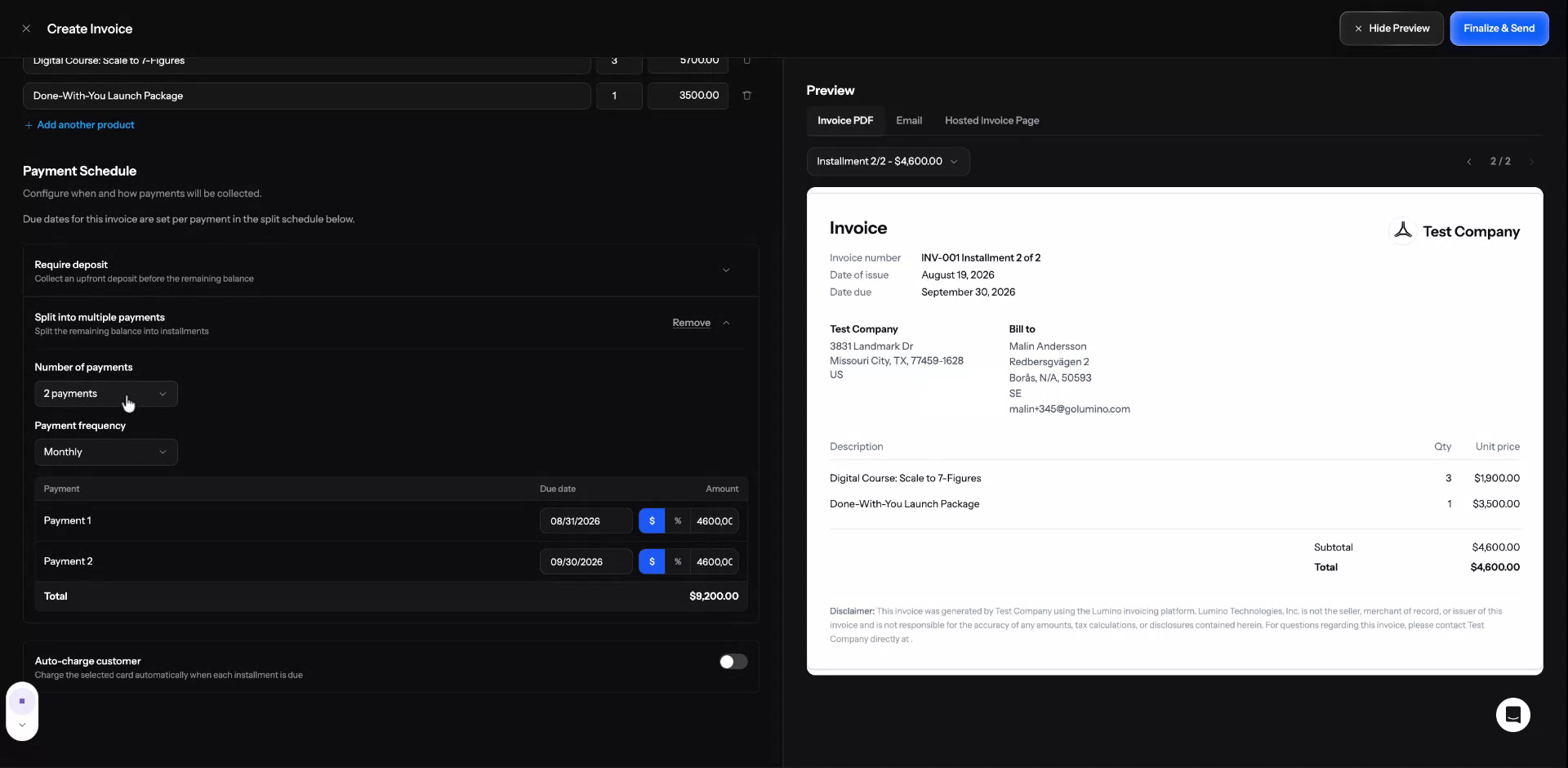
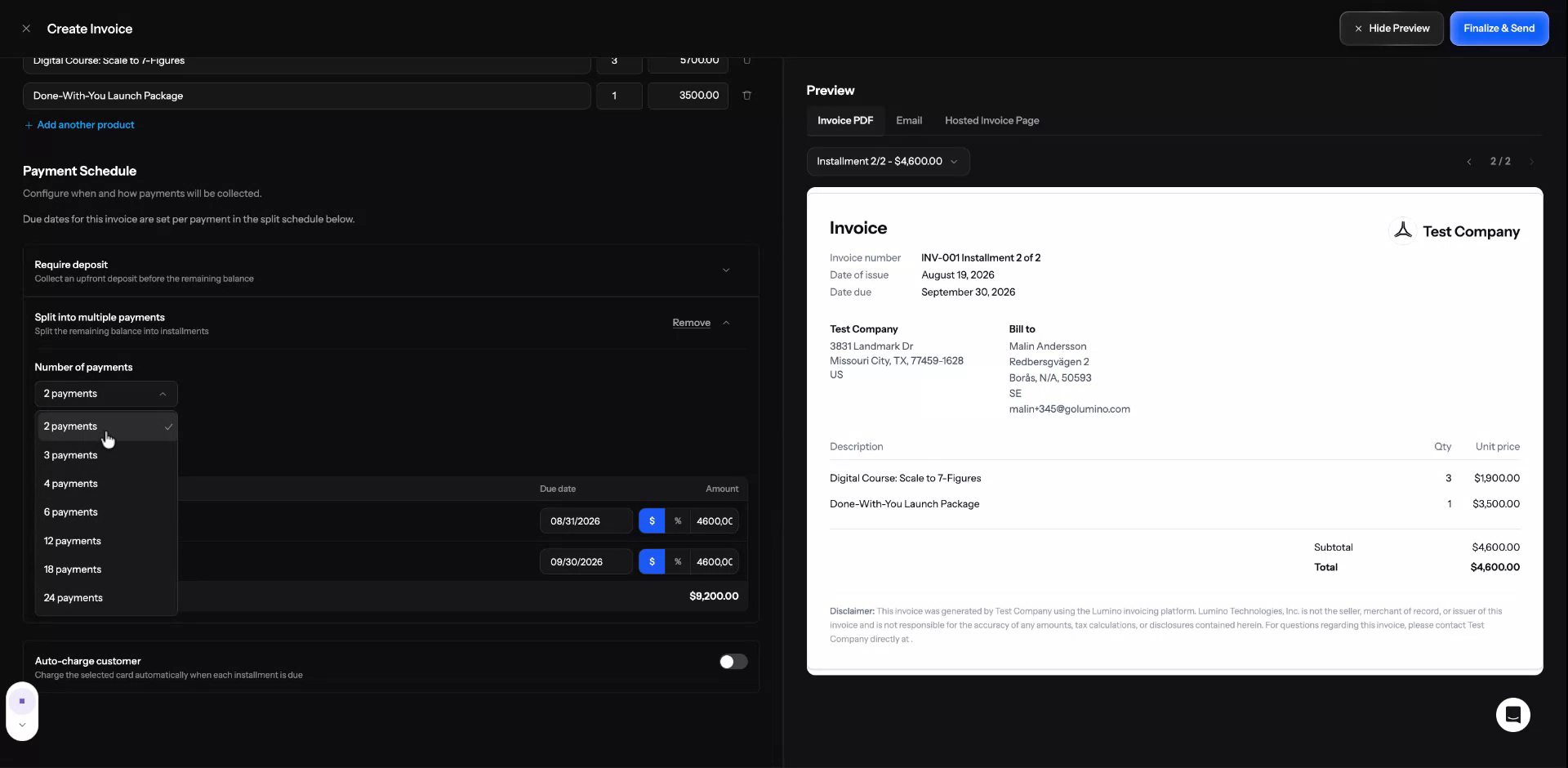
Select the payment frequency (for example, weekly, monthly, etc.).
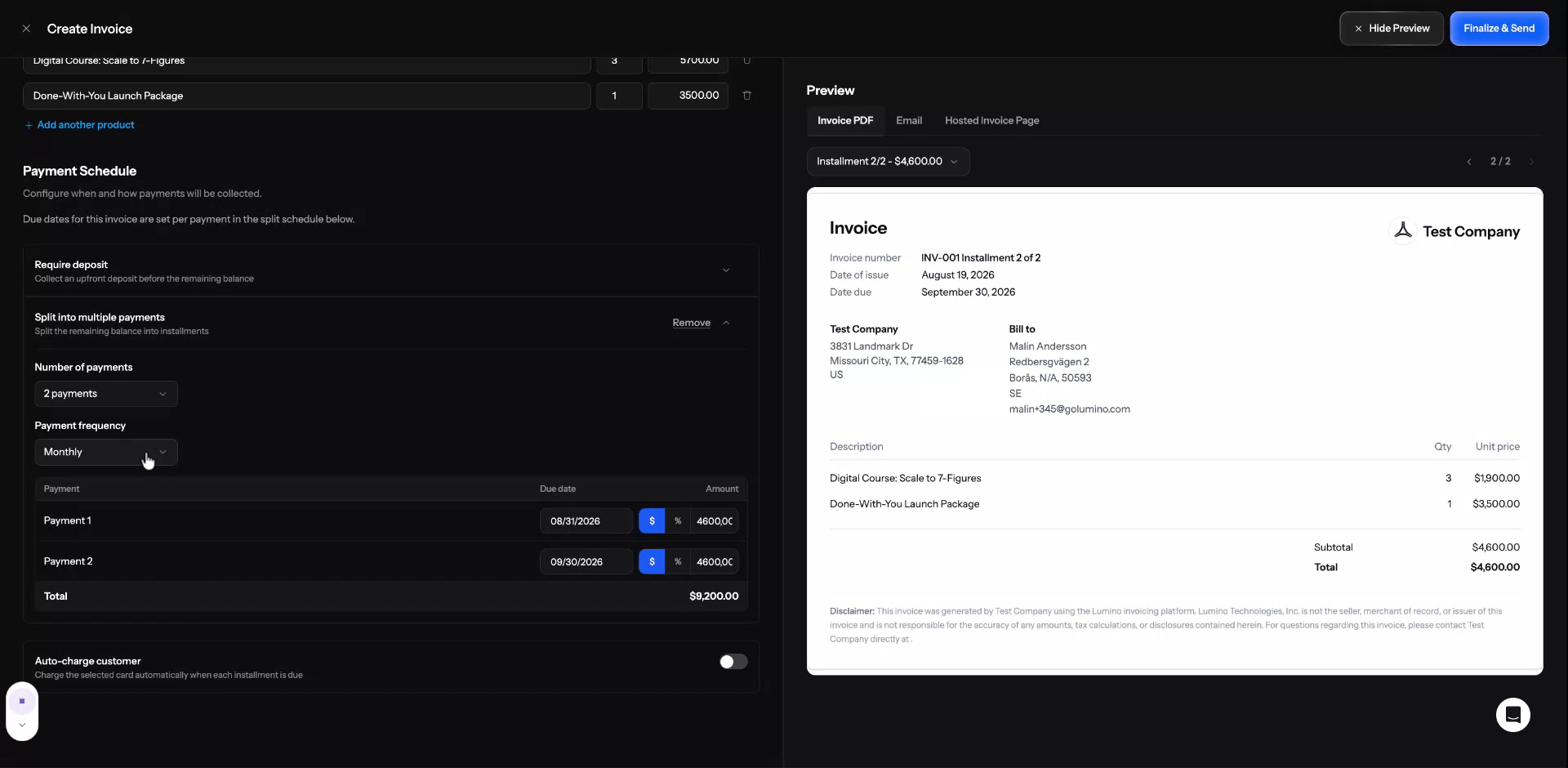
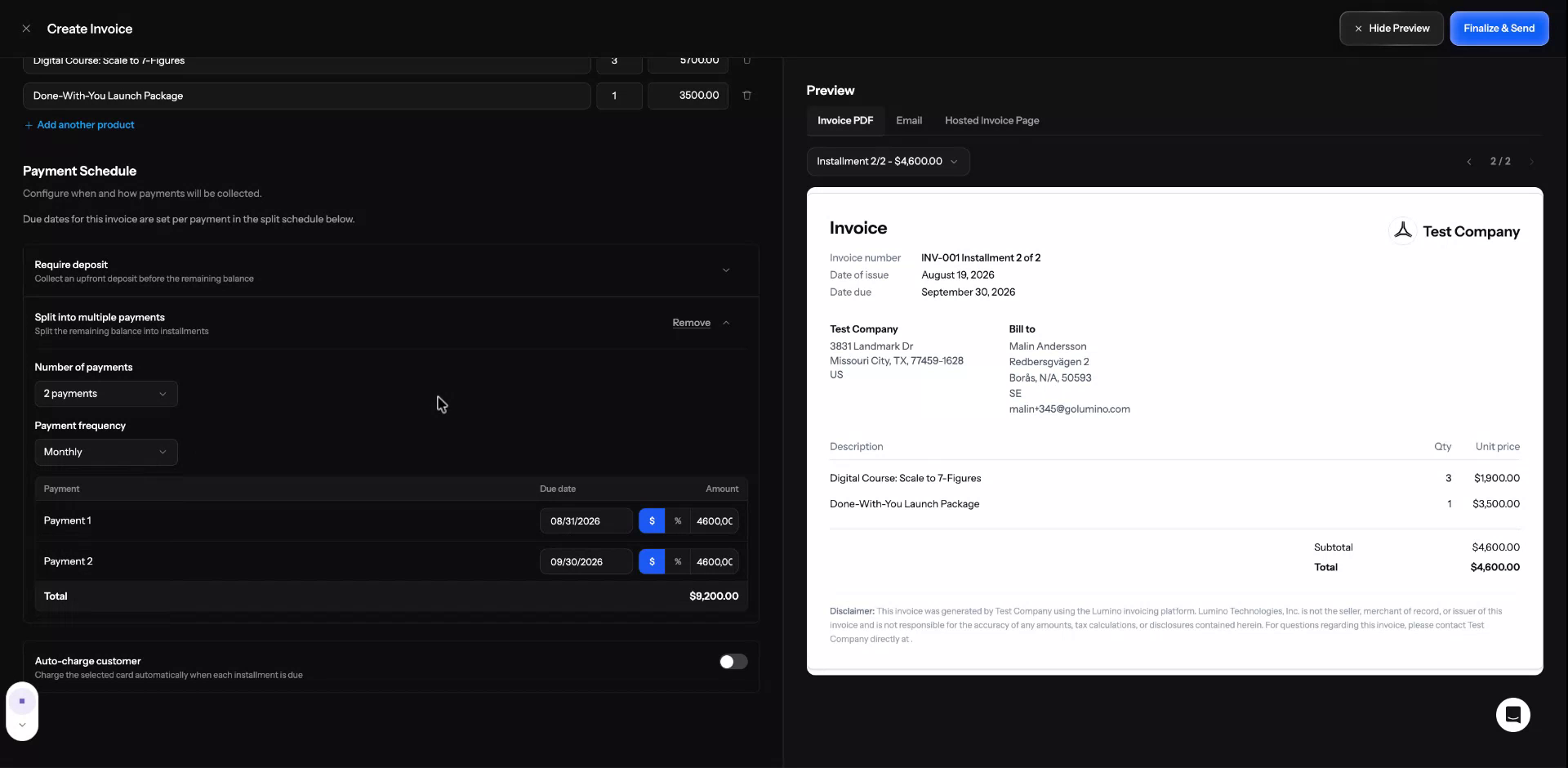
For two payments, adjust the due date for each payment. Choose whether each payment should be a percentage of the total or split equally.
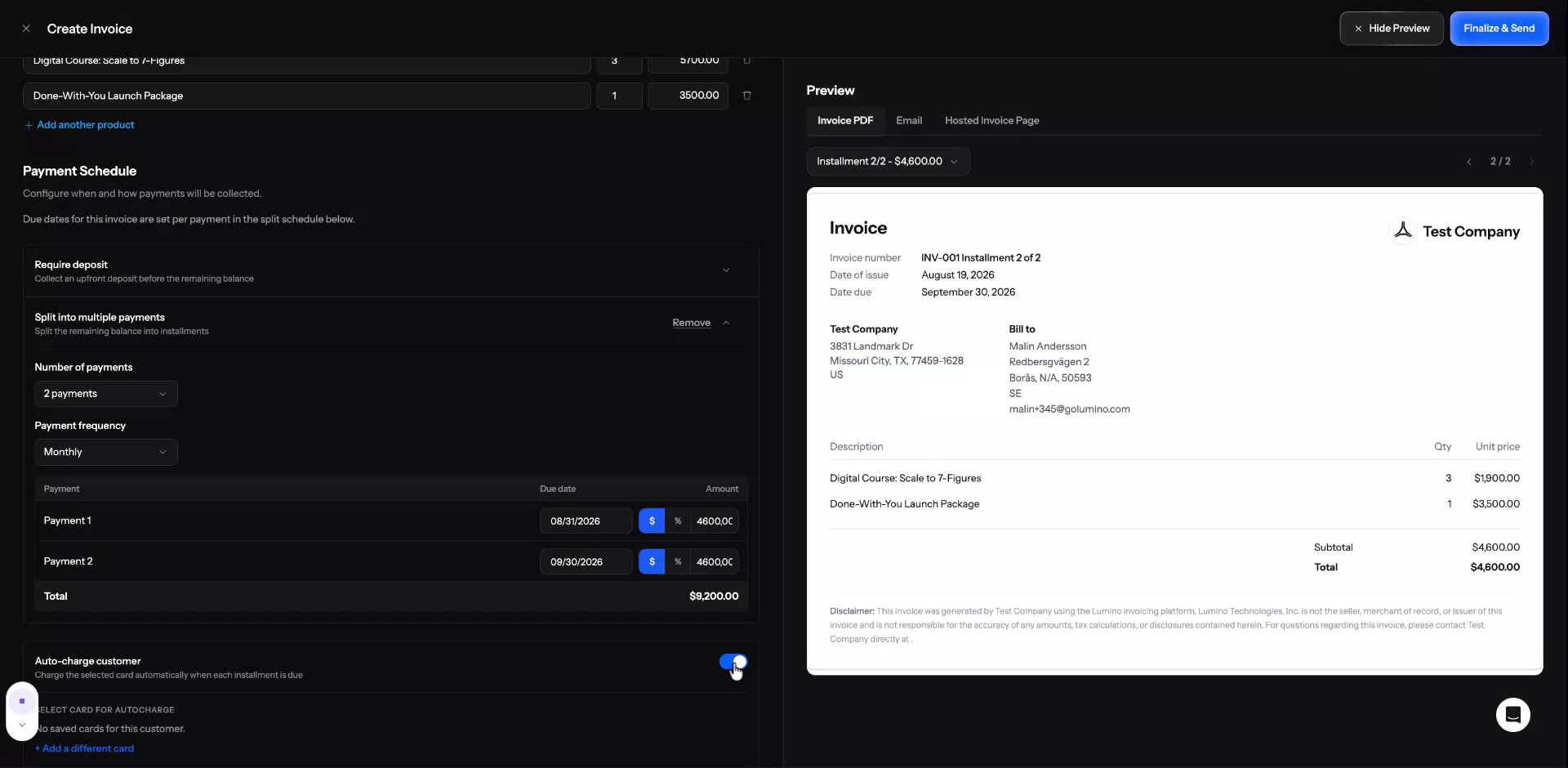
If you want to auto-charge a stored payment method for the customer, toggle the auto-charge option.
Step 6: Preview Email and Hosted Invoice Page
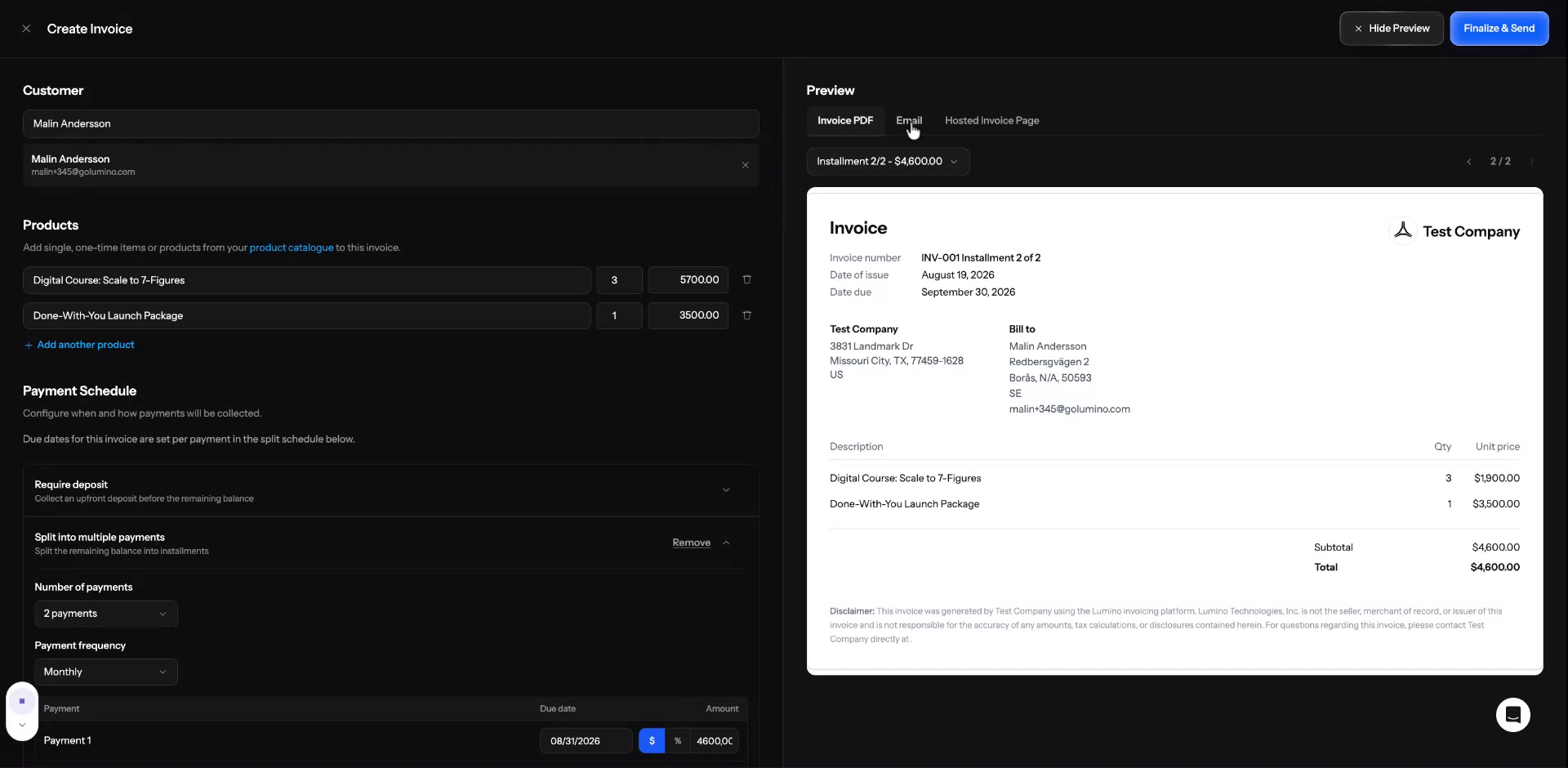
At the top, review how the invoice email will appear to the customer.
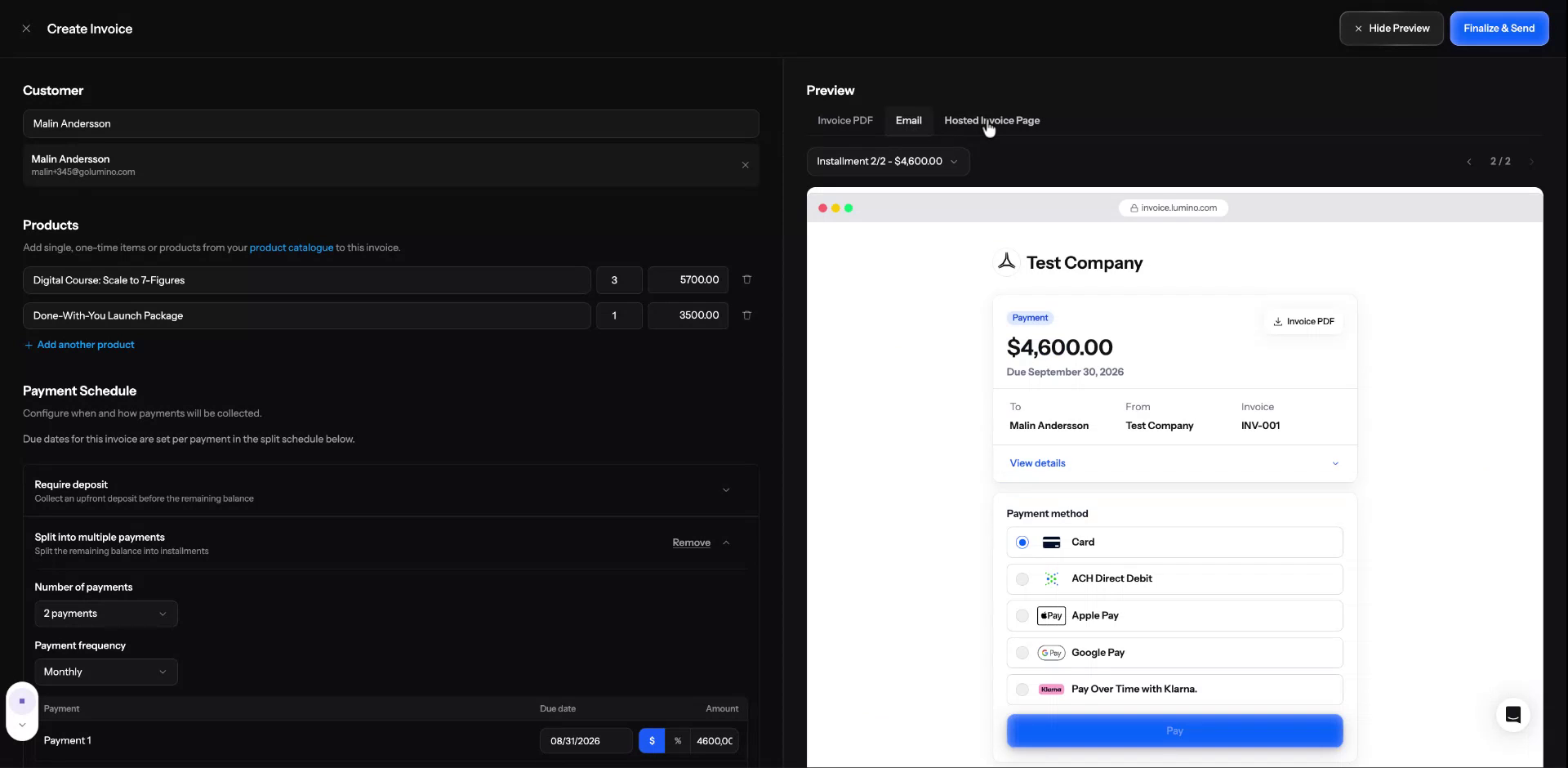
Preview the hosted invoice page, which is the payment link the customer will use to pay the invoice.
Step 7: Finalize and Send the Invoice
When all details are correct, click Finalize and Send to deliver the invoice to the customer.
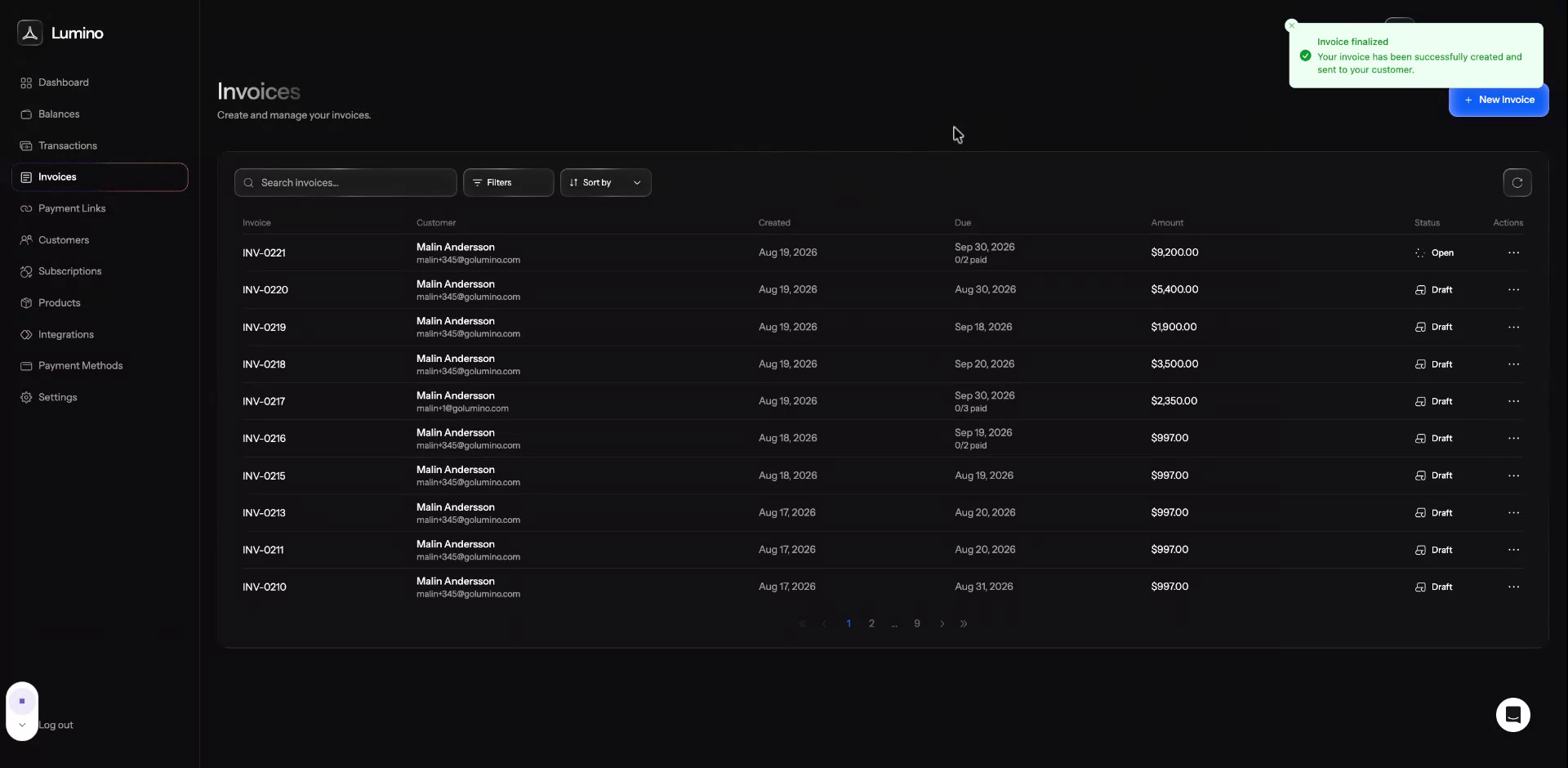
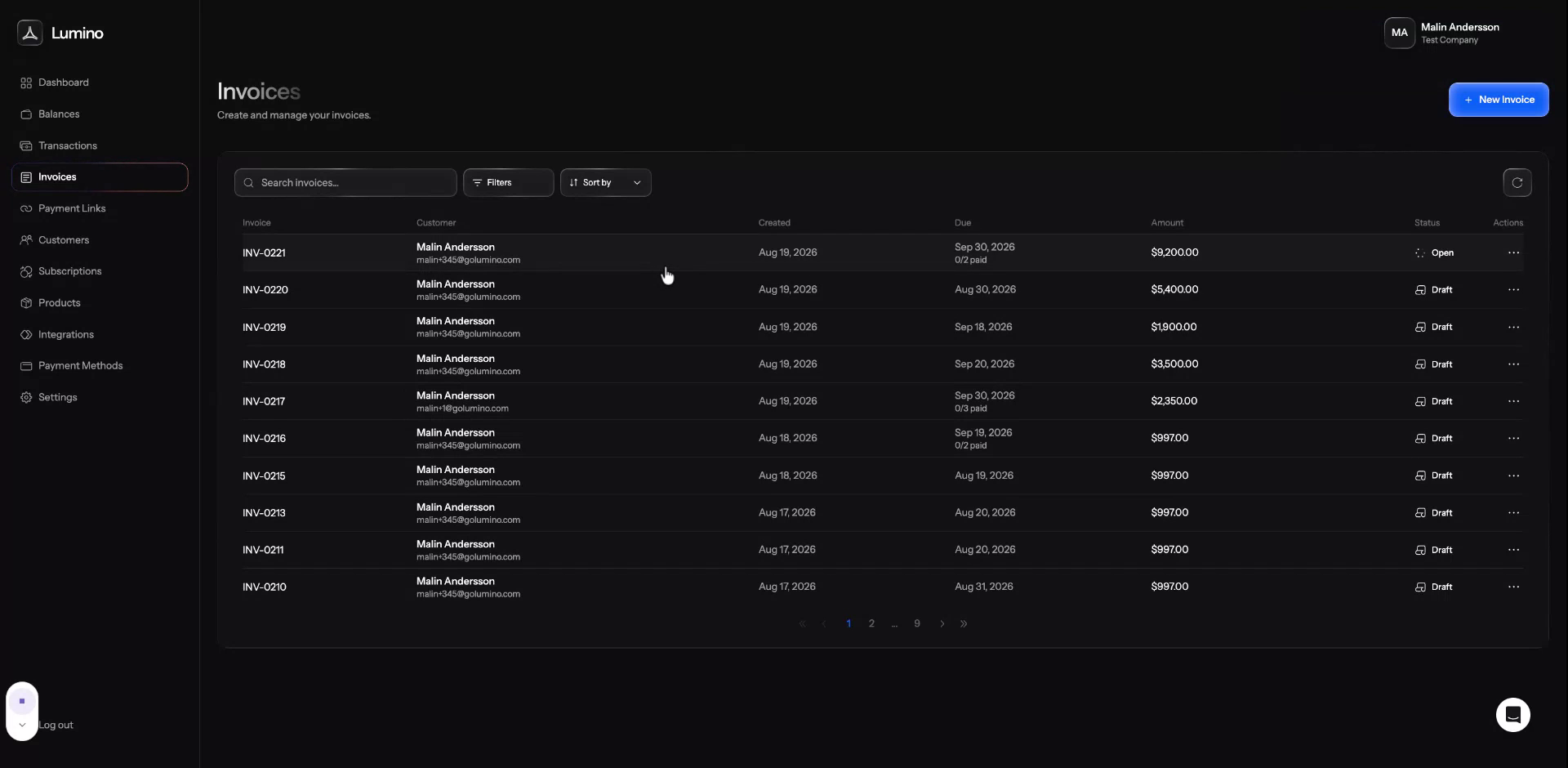
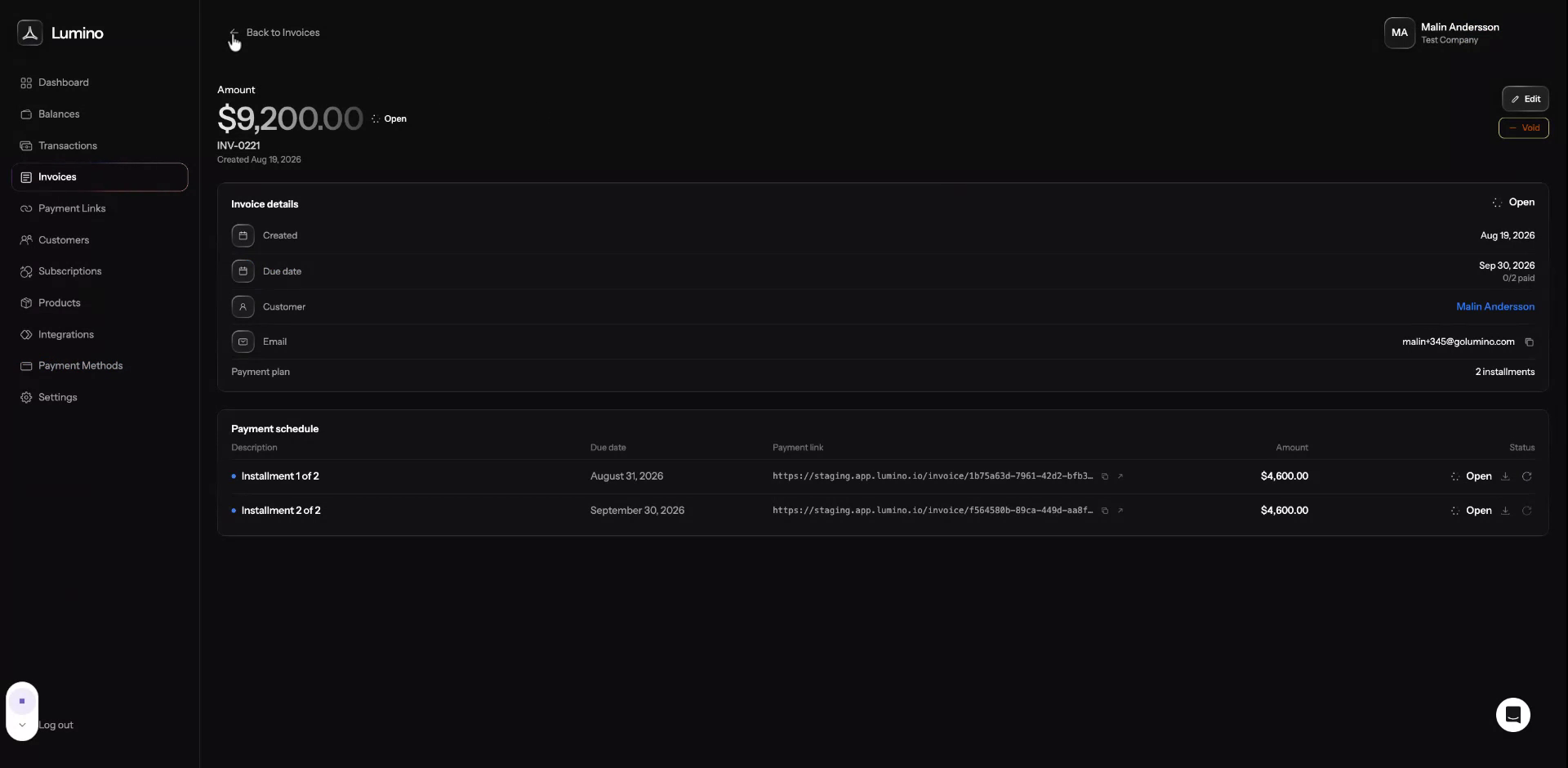
Step 8: Open the Invoice and Review Payment Links
Open the invoice you just created to view its details.
Review the separate payment links for each split payment and open a payment link to see the customer’s view.
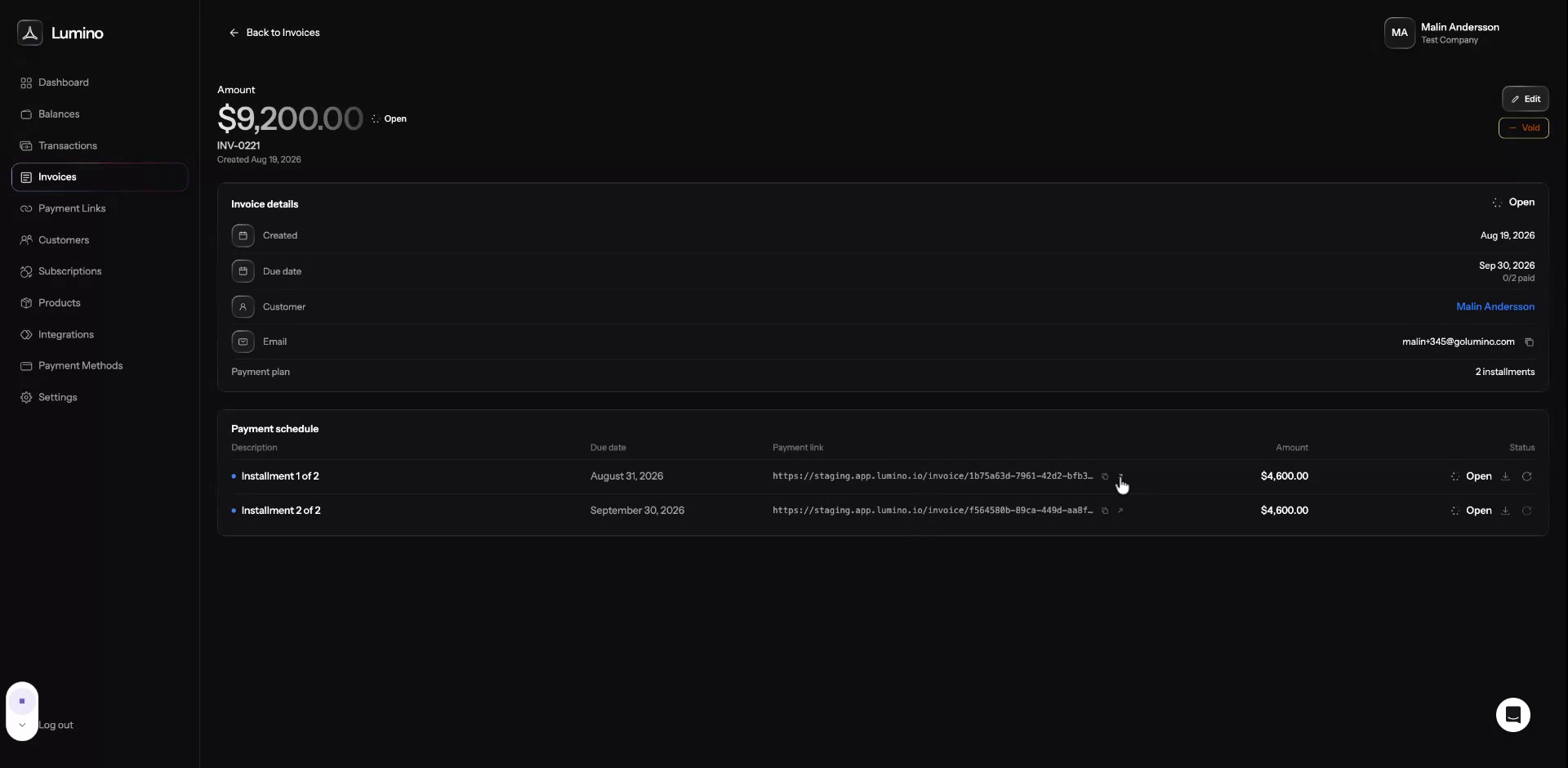
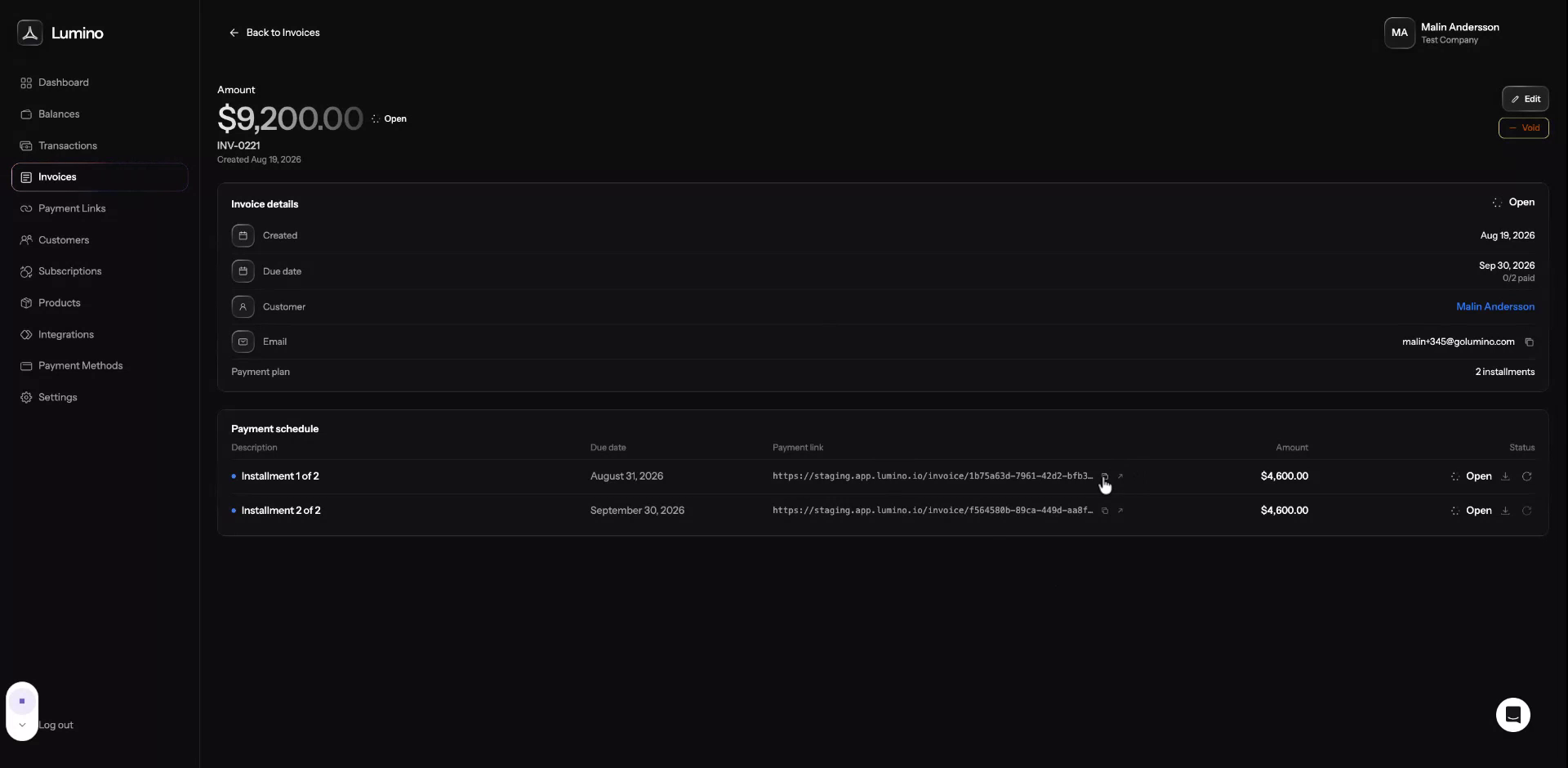
You can share this payment link directly with the customer if needed.
Step 9: Resend, Void, or Edit the Invoice
Use the available options to resend the invoice email if the customer has not received it, or to void the payment if necessary.
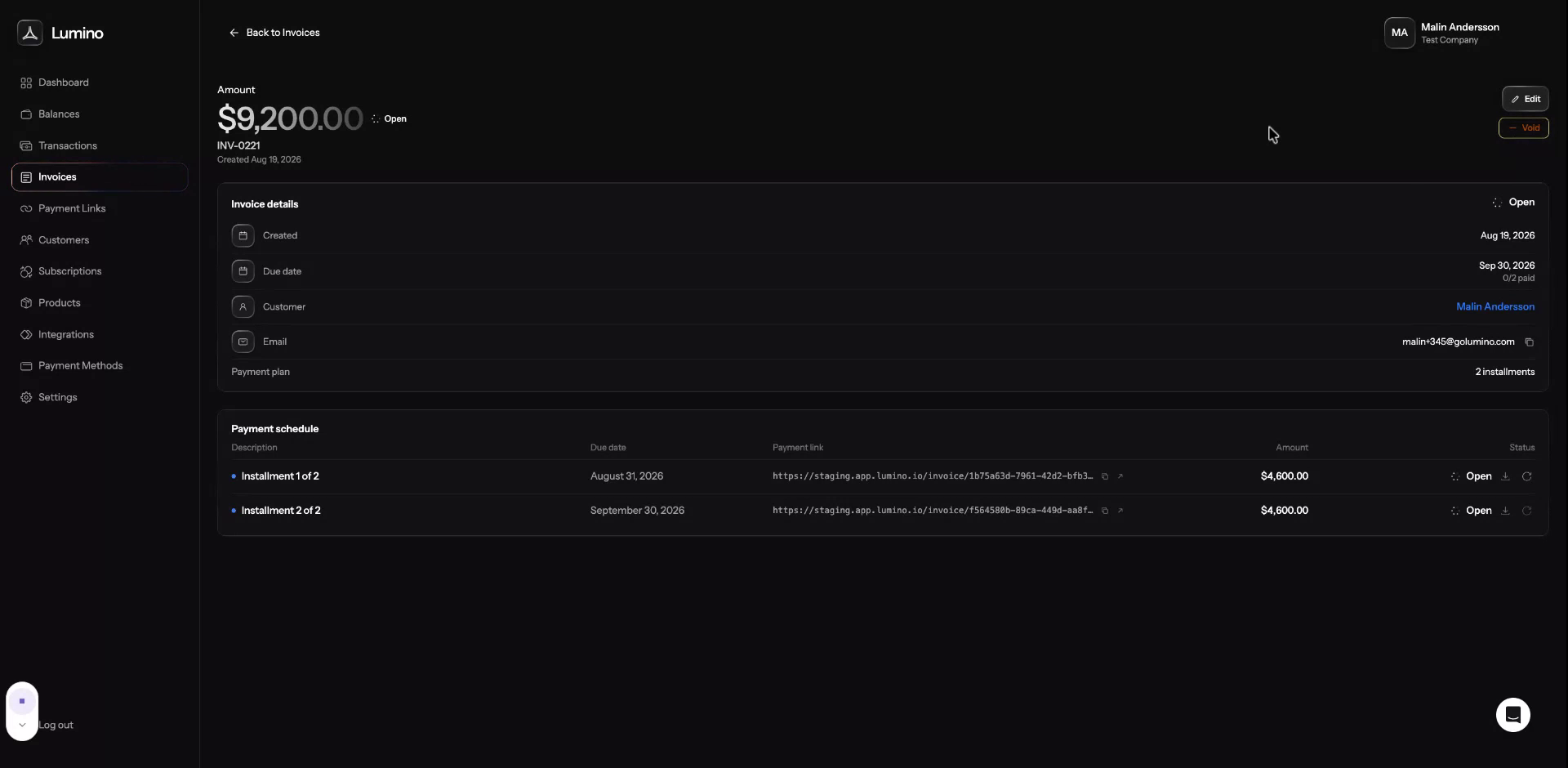
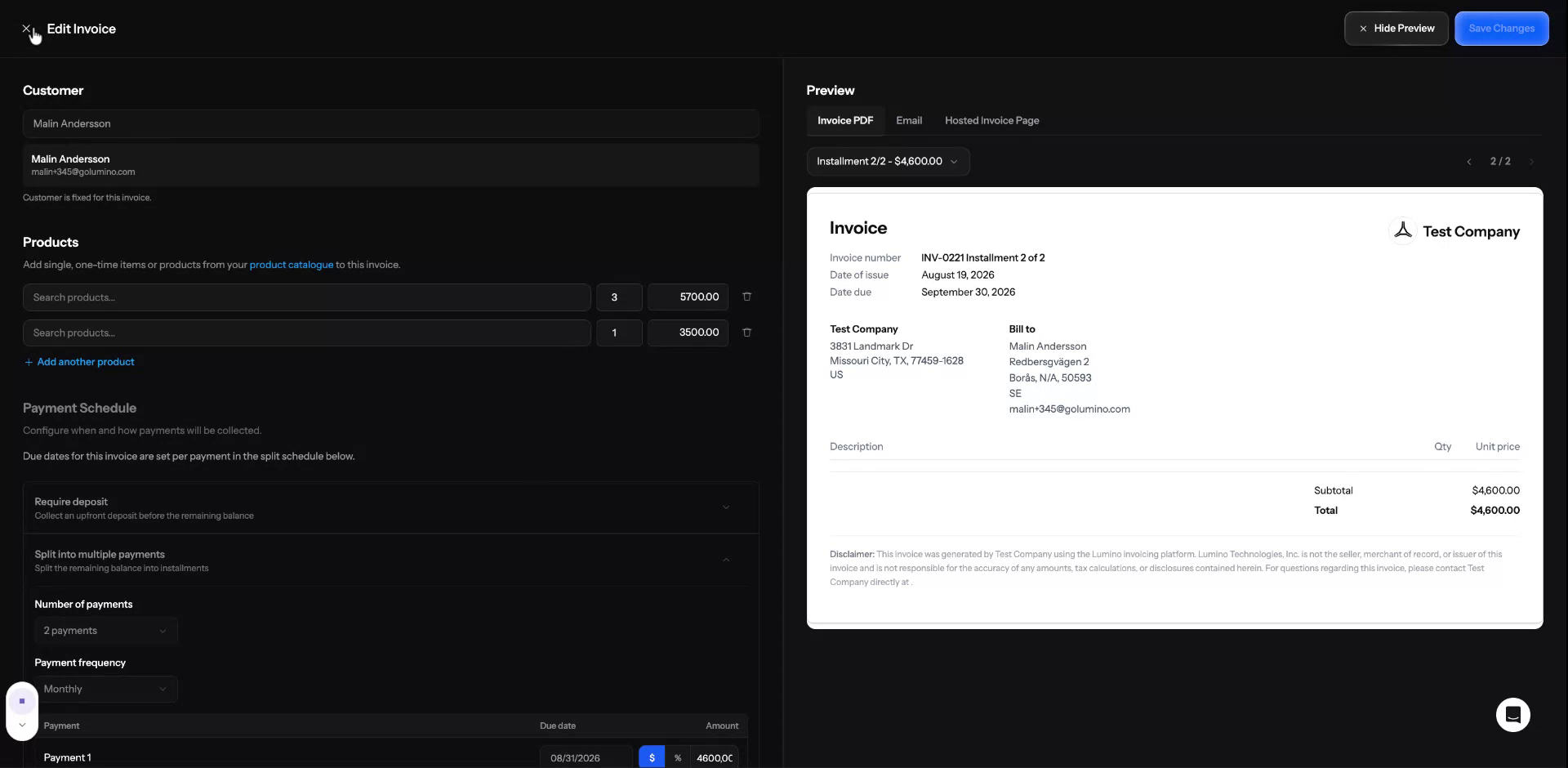
You can also edit the invoice as long as the first payment has not yet been completed.
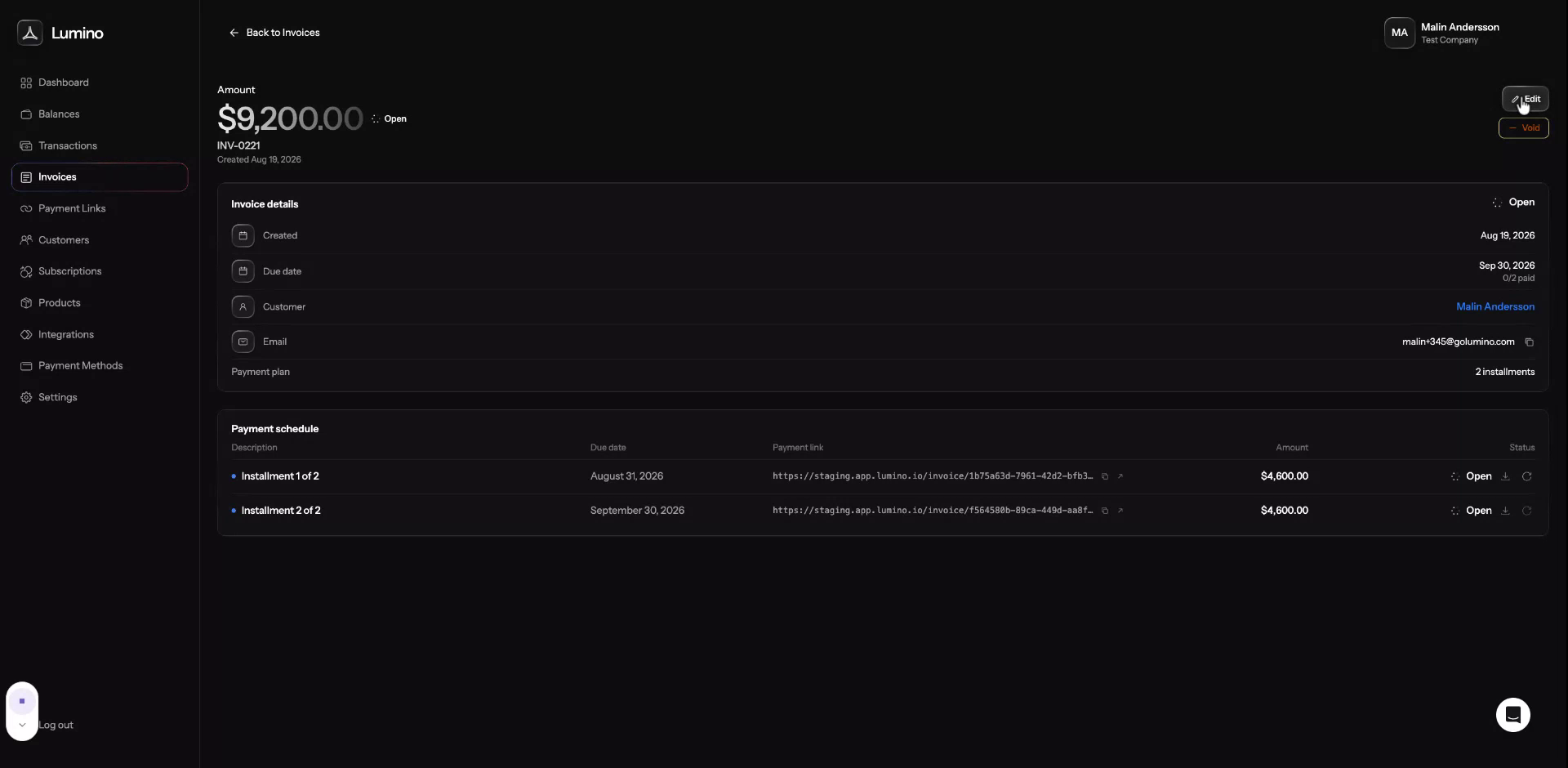
After any payment on the invoice has been completed, most fields can no longer be edited.
Step 10: Filter, Sort, and Search Invoices
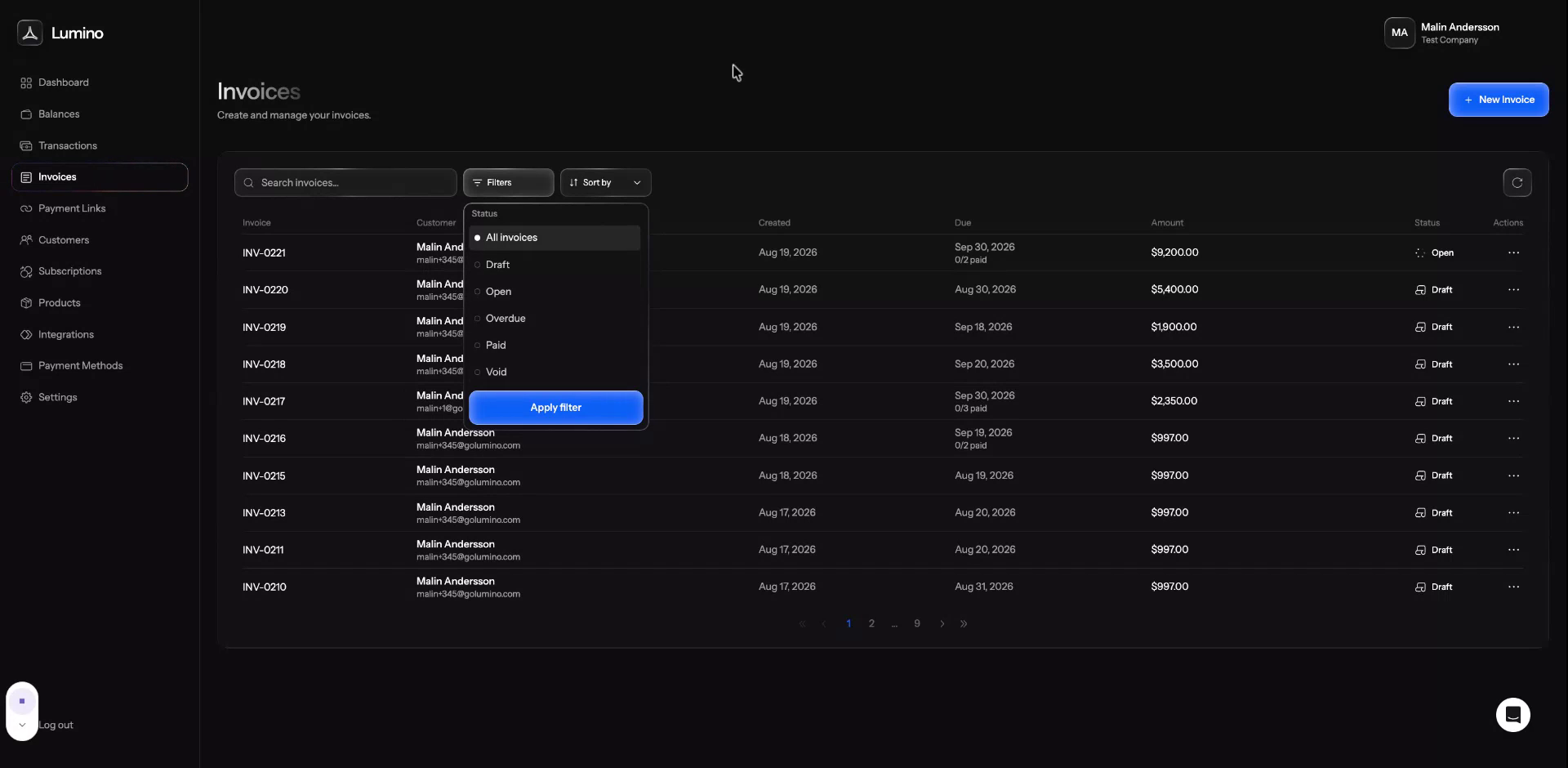
Use the filters to view invoices by status such as draft, open, overdue, paid, or void.
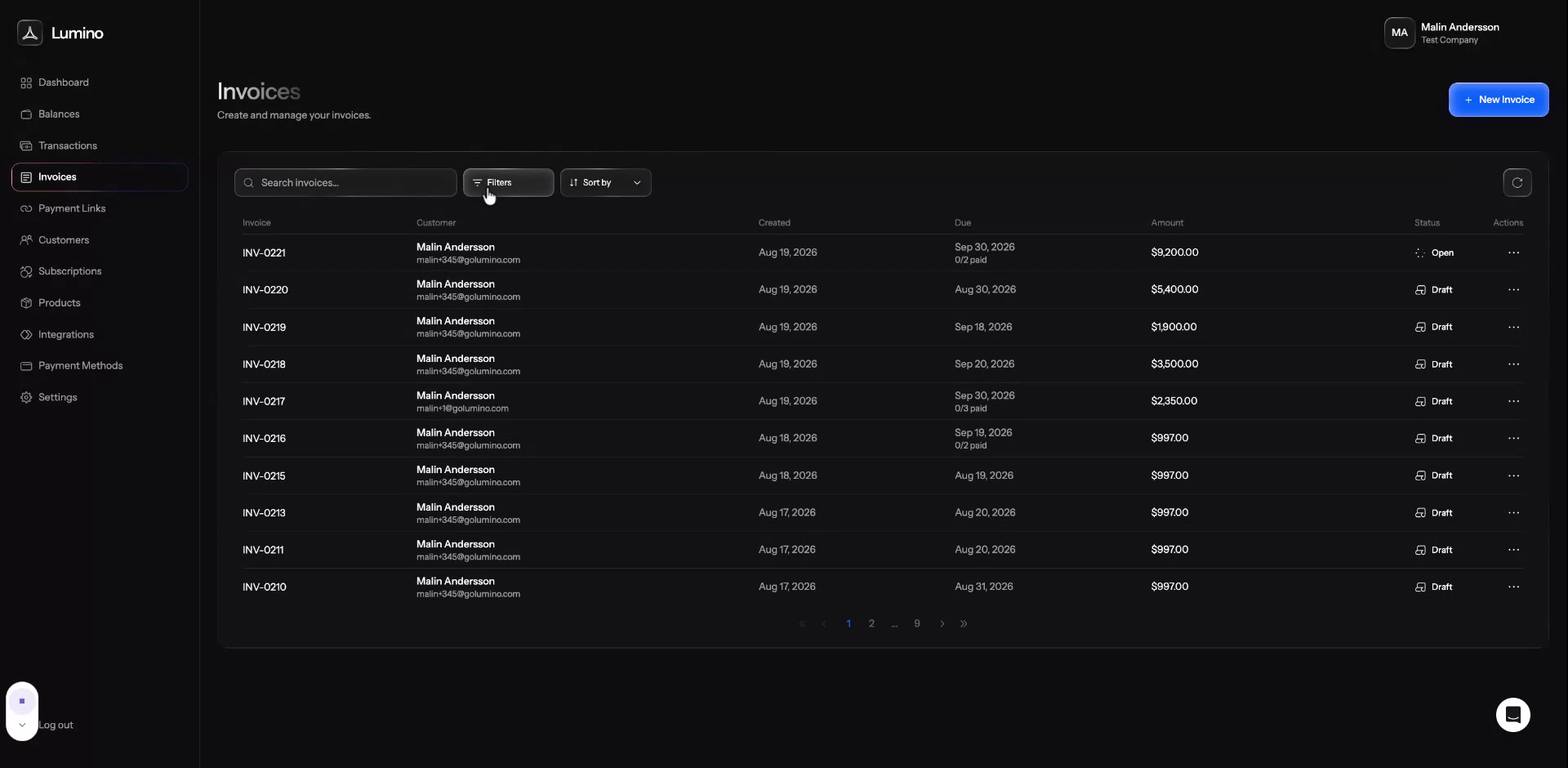
You can further refine and sort using the available filter options.
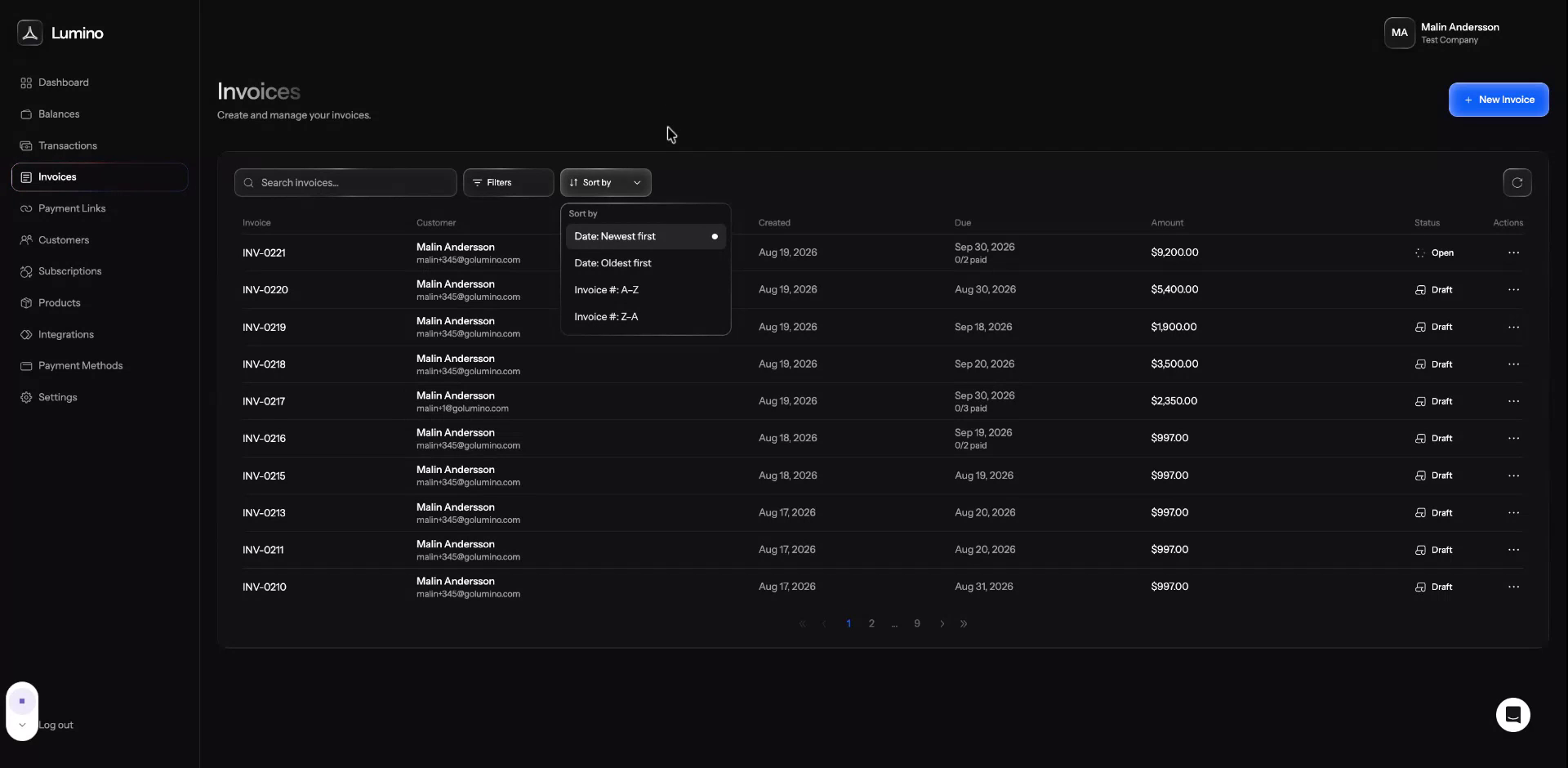
Use the search to find invoices by customer name, email, invoice number, and more.