
Payment Links
One-time, subscription and free trial.
Step-by-step guide
Creating and Sharing a Payment Link
Use payment links to request and collect payments from customers instantly by combining recurring subscriptions, one-time fees, and optional upsell products in a single checkout flow.
Step 1: Start Creating a New Payment Link
Click on the Create payment link button in your dashboard to begin setting up a new link.
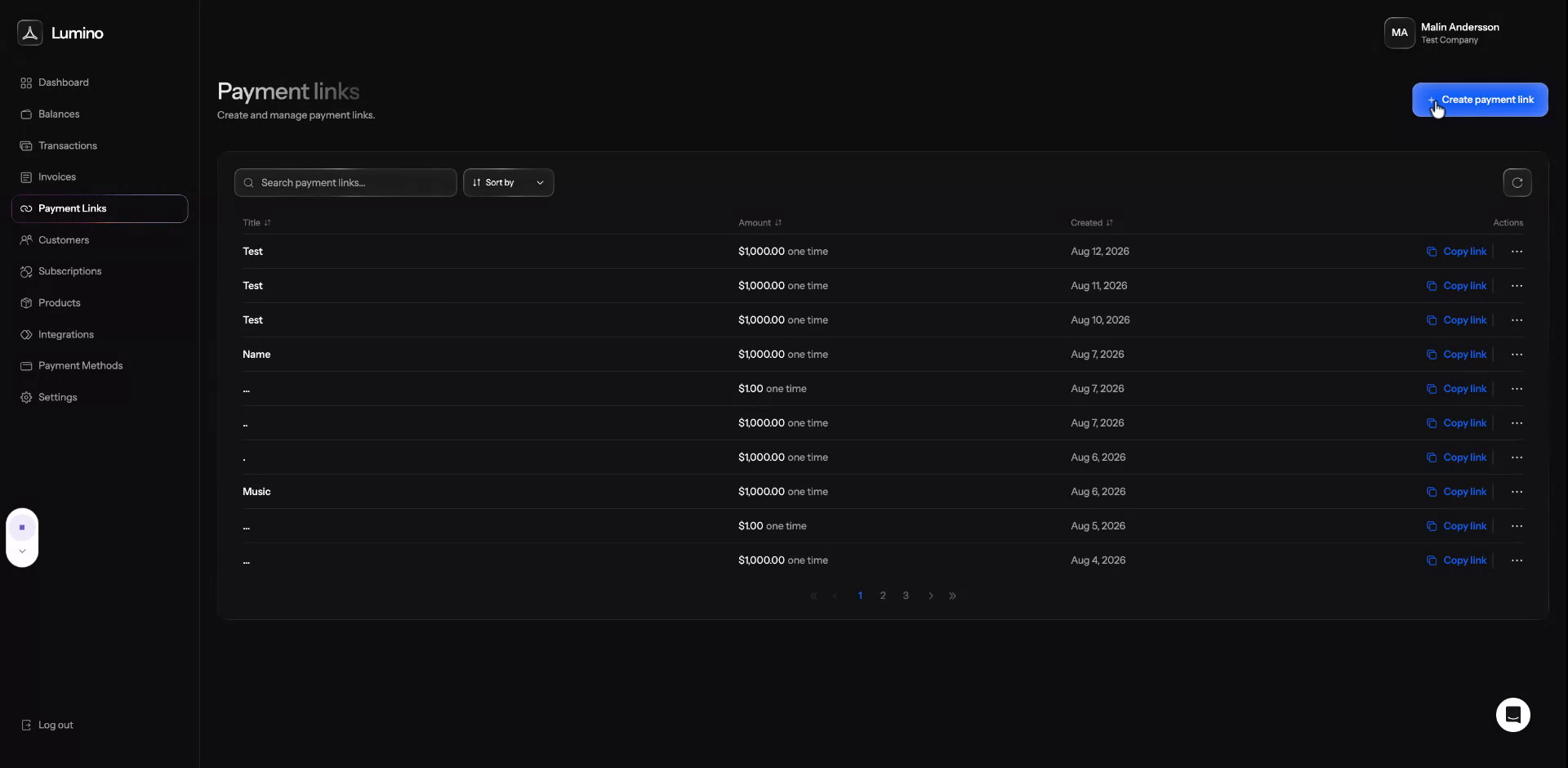
You will be taken to the payment link configuration page.
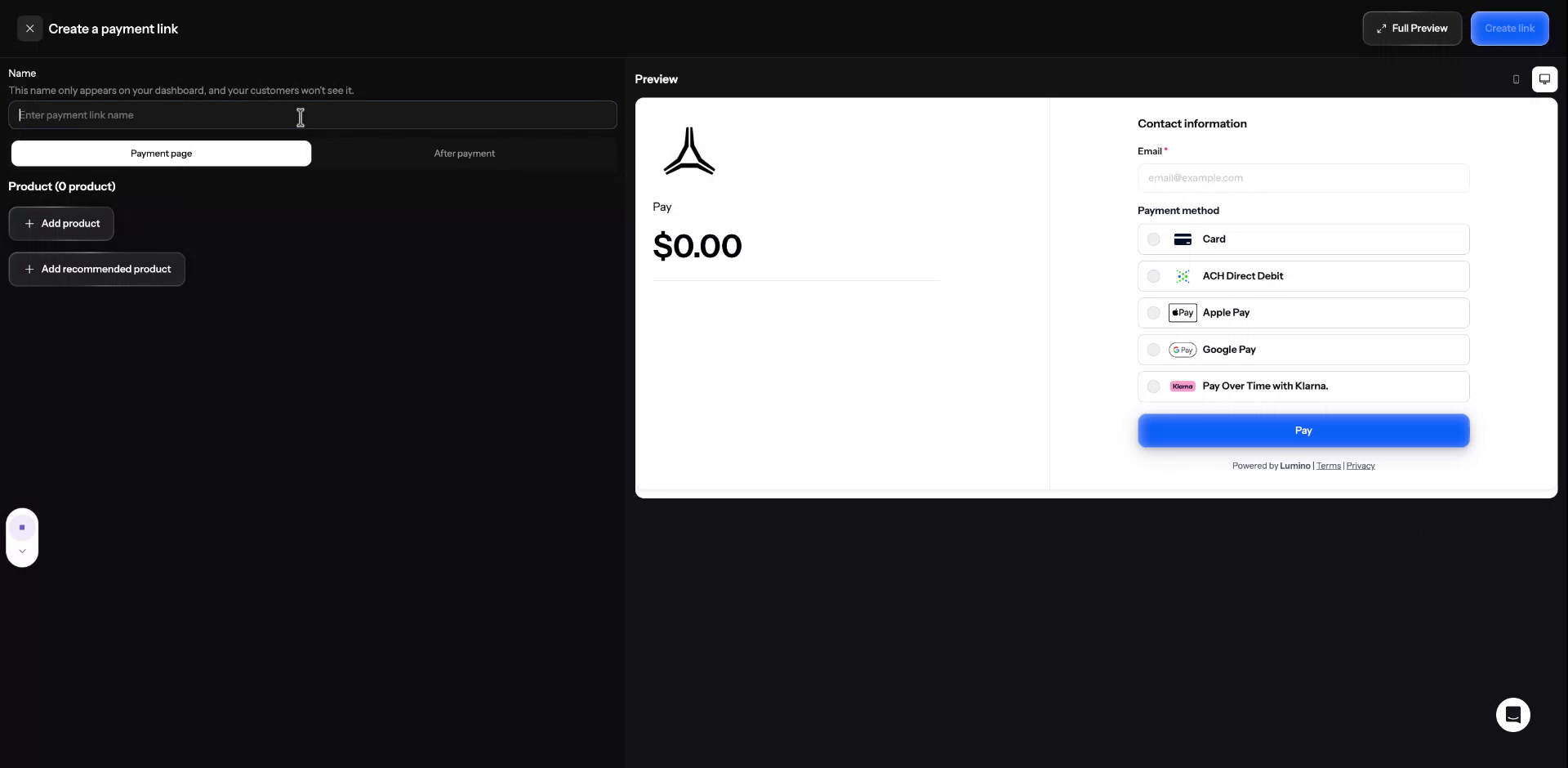
Step 2: Name Your Payment Link
Enter a clear and descriptive name for your payment link so you can easily identify it later in your account. This name is internal and helps you organize multiple links.
Step 3: Select Products for the Payment Link
Choose which products you want to include in this payment link.
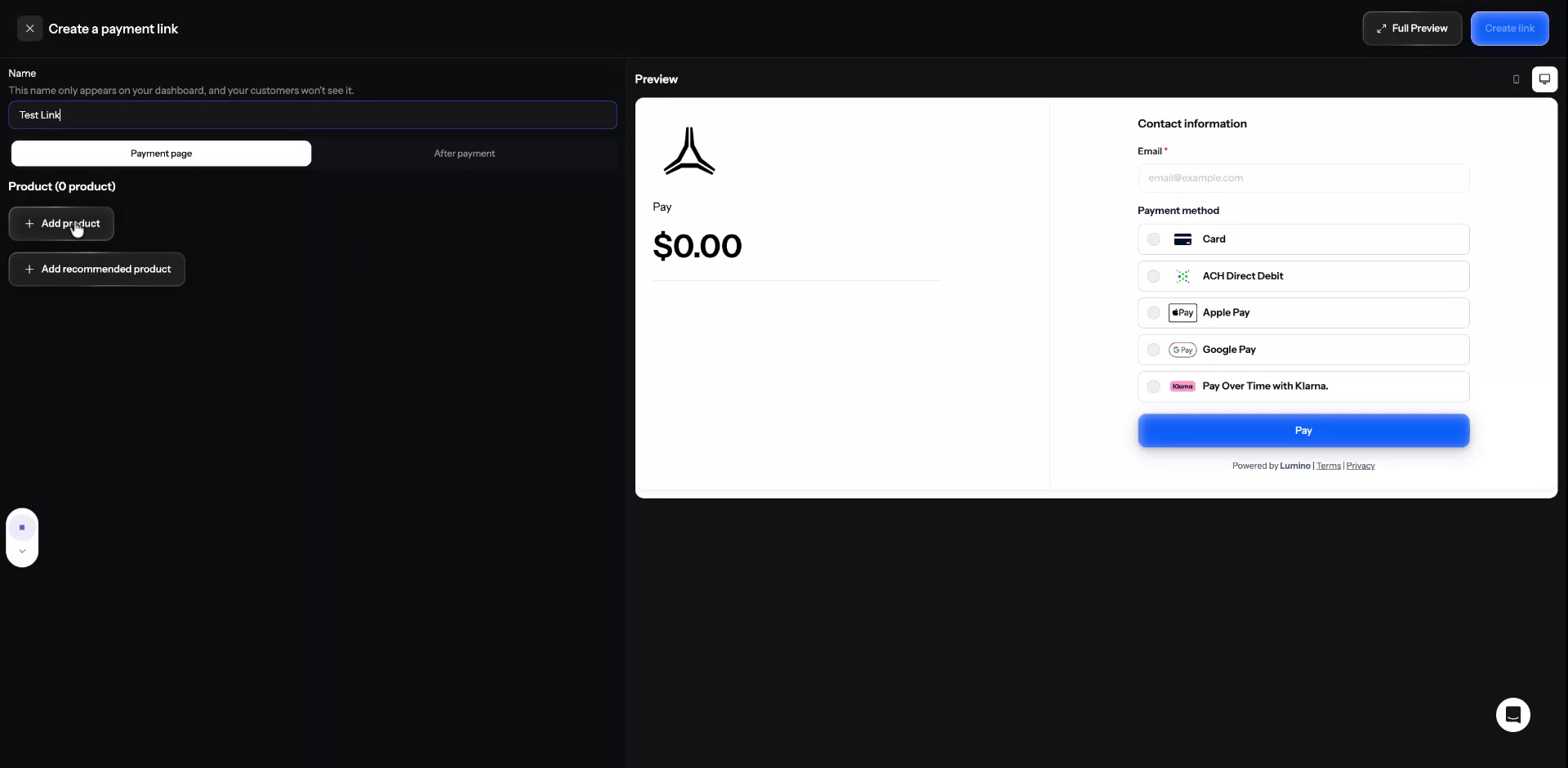
In this example, start by adding a recurring product to be billed at 150 per month.
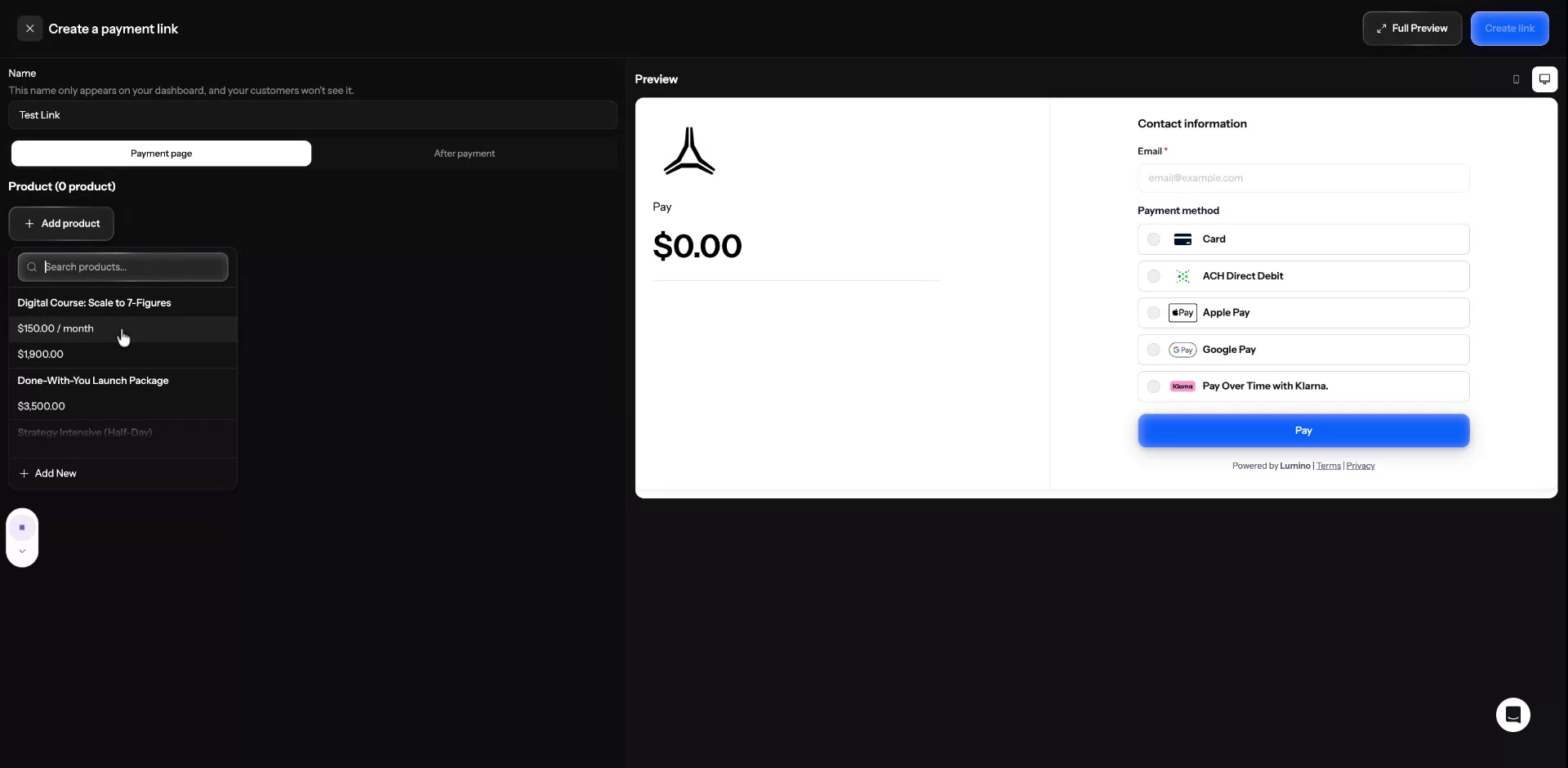
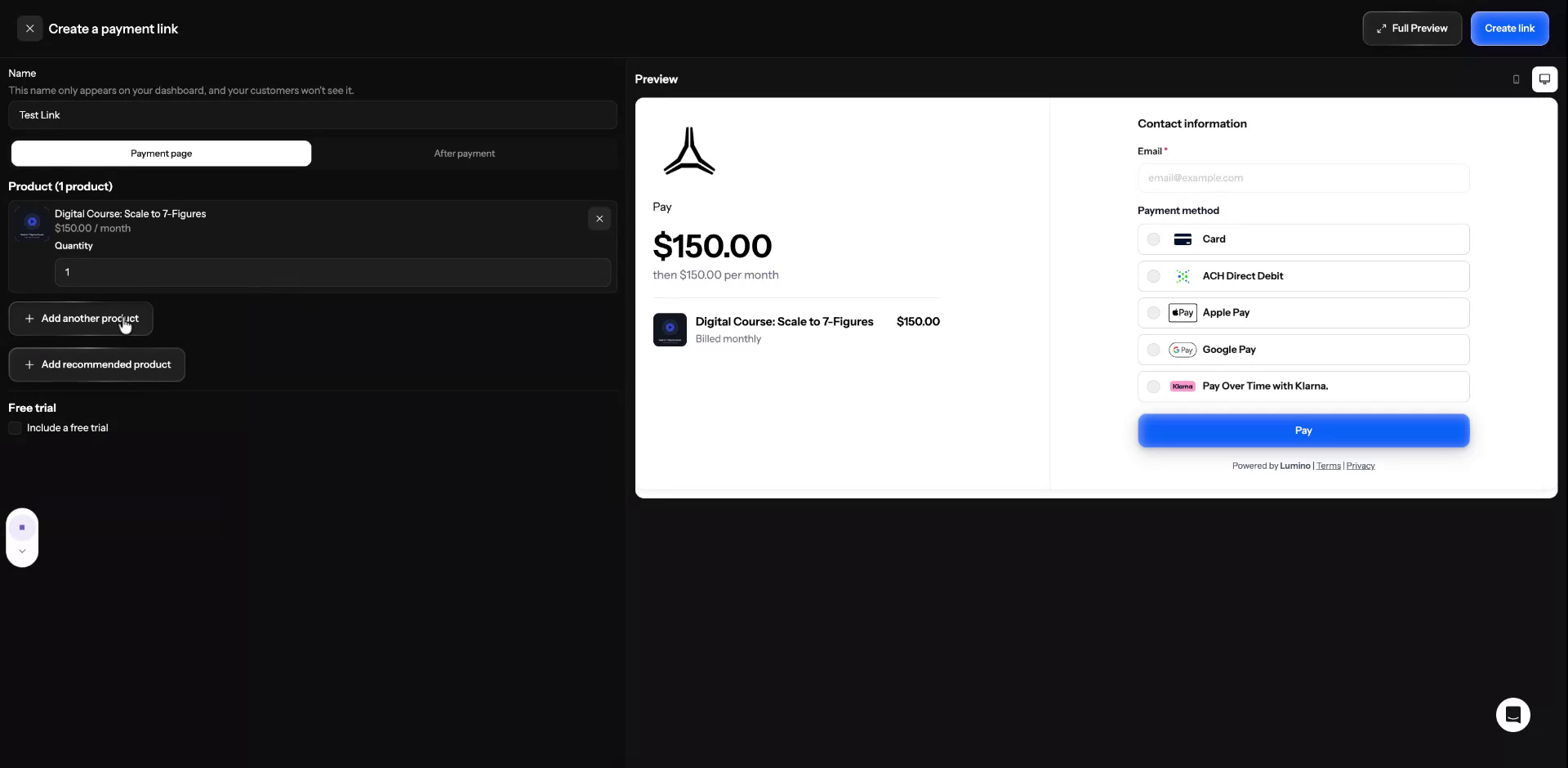
Step 4: Add a One-Time Price
Add a one-time price so that, on the first payment, the customer is charged a one-time fee of 3,500 in addition to the recurring amount.
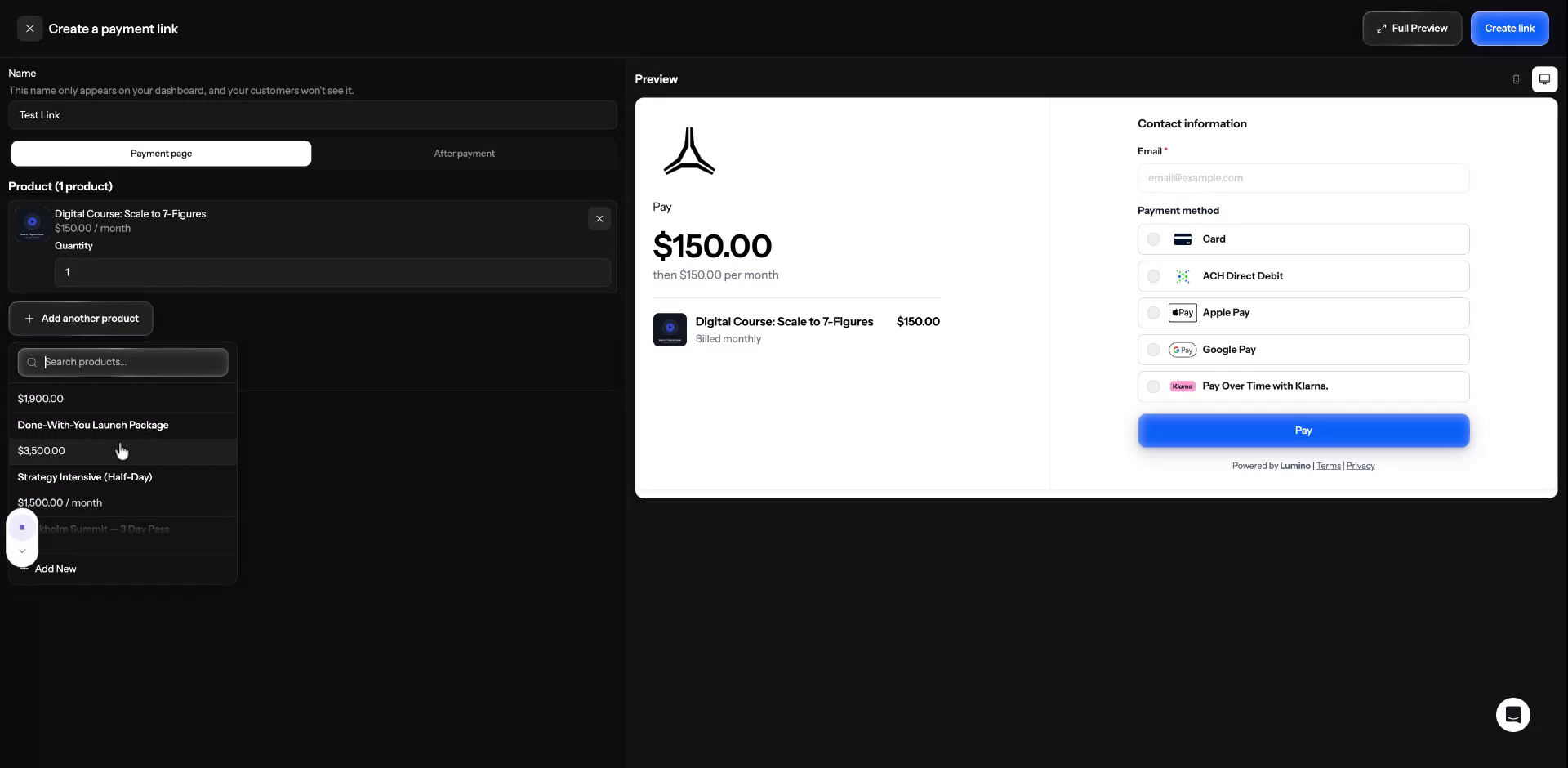
Step 5: Add a Recommended Upsell Product
Add a recommended product as an upsell in the checkout.
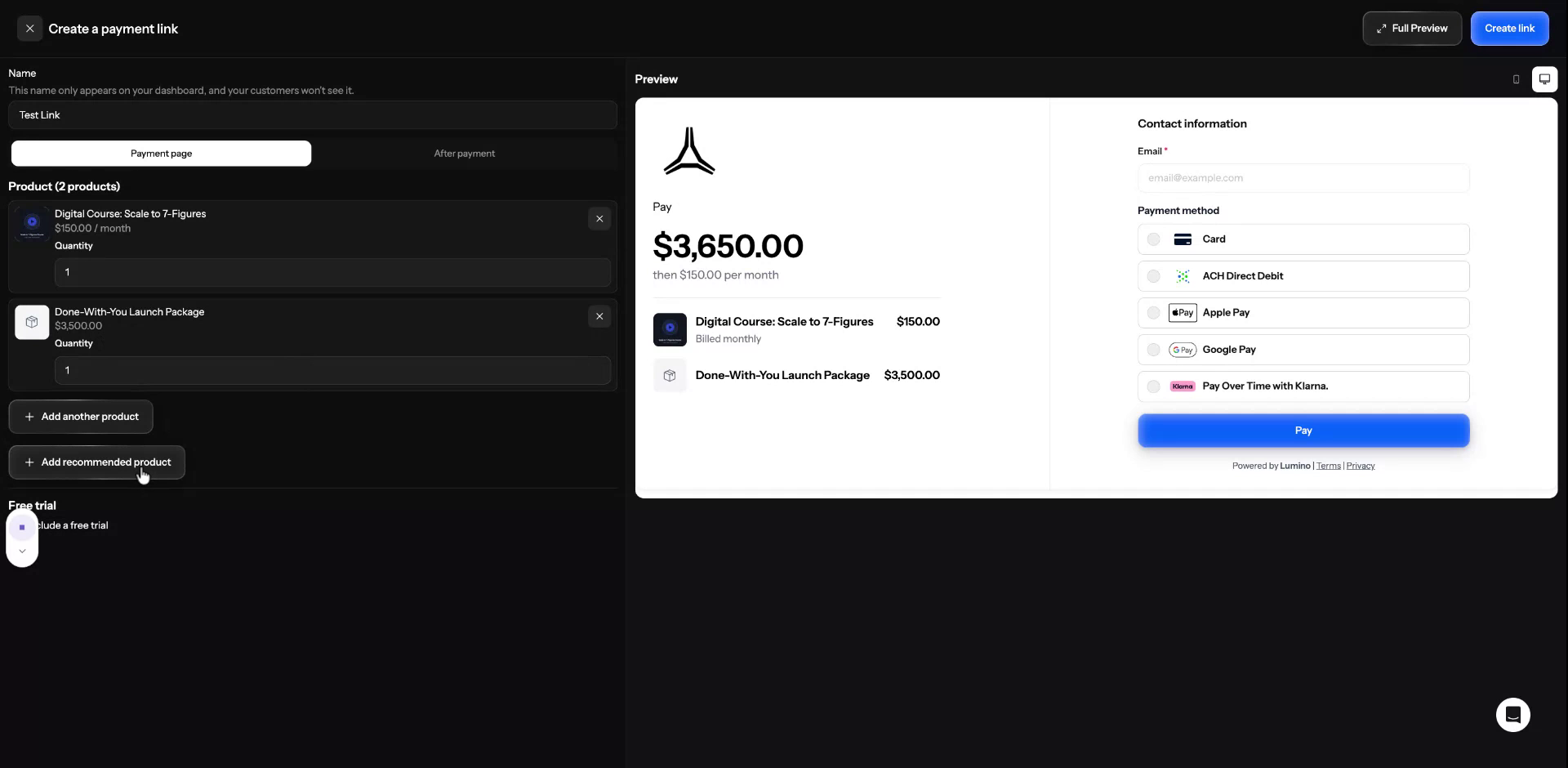
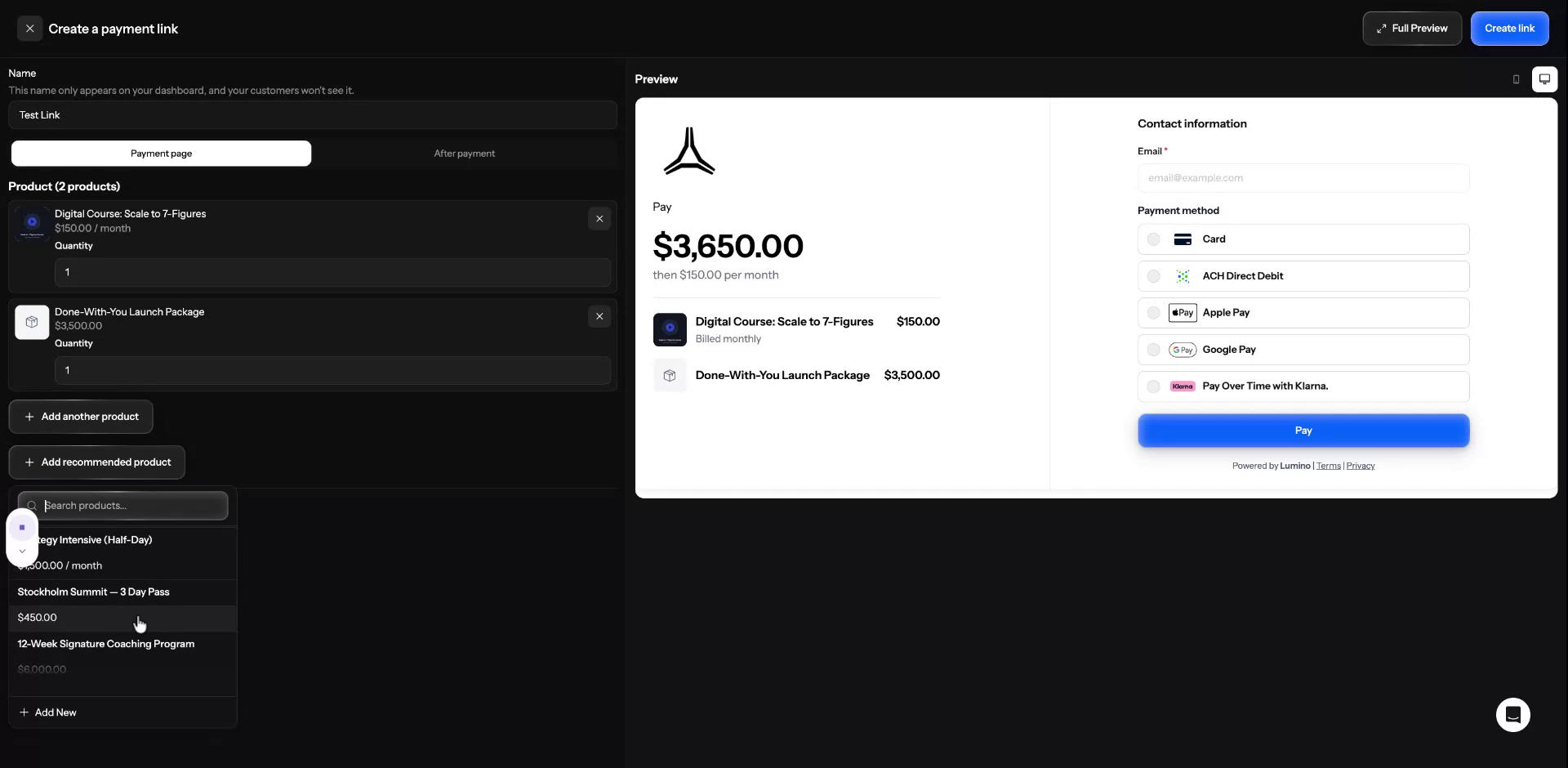
In this example, select the Stockholm Summit, a three-day summit, as the upsell product that customers can optionally add during checkout.
Step 6: Configure Free Trial (Optional)
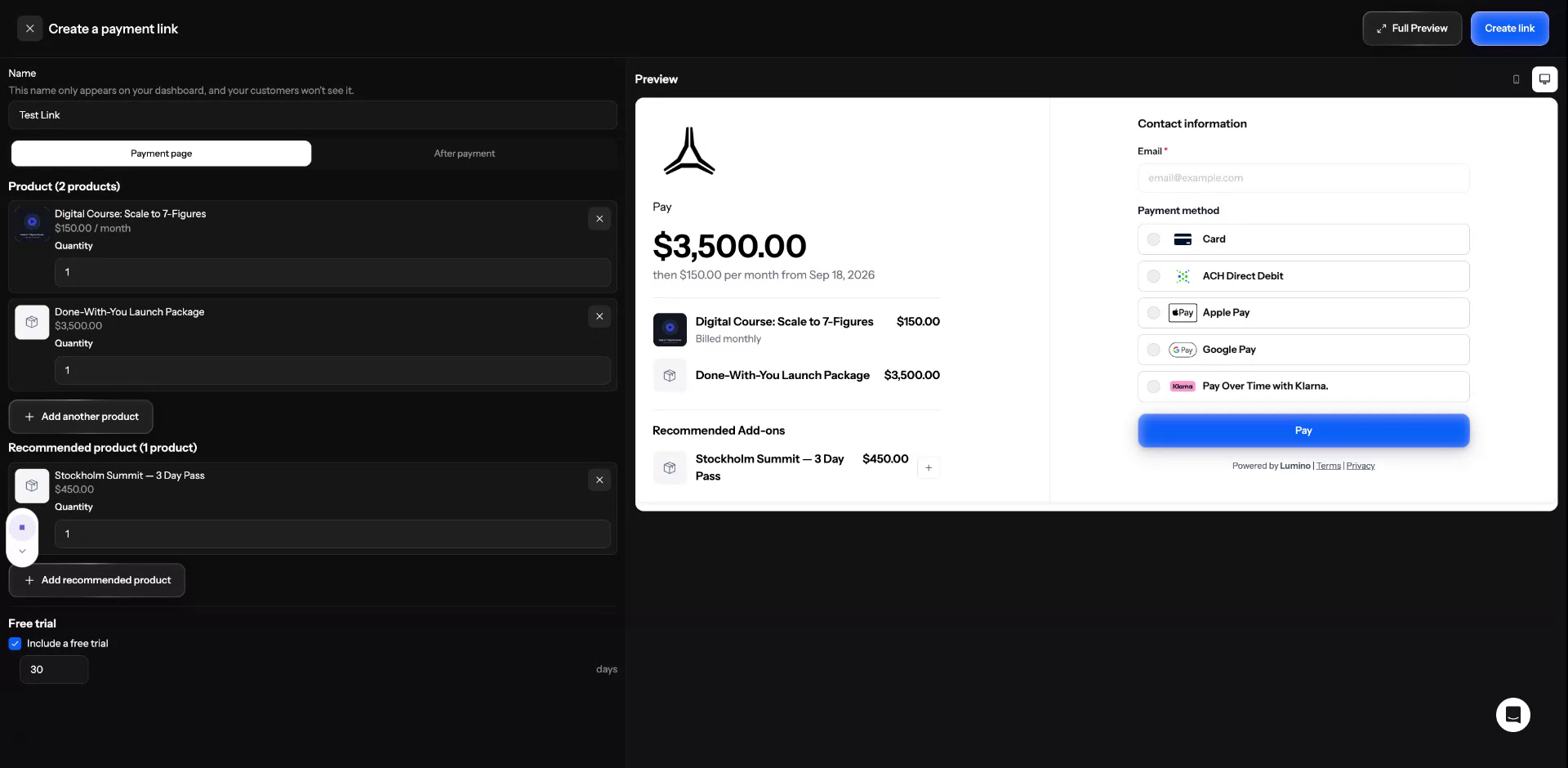
Decide whether you want to include a free trial.
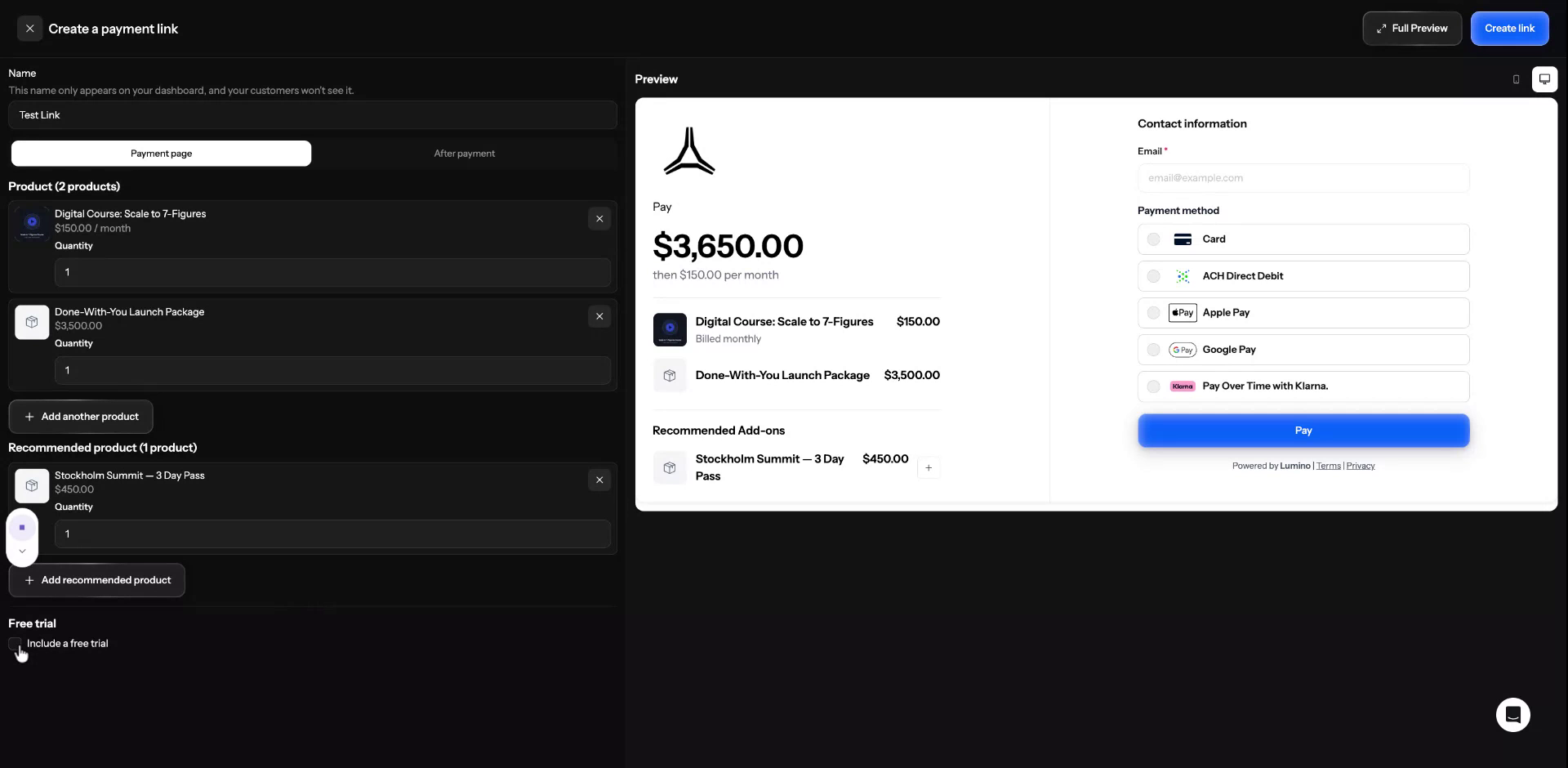
If you want to offer a trial, tick the checkbox to enable it. In this case, leave the box unchecked to proceed without a free trial.
Step 7: Create the Payment Link
Once all products and options are configured, click the button to create the link.
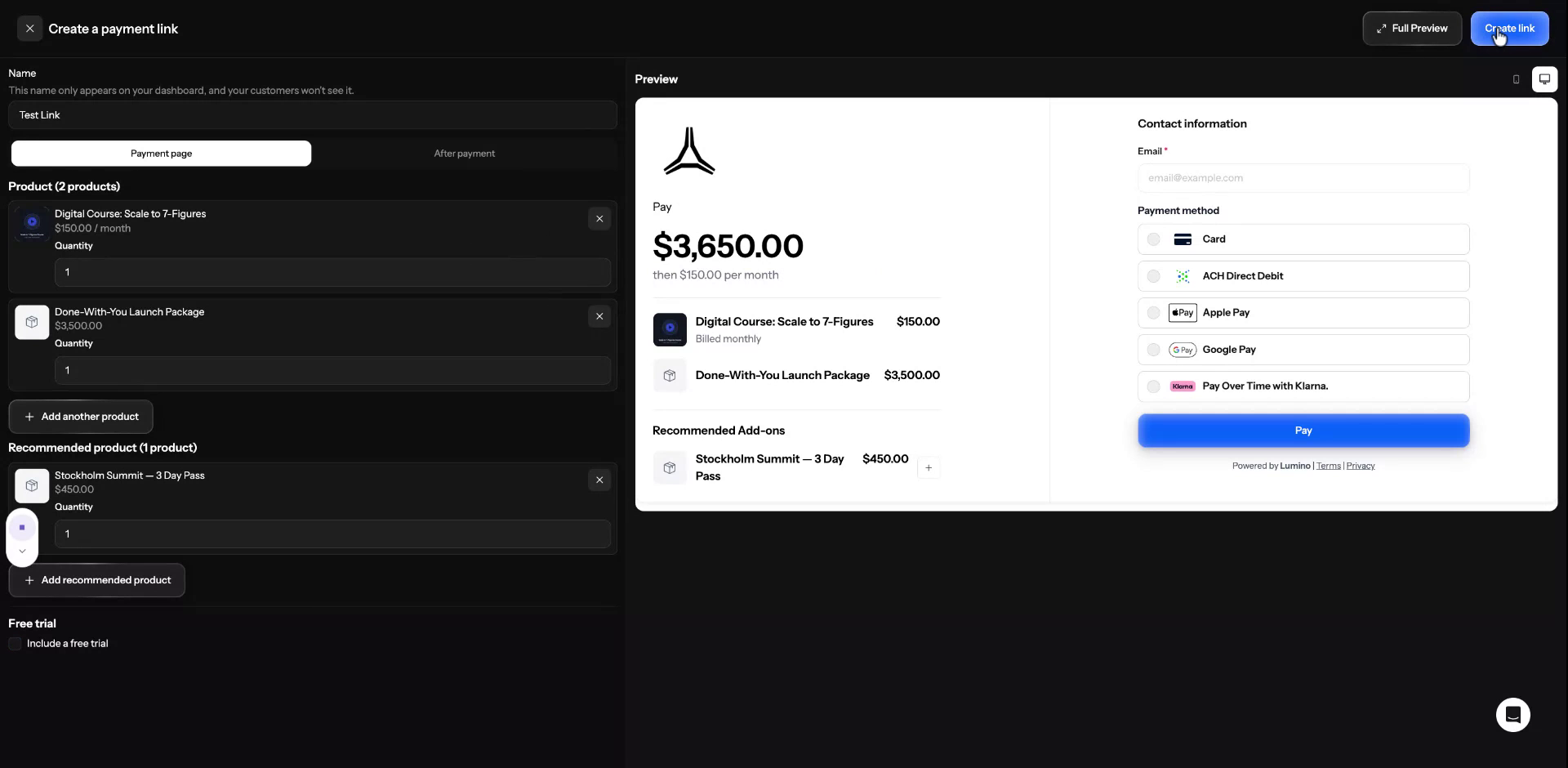
The system will generate your payment link and display it on the screen.
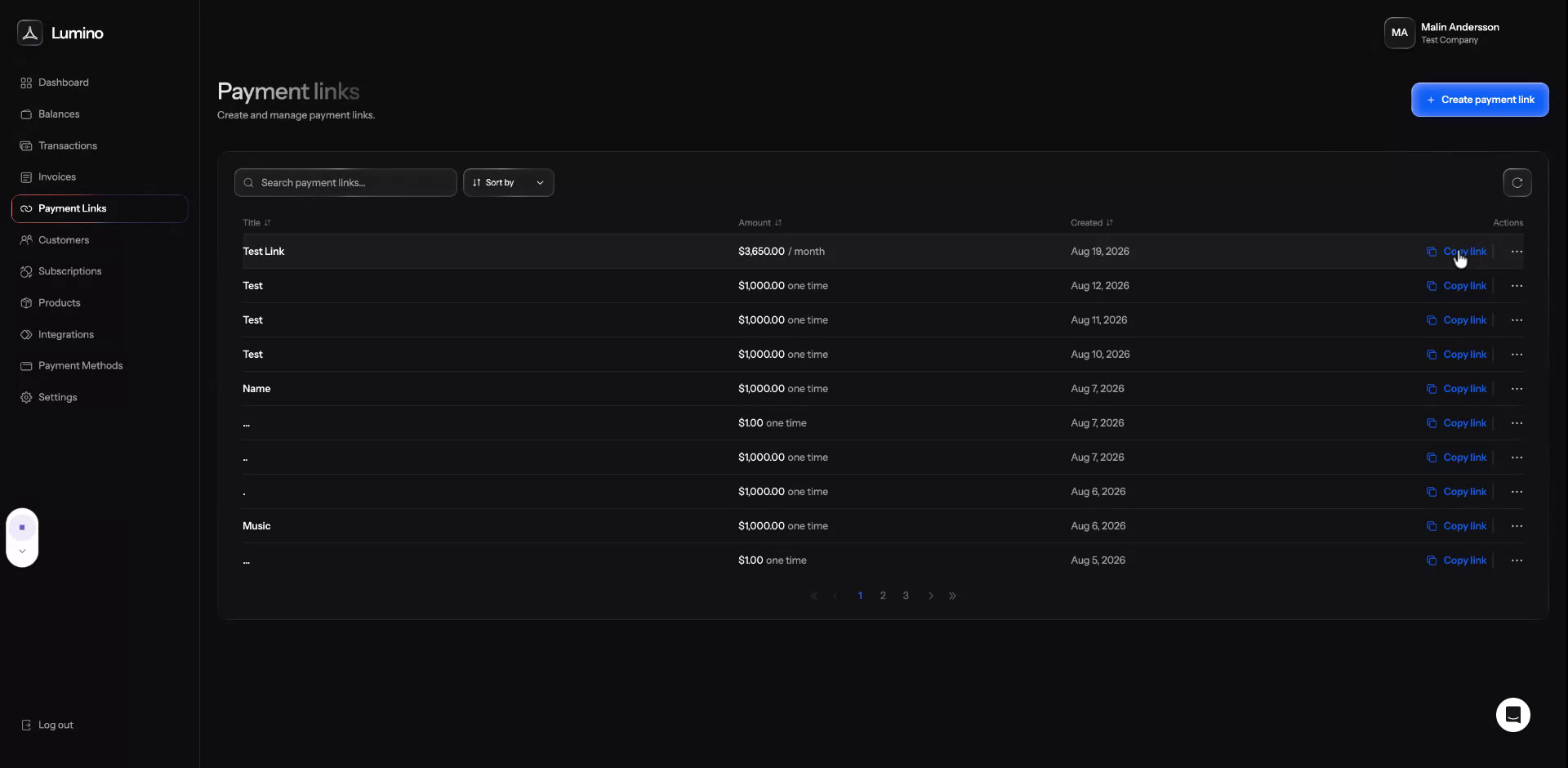
Step 8: Copy and Share the Payment Link
Copy the generated payment link and open it in a browser to preview how the checkout will appear to your clients. If everything looks correct, share this link directly with your customers so they can complete their payment.