Transactions
View details and download the PDF
Step-by-step guide
Working with Transactions
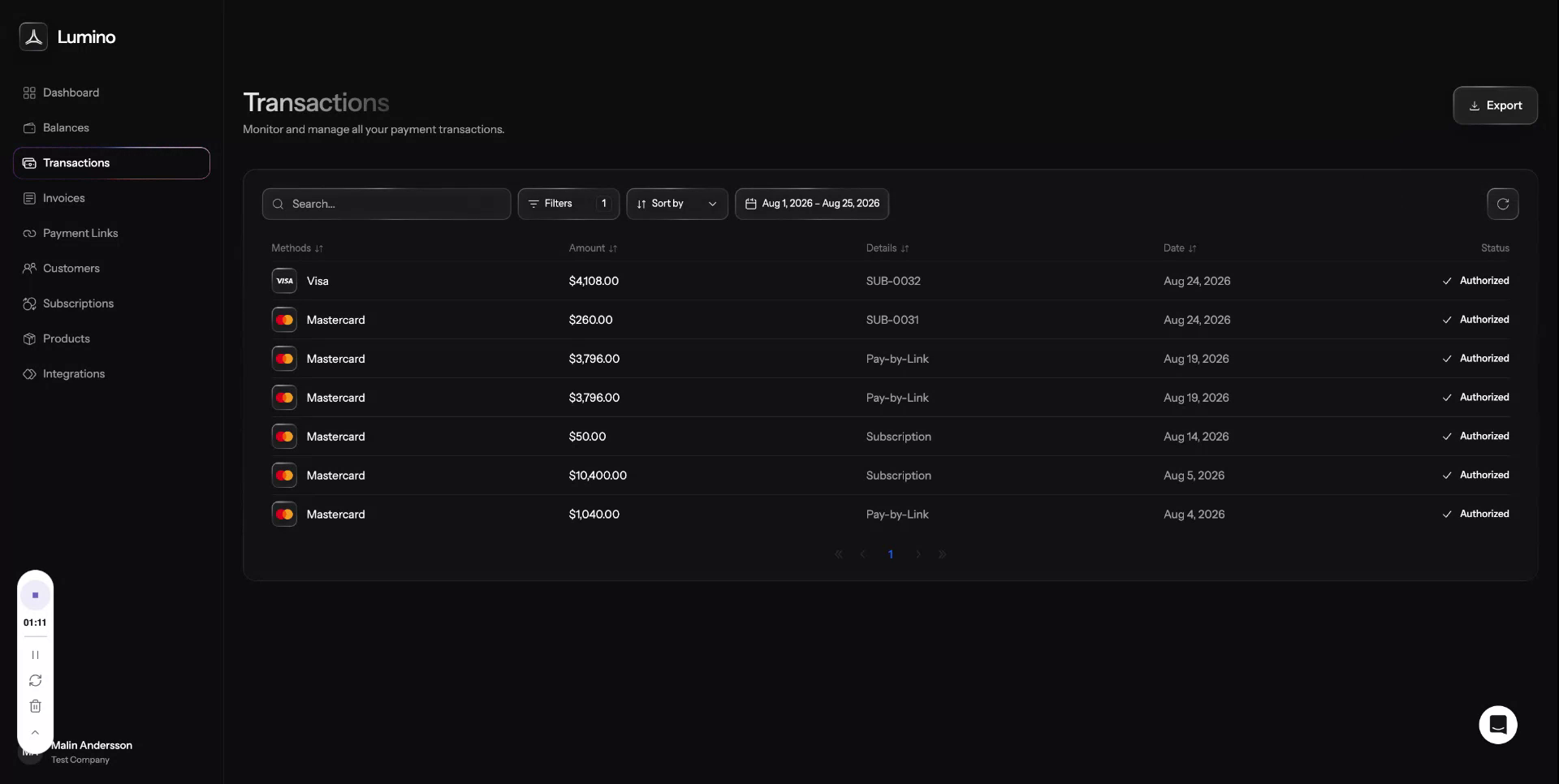
Use the transaction view to review individual payments, access shopper details, filter and search transactions, and export transaction data for a selected date range.
Step 1: Open the Transaction View
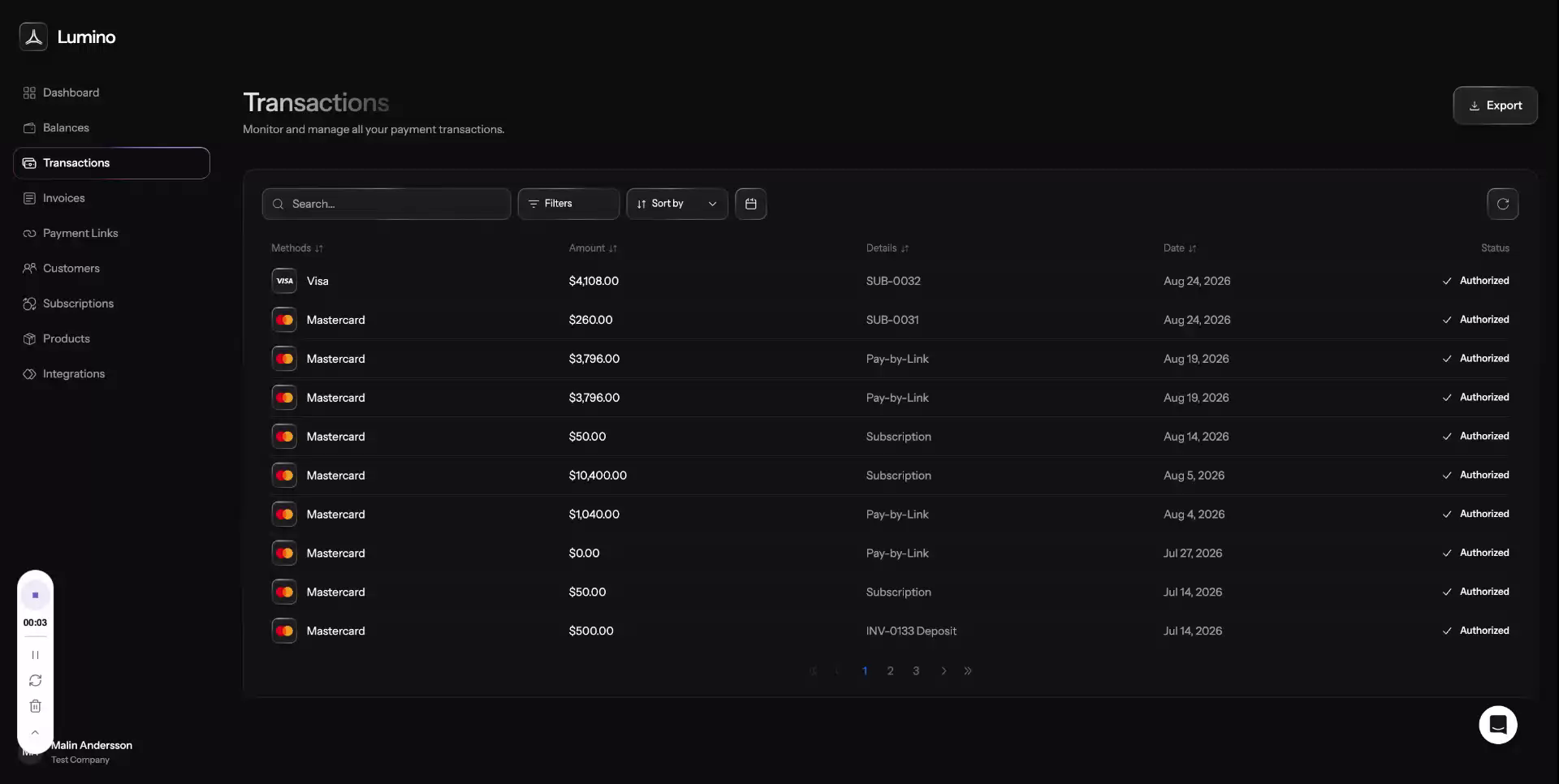
In the transaction view, you can see a list of all your transactions.
Step 2: View Details of a Single Transaction
Click on a specific transaction to open its detail view.
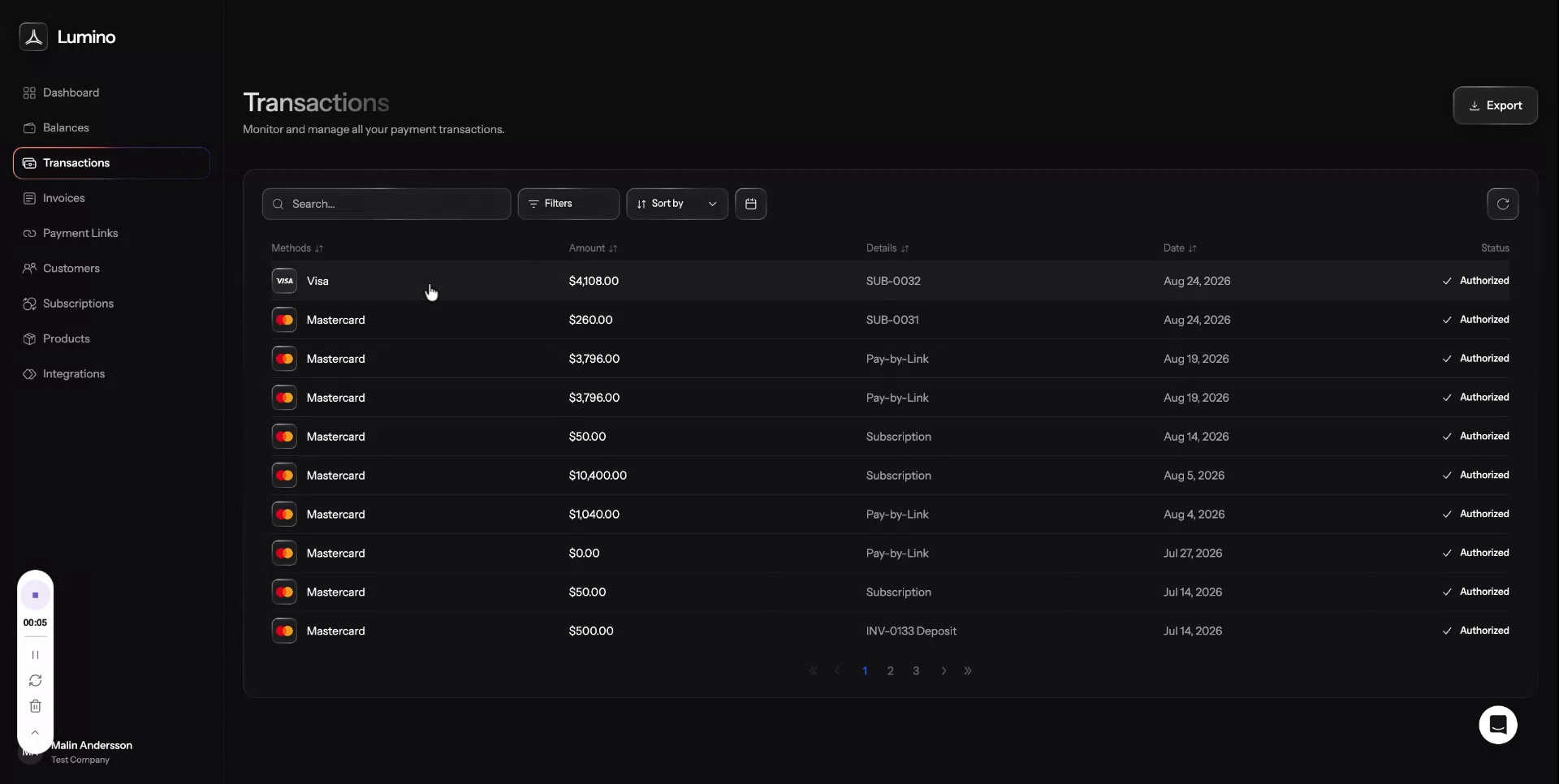
Here you can see all transaction details, shopper information, a full payment breakdown, and you can also initiate a refund for the selected payment.
Step 3: Search for Transactions
Return to the main transaction view.
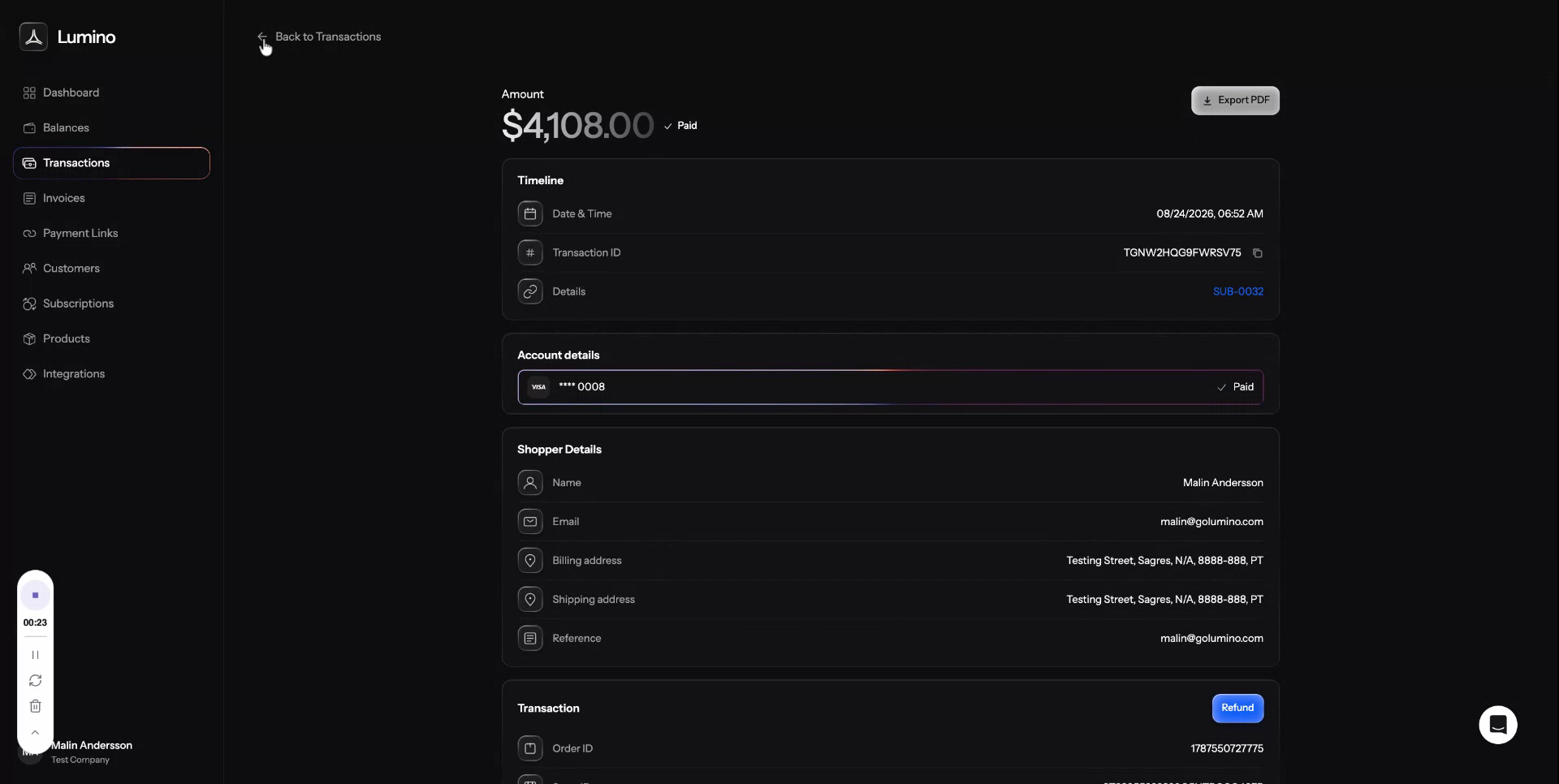
From here, you can search for a transaction by customer name, customer email, and other criteria.
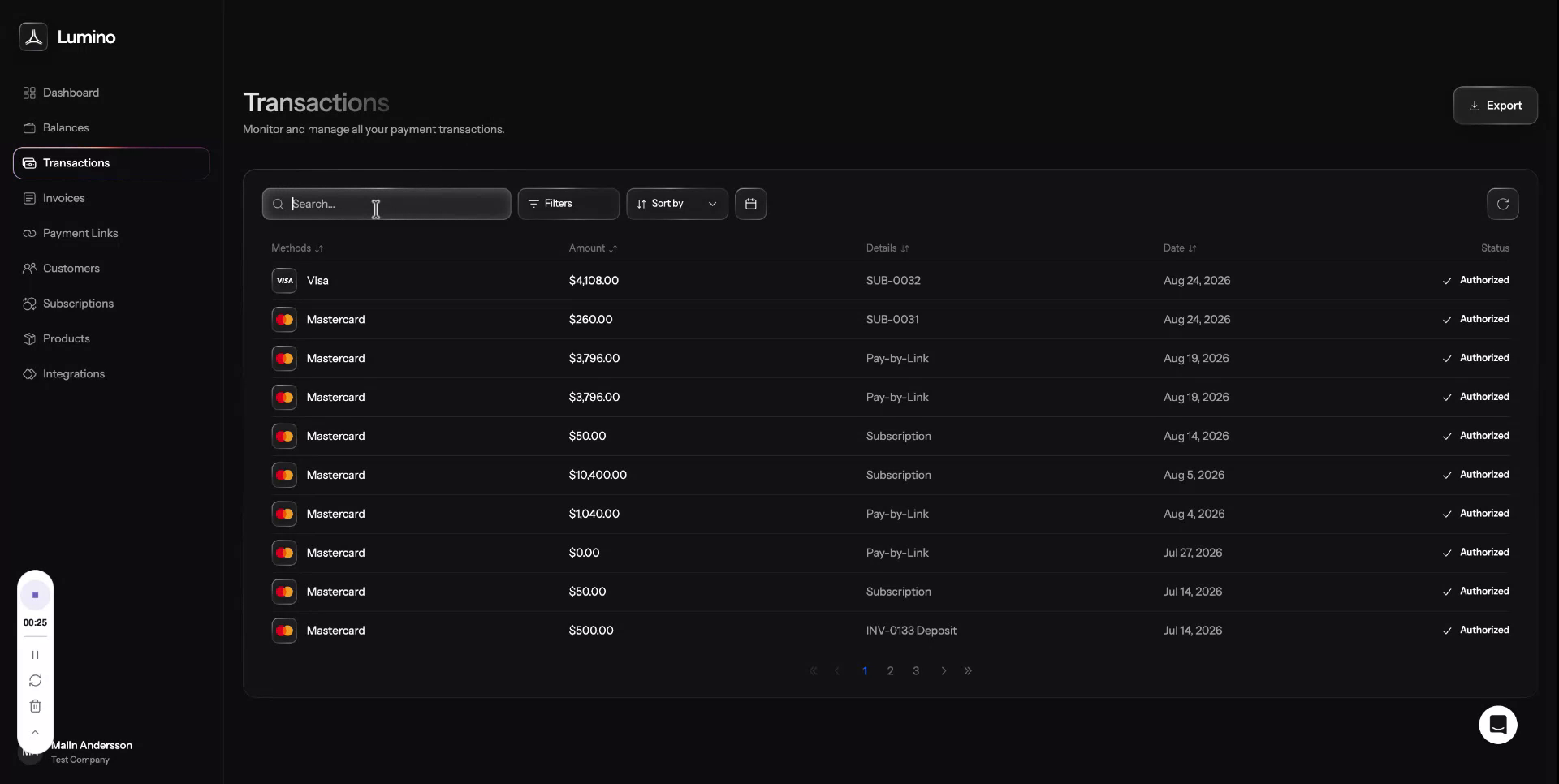
Step 4: Filter Transactions by Status and Payment Method
Use the filter options to narrow down the list of transactions.
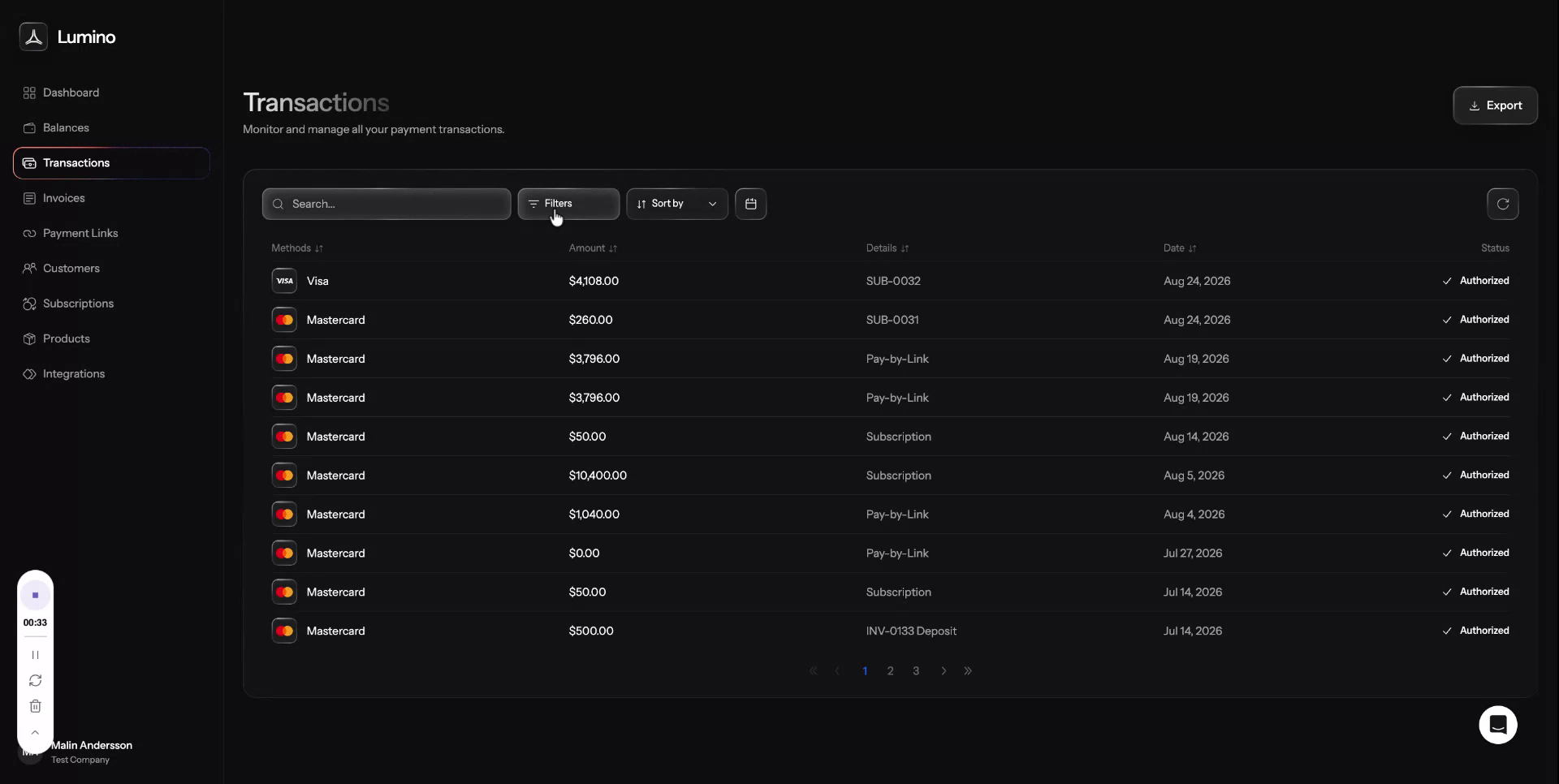
You can filter by transaction status (e.g., chargeback, refunded, canceled, failed) and by the payment method you want to review.
Step 5: Export Transactions
You can also export your transactions from the transaction view.
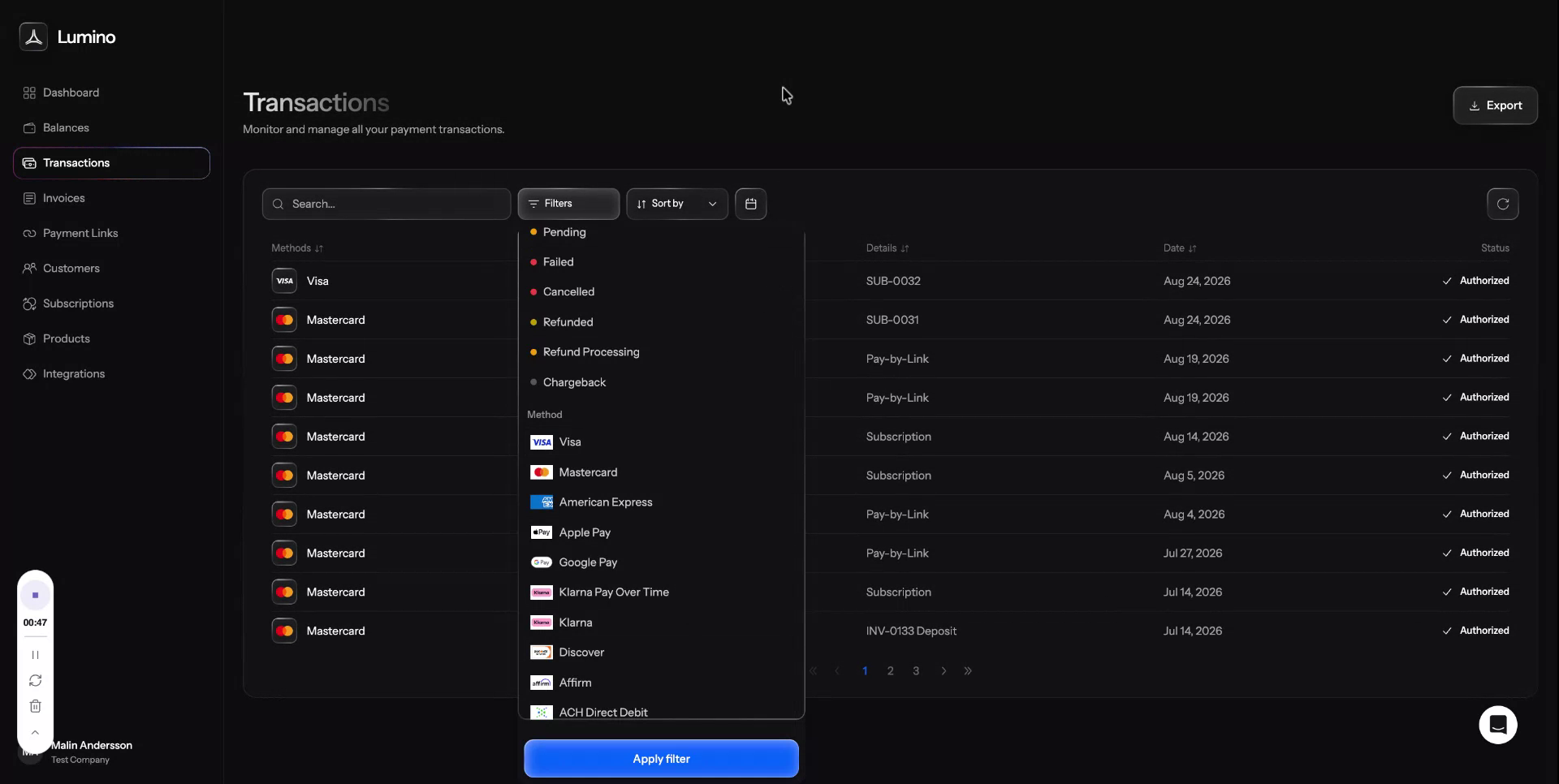
First, choose the date range for which you want to export transactions.
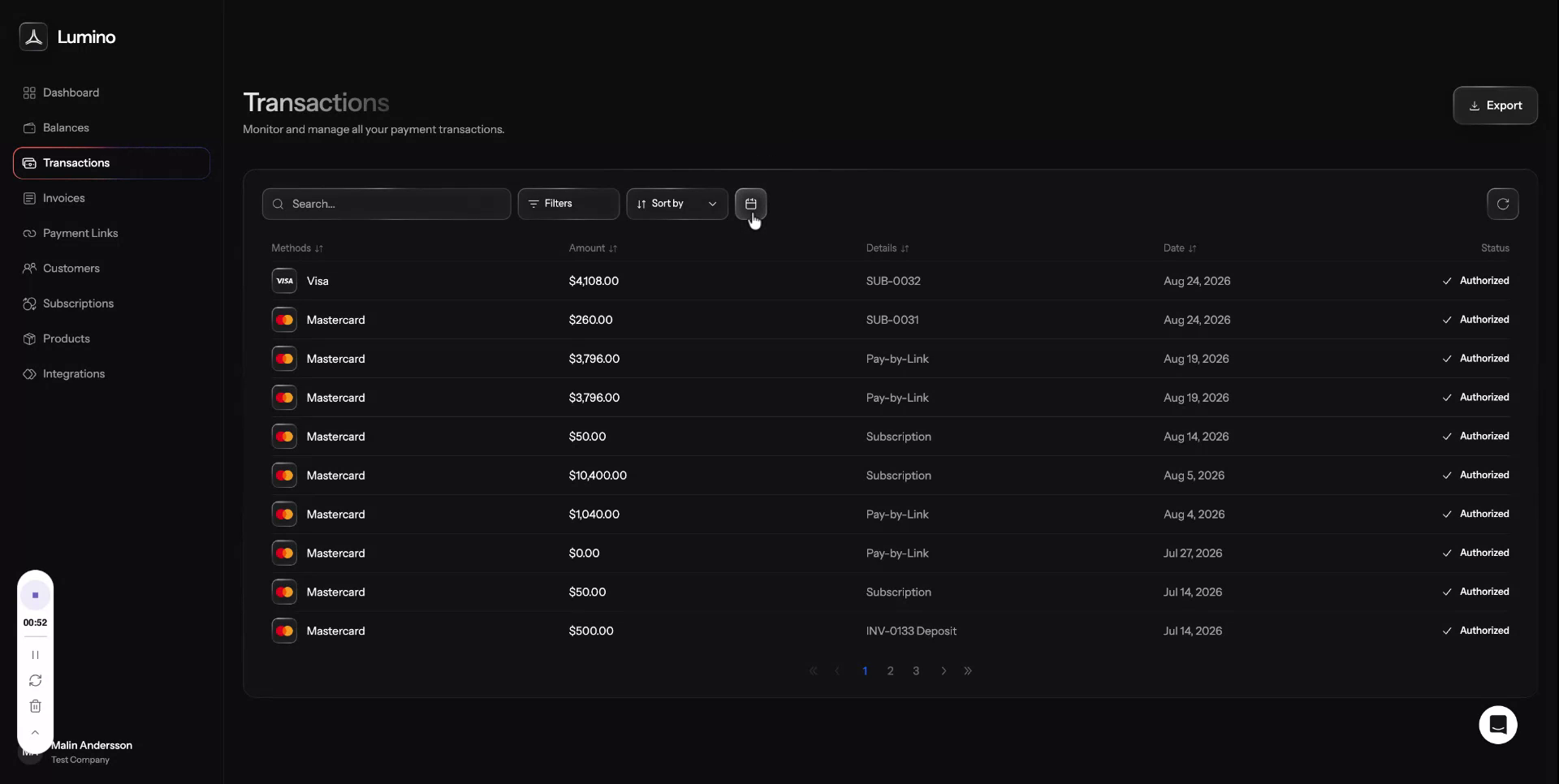
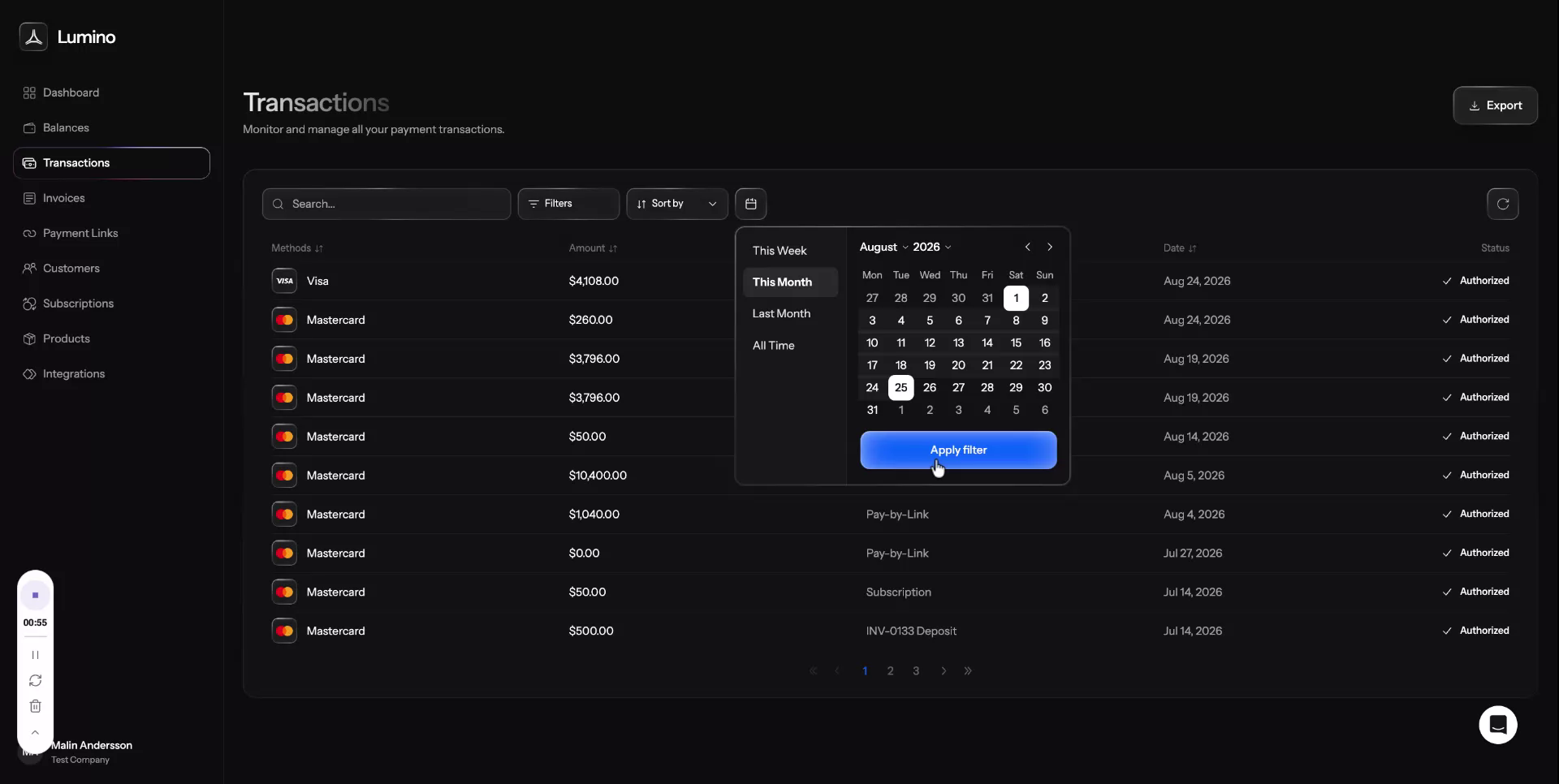
Select the desired start and end dates.
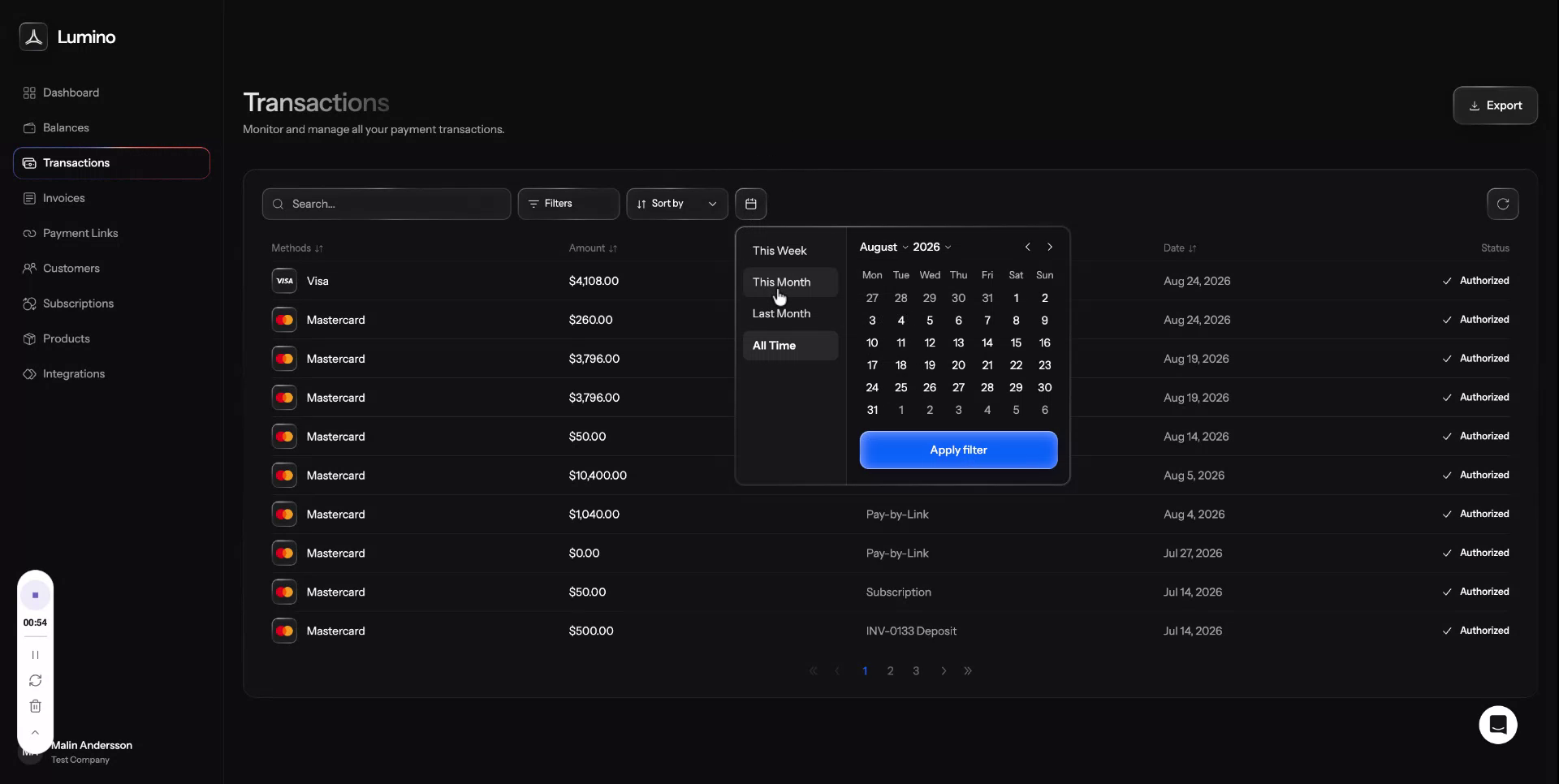
Confirm the date range to apply it to the view.
Once the date range is set, the transaction view will update to show only transactions within that period.
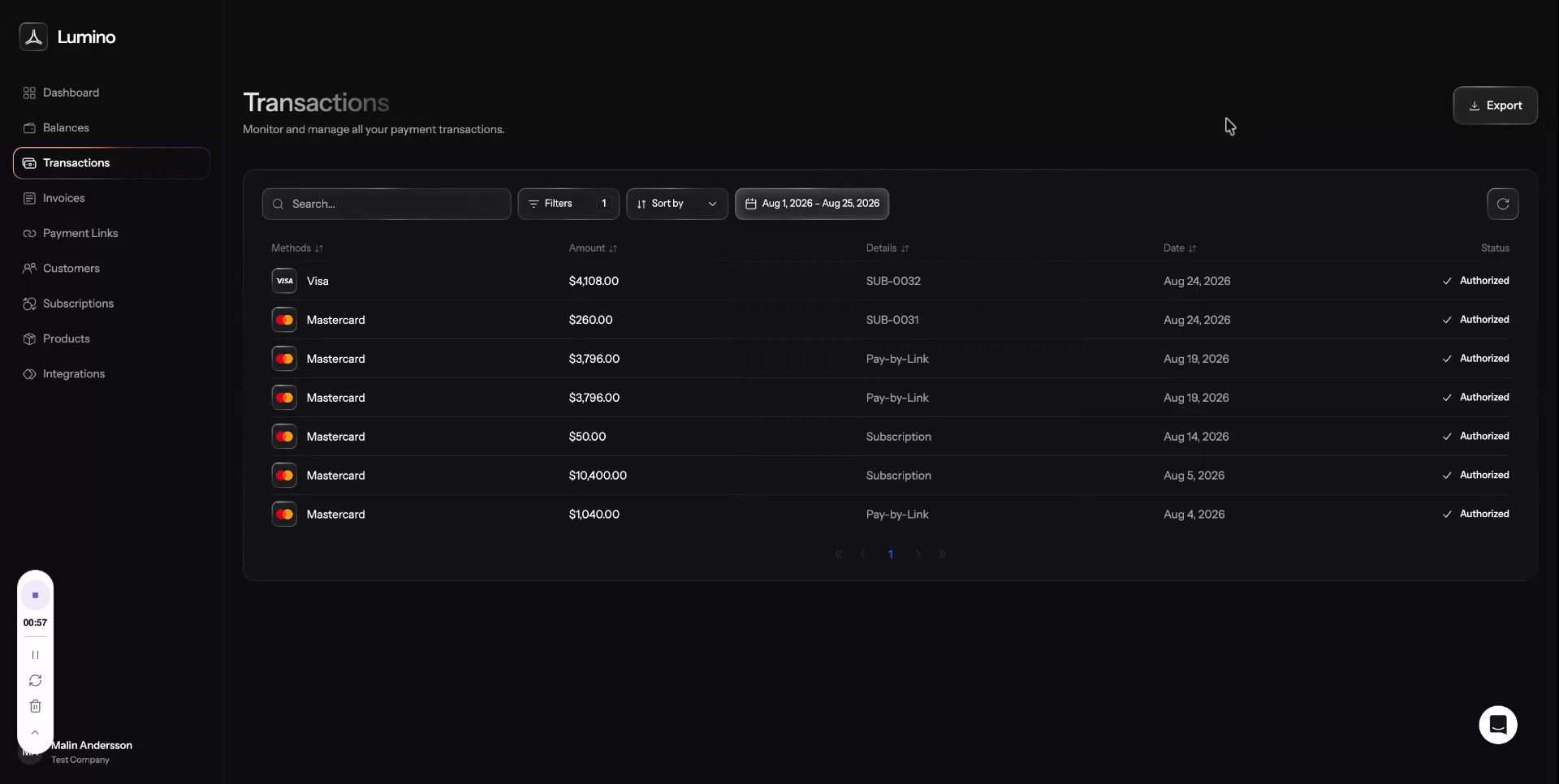
When you export, only the transactions currently shown in the date-filtered view will be included.
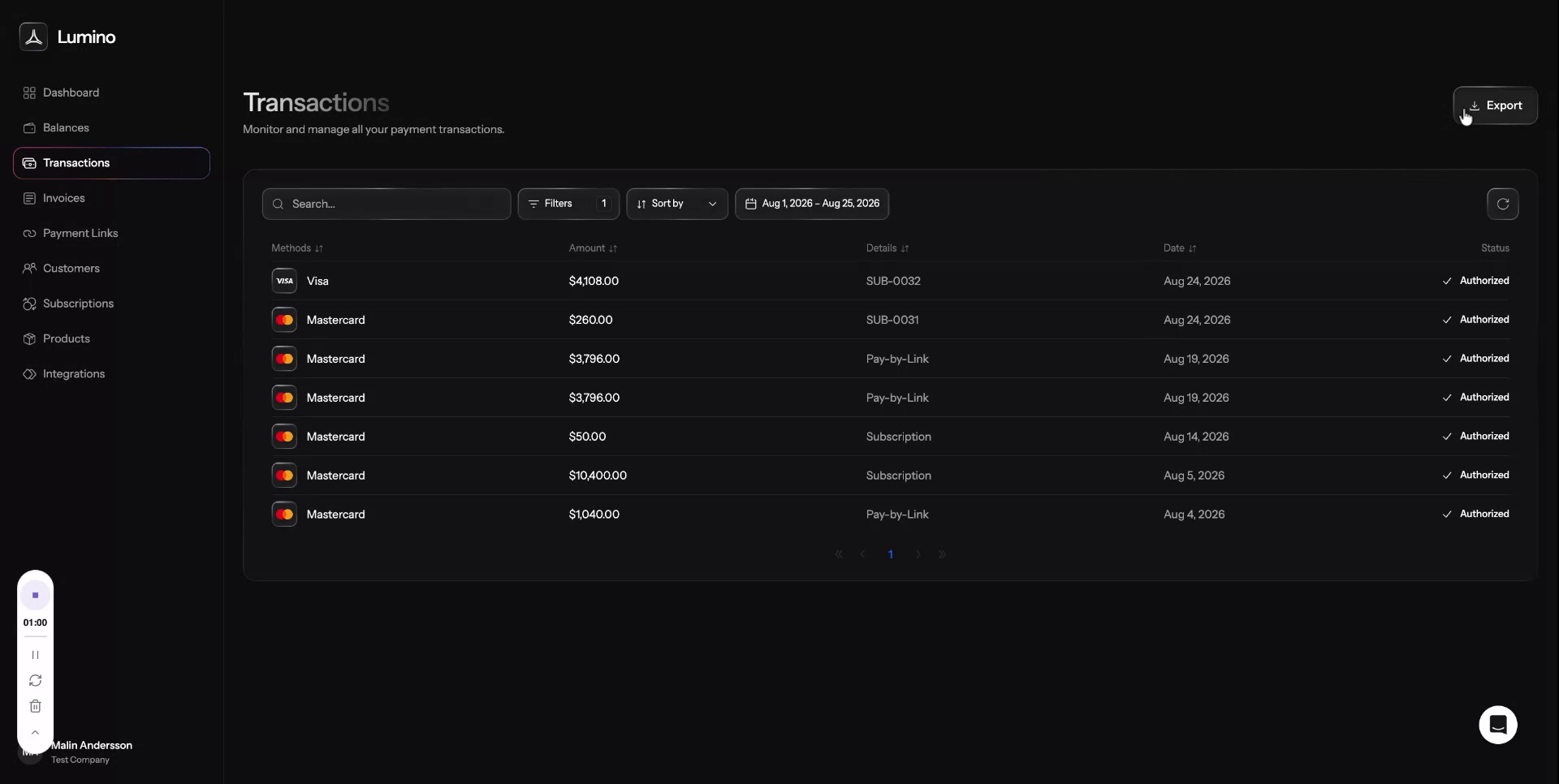
Choose your preferred export format, either CSV or PDF, and complete the export.