
Automate payments with Zapier
Send Lumino payment events to the tools your business uses
Step-by-step guide
What Zapier does with Lumino
Zapier connects Lumino payments to the tools your business already uses. A payment event in Lumino starts the Zap; the next step can update your accounting workflow, spreadsheet, CRM, or team notification automatically.
Lumino currently provides three Zapier triggers:
- New Payment — starts when a new payment is created.
- Updated Payment — starts when a payment status changes and includes both the previous and current status.
- Refunded Payment — starts for full and partial refunds and includes the refund amount, type, time, and reference.
Lumino provides triggers rather than actions. This means Lumino starts the workflow, and you choose what Zapier does next in another app.
What information you can use in a Zap
Each trigger includes the payment ID, current status, currency, payment method, last four digits, payment time, and customer contact details when they are available. New and updated payments also include gross amount, net amount, and processing fees.
The latest Lumino fields give your workflow more context:
- Products — product names, IDs, quantities, and whether each item is standard or an add-on.
- Payment source — whether the payment came from a payment link, invoice, subscription, or another source.
- Payment details — payment-link name and whether dual pricing was used.
- Invoice details — invoice number when the payment belongs to an invoice.
- Installments — the current installment number and total installment count.
- Status changes — the previous status and current status on Updated Payment triggers.
- Refund details — full or partial refund type, refund amount, refund time, and refund reference.
You can map only the fields your workflow needs.
Useful workflows to start with
- Add each new payment and its products to Google Sheets for daily reconciliation.
- Send invoice payments to QuickBooks or Xero with the invoice number attached.
- Update a customer or deal in your CRM when a payment status changes.
- Notify your team in Slack when a payment succeeds, fails, is disputed, or is refunded.
- Route subscription installments differently from one-time payment-link sales.
- Create a separate follow-up when a refund is partial rather than full.
Connect Zapier to Lumino
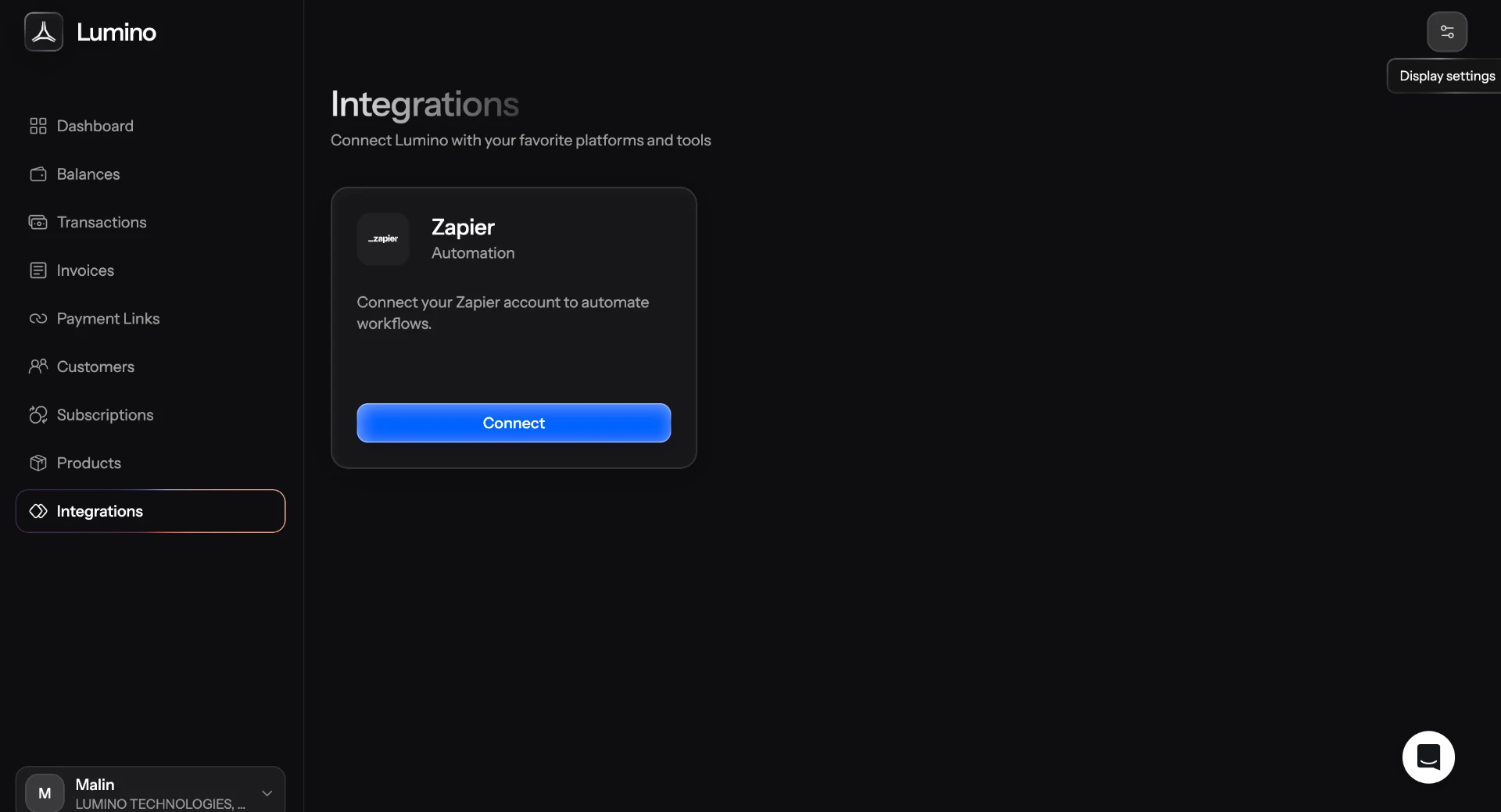
- Open Integrations in Lumino and select Connect on the Zapier card.
-
Open API keys in Lumino and copy your API key. Treat it like a password and do not place it in a spreadsheet, message, or public document.
-
In Zapier, create a Zap, choose Lumino as the trigger app, and paste the API key when Zapier asks you to connect your Lumino account.
-
Choose New Payment, Updated Payment, or Refunded Payment as the trigger. Pick the event that matches the moment your workflow should begin.
-
Test the trigger. Zapier will retrieve a recent matching payment when one is available, or provide sample payment data so you can continue setting up the workflow.
-
Choose the app that should receive the information, then map the Lumino fields you need. For example, map the invoice number into accounting software or the product names and quantities into a spreadsheet.
-
Test the complete workflow, check that the information reaches the correct fields, and publish the Zap.
After the Zap is on, matching payment events are sent automatically. If you no longer need the workflow, turn the Zap off in Zapier.